
Keyboard-shortcut writer
You write and rearrange lots of lines of verse, and want to navigate, select and format without constantly reaching for the mouse. Compare the actual keyboard layout with the shortcuts in your app.


Start with the writing app you need, then test its keyboard shortcuts on the laptop’s physical keyboard layout. A Windows laptop or MacBook is suitable for the Scrivener desktop versions we looked at; a Chromebook may work for writing in Google Docs if you set up offline access in advance. Then choose a screen size and ports to suit your writing setup, and always check the exact configuration.
You write and rearrange lots of lines of verse, and want to navigate, select and format without constantly reaching for the mouse. Compare the actual keyboard layout with the shortcuts in your app.
Your manuscript and workflow depend on a particular app, such as the desktop version of Scrivener or Word. So, first check that the app is compatible with the operating system.
You also write on the go or without reliable internet access. Compare the laptop’s size and power requirements, and set up offline access to your documents in advance.
A good fit if: you want to use Word for Windows with customisable keyboard shortcuts, or need Scrivener for Windows.
Bear in mind: keyboard shortcut options can differ between Word for Windows, Word for Mac and the web version, according to Microsoft Support.
A good fit if: you want to use macOS and the Mac version of your writing app, and are looking for a compact writing computer.
Bear in mind: keyboard shortcuts are not necessarily the same as those on Windows. Also check the ports and included power adapter for the configuration.
A good fit if: you mainly write in Google Docs and the shortcuts you need work there.
Bear in mind: you’ll need to set up offline access in advance. The Scrivener desktop downloads we looked at are for macOS and Windows, not ChromeOS.
Microsoft Support and Google Docs Editors Help note that keyboard shortcuts can vary by keyboard layout, language or platform. So test the tasks you use most with the app and keyboard layout you plan to use.
| What to consider | What should you check? | Who is this important for? |
|---|---|---|
| Keyboard and shortcuts | Check the physical layout and test navigating, selecting and formatting in your writing app. | If I select and move lots of lines of verse, I want to know whether the key combinations work on my keyboard; around 36% of consumers say the keyboard and shortcuts are their top priority. |
| Writing software | Check which app version you need and whether it works with the operating system on the exact laptop you’re considering. | My existing app determines how I edit my manuscript, so I want to know before buying whether it will work on the system I choose; around 29% of consumers say software compatibility is their top priority. |
| Portability and offline access | Compare the size and ports of the configuration, and make the documents you need available offline in advance. | If I write in different places, I want to be able to open my files and take my laptop with me easily; around 21% of consumers say portability and offline writing are their top priorities. |
| Recovering your manuscript | Check where your project and recovery copy are saved, and whether that copy is stored somewhere other than your laptop. | For a long-running manuscript, I want a recovery copy in case my laptop is lost; around 14% of consumers say protecting their manuscript is their top priority. |
Key combinations can vary by layout, language or platform, so a familiar task may work differently on another keyboard.
Check the physical layout and try your most-used shortcuts in the writing app you plan to use. Microsoft Support and Google Docs Editors Help explain these differences.
The Scrivener desktop downloads we looked at are for macOS and Windows, not ChromeOS. So ChromeOS may not suit a workflow that depends on that desktop app.
Choose ChromeOS only if a browser-based workflow meets your needs and the shortcuts you need work there. Literature & Latte lists the supported desktop versions.
According to Literature & Latte, Scrivener’s automatic backup is stored in a folder on your computer. A copy on the same laptop is not the same as a separately stored one.
Keep a recovery copy in another physical location or in the cloud, too.
The Joybuy MacBook Air configuration we looked at did not list a charger. That does not automatically apply to other configurations.
Check what’s in the box for the exact configuration before deciding what you need.
You may need to arrange a suitable charger separately for that configuration; first check exactly what’s included.
These examples cover specific models or product ranges. Check the specifications of the configuration you’re considering; the brand name alone won’t tell you which configuration you’ll get.
A Windows option to compare if you’re looking for a 14-inch writing setup.
A compact macOS option for anyone who wants to use the Mac version of their writing app.
A ChromeOS option for a workflow based on Google Docs.
A Windows configuration to compare for a 14-inch writing setup.
Another 14-inch Windows option for comparing the display and keyboard side by side.
These laptops are options to compare for keyboard, screen size and Windows writing software. Check which specifications and software are included with each configuration.
 No image available
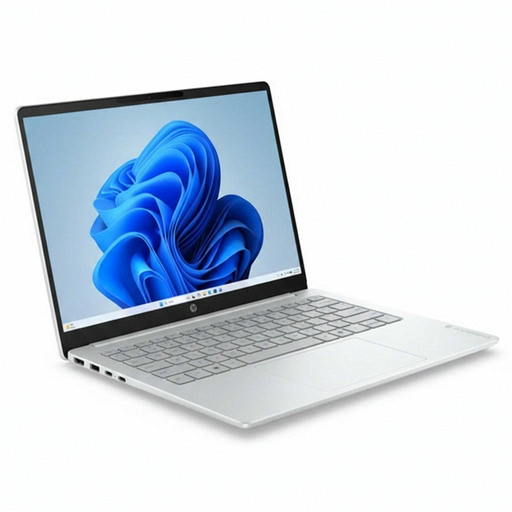
A Windows configuration to consider if you use Word for Windows or Scrivener for Windows; check the physical keyboard layout for your shortcuts.
Intel Core 3 304, 8 GB RAM, 512 GB SSD and Windows 11 Home. Colour: Glacier Silver / Canvas Gray.
 No image available
A Windows laptop to compare if your writing app runs on Windows; try the shortcuts on this configuration’s keyboard layout.
AMD Ryzen 5 7520U, 8 GB RAM, 512 GB SSD and Windows 11 Home. Colour: Glacier Silver / Canvas Gray.
 No image available
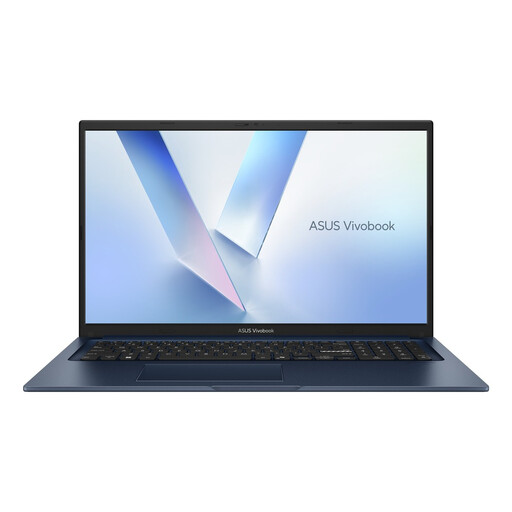
The 17.3-inch size may appeal if you want a larger screen for writing; bear in mind its size when taking the laptop with you.
Core 5 320, 8 GB RAM, 256 GB SSD and QWERTY keyboard. Colour: Quiet Blue.
 No image available
A backlit keyboard may be useful if you sometimes write in low light; also check that the rest of the configuration is suitable for your software.
16 GB DDR4 RAM, 512 GB SSD, 3050E processor and backlit keyboard.
 No image available
A Windows configuration to compare if you’re looking for a 14-inch laptop; check that its keyboard works with the shortcuts in your writing app.
Intel Core 7 150U, 16 GB DDR4, 512 GB SSD, Full HD IPS-level display, backlit keyboard and Windows 11 Home. Colour: Platinum Grey.
Start by choosing the operating system that supports the writing app you need. For the Scrivener desktop downloads we looked at, Literature & Latte lists macOS 11+ and 64-bit Windows 10+; Google Docs supports keyboard shortcuts on ChromeOS, among other platforms. Then test the shortcuts on the keyboard layout you’ve chosen.
Set up offline access in advance and check that the document you need is available offline before you leave. You’ll need to arrange offline access ahead of time.
Keep a separate recovery copy as well. Literature & Latte describes Scrivener’s automatic backups as being stored in a folder on your computer, and recommends keeping another copy elsewhere or in the cloud.
Check whether the exact laptop configuration includes a suitable charger and whether your writing app requires a separate licence. Literature & Latte lists separate Scrivener licences for macOS and Windows; what’s included with a charger can vary by configuration.
According to ACM ConsuWijzer, online purchases generally come with a statutory 14-day cooling-off period from the day after delivery, subject to applicable exceptions. You’re also entitled to a legal guarantee for as long as you could reasonably expect the product to work properly under normal use; a commercial manufacturer’s warranty does not replace this statutory right.