What should you look for?
First decide whether you want to use the laptop screen with one external monitor or connect two external monitors. Then check your school’s software requirements, before deciding how much screen space and portability suit your workspace.
| What to consider |
What should you check? |
Who is this most important for? |
| Connecting to a monitor |
Check the video output on the exact laptop configuration, the input on your monitor, and whether the cable or dock supports video. |
I want to see teaching resources and my timetable at the same time, and need to make sure my existing monitor will connect properly. Around 29% of consumers say a suitable monitor connection is their top priority. |
| School software and device management |
Before choosing an operating system, ask which applications, accounts and device management system your school requires. |
I need to use the prescribed teaching software and school accounts, so compatibility matters more than my preferred operating system. Around 29% of consumers put school compatibility first. |
| Carrying and connecting your laptop |
Compare the laptop’s size with how often you move it, and check which adapter or power supply you’ll need at other workspaces. |
I move between classrooms and don’t want to carry unnecessary equipment. A compact size may matter more than having extra screen space built in. Around 21% of consumers say portability is their main priority when choosing. |
| Reading space and workspace |
Compare the screen space with the room available on your desk, and check that you can position and adjust the external monitor to suit you. |
I often work with documents and resources side by side at a fixed desk and want plenty of space to read. Around 21% of consumers give work comfort and screen space top priority. |
Joybuy laptops for an external screen
These Joybuy laptops list an HDMI or Mini-HDMI connection for use with an external screen. Before buying, check that the school software, exact display configuration and connection suit your workspace.
 No image available
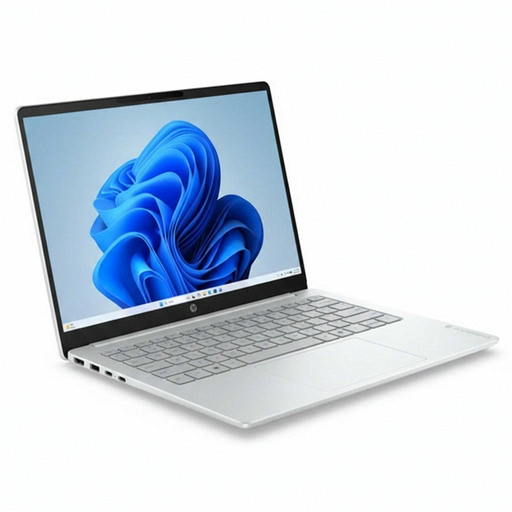
HP OmniBook 3 AI PC 14-ht0013nd
The listed HDMI output makes this configuration worth considering for using the laptop screen alongside one external monitor. Check that the software meets your school’s requirements.
14-inch IPS screen with 1920 × 1200 resolution; Intel Core 3 304; 8 GB of memory; 512 GB SSD; Windows 11 Home.
Joybuy
 No image available
HP OmniBook 3 16-by0058ndx
The HDMI connection and larger built-in screen may suit lesson documents alongside an external monitor. Check which software you need before buying.
16-inch IPS screen with 1920 × 1200 resolution; AMD Ryzen 5 7520U; 8 GB of memory; 512 GB SSD; Windows 11 Home; HDMI 2.1 and USB-C with DisplayPort Alt Mode. According to the product description, a charger isn’t included.
Joybuy
 No image available
Thunderobot 16 Gaming Laptop, i7-14700HX, RTX 5070
The listed HDMI port makes this laptop worth considering if you want to view teaching materials on the built-in screen alongside an external monitor. Check that the size and operating system suit the way you’ll use it.
16-inch IPS screen with 2560 × 1600 resolution; 32 GB of memory; 1 TB SSD; HDMI.
Joybuy
 No image available
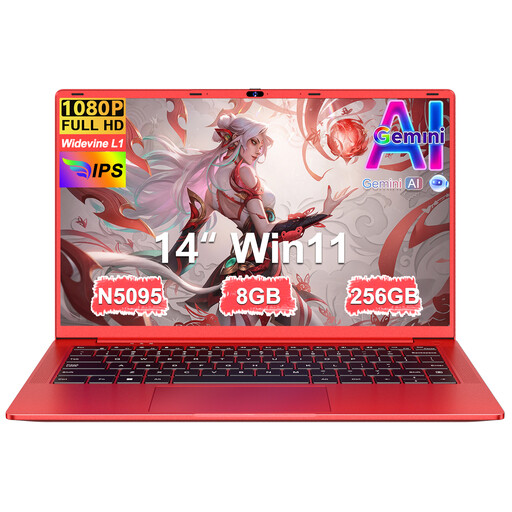
Ruzava 14-inch laptop with N5095 processor
The product title lists Mini-HDMI for connecting an external screen. Check that your cable or monitor connection is compatible and that the school software works with this configuration.
14-inch FHD screen; N5095 processor; 8 GB of memory; 256 GB SSD; Mini-HDMI.
Joybuy
 No image available
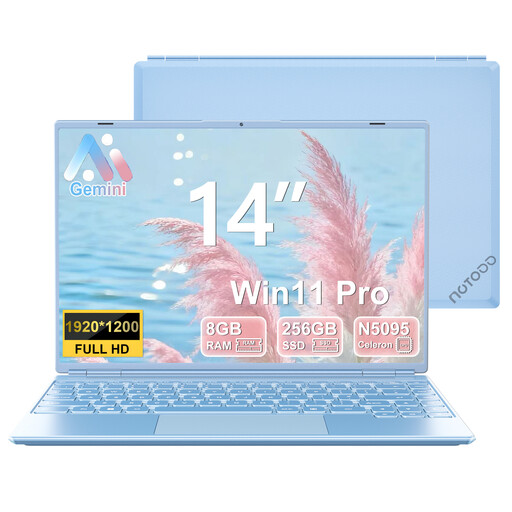
NOTODD 14-inch laptop with Celeron N5095
The listed Mini-HDMI connection may suit a laptop-and-external-monitor setup. Check that it works with your cable and that Windows 11 meets your school’s requirements.
14-inch screen with 1920 × 1200 resolution; Celeron N5095; 8 GB of memory; 256 GB SSD; Windows 11; Mini-HDMI.
Joybuy
Frequently asked questions
How can I split lesson resources and a timetable across two screens?
Connect the monitor, choose the extended desktop option in your display settings, then arrange the screens to match their positions on your desk. Microsoft Support explains how to identify and move displays in Windows; Google explains the separate display settings for Chromebooks.
Can I use two external monitors alongside my laptop screen?
It depends on the exact model and connection combination. Apple specifies that the MacBook Air M5 supports up to two external displays alongside its built-in screen; Lenovo lists support for multiple independent displays on the ThinkPad E14 Gen 7, with differences between configurations. Check your intended dock, cables and monitors too.
Does a teacher need to be able to use a separate keyboard or screen?
According to Arboportaal, an employee who works with a display screen for more than two hours a day must be able to use a screen and keyboard that aren’t attached to each other. When using a laptop, the employee must therefore be able to use a separate screen or keyboard. This requirement doesn’t automatically apply to everyone buying a laptop.
Who should I contact if my laptop develops a fault?
For a consumer purchase, contact the seller if a product doesn’t meet legal requirements. The Dutch Government explains that buyers are entitled to a product that works properly and that the seller must provide a solution if there’s a problem. If you’re buying on behalf of a school, check which contract terms apply.
Can I store pupils’ personal data on a laptop I’ve bought myself?
You can’t decide this based on the laptop model alone. First ask what your school allows and what access and security measures are required. The Dutch Data Protection Authority explains that schools must be able to demonstrate technical and organisational measures for protecting personal data. Kennisnet covers the choice between managed and unmanaged devices.


