
For someone preparing lessons with a monitor at home
You want to view source text and exercises at the same time, and check whether your existing monitor can connect to your laptop.


If you want to use your laptop screen with one existing monitor, choose a laptop with a video output that matches your monitor’s input, then check the screen space, RAM and software. To use two external monitors at once, check support for the exact laptop configuration and the cables or dock you’ll need. Lenovo says the ThinkPad E14 Gen 6 AMD supports up to three external displays alongside its built-in screen, while Apple says the MacBook Air M5 supports up to two.
You want to view source text and exercises at the same time, and check whether your existing monitor can connect to your laptop.
You take your laptop with you and weigh portability against the space available on its built-in screen.
You want to keep text, teaching materials and a document open at the same time, so consider the RAM and how you’ll arrange your screens.
First decide whether you mean the laptop screen plus one external monitor, or two external monitors alongside the laptop screen. Then choose based on the connections available on the exact laptop configuration. If you often work in different places, you may also want to consider the size of the built-in screen.
| What to consider | What to look for | Who is this important for? |
|---|---|---|
| Connection to the second screen | Check whether HDMI or USB-C video is supported on the exact configuration, and compare the connection with your monitor’s input. | If I want to use my existing monitor alongside my laptop screen, the video connection needs to be compatible. Around 33% of consumers rank monitor connectivity as their top requirement. |
| Working with text and exercises at the same time | Consider how many windows you use at once. The Consumentenbond says 8 GB of RAM is enough for light use and recommends 16 GB where possible if you run several programmes at once. | If I want to keep source material and an exercise open side by side, the available screen space matters. Around 27% of consumers prioritise reading and writing at the same time. |
| Taking your laptop between workspaces | Compare the size and weight with how often you work without an external monitor, and take the connections available in your different workspaces into account. | If I regularly take my laptop with me and don’t have a second screen everywhere, I weigh portability against the built-in screen. Around 20% of consumers make portability their top priority. |
| Educational software and pupil data | Check which operating systems your applications support and what rules your school follows for accounts and pupil data. The Dutch Data Protection Authority sets out schools’ obligations; it does not require a particular laptop model. | If my work depends on specific educational software or my school’s procedures, I check those requirements in advance. Around 20% of consumers prioritise software or data requirements. |
Manufacturers specify display support for each port and sometimes for each configuration. So, the presence of USB-C alone doesn’t tell you whether that port can send a picture to your monitor.
Check the specifications for the exact laptop configuration and compare its supported output with your monitor’s input.
Depending on the connection, you may need a different cable, adapter or dock.
Your laptop screen and one external monitor give you two screens. Using two external monitors alongside the laptop screen requires support for three screens at once.
Before you buy, note how many external monitors you want to use at the same time and check the specifications for the exact model.
Two external monitors may require additional display or connection equipment.
When you buy as a consumer in the Netherlands, your statutory right to a product that meets reasonable expectations is separate from any manufacturer’s or extended warranty.
Think of an extended warranty as an extra service. Report any fault to the retailer and ask them to put it right.
The ThinkPad E14 Gen 6 AMD is worth considering if support for several external screens is important to you.
The Vivobook S 15 OLED M5506 has a larger built-in screen, giving you more room to work even without an external monitor.
The MacBook Air M5 could be a good fit if your educational software works with macOS and you connect your monitor via Thunderbolt or USB-C.
Below are laptops to consider when choosing a setup for reading practice across two screens. For each configuration, check the video output, monitor support and software you need.
 No image available
Could be a good fit if you’re looking for a laptop with a larger built-in screen and room to run several programmes at once. Check that its connections are compatible with your monitor.
The product details list a 16-inch FHD IPS screen, 16 GB DDR4 RAM, a 1 TB SSD, and USB-C and mini-HDMI connections. Check whether the port you want to use supports video output to your monitor.
 No image available
Could be a good fit if you use several programmes at once. Check in advance that the video connection is suitable for your external screen.
The product details list 16 GB DDR4 RAM, a 512 GB SSD, a 15.6-inch FHD IPS screen, and USB-C and HDTV connections. Check that the connection you choose supports video output.
 No image available
Could suit you if you’re looking for a 14-inch laptop to use with an external monitor. Check that it also supports the software and screen connection you need.
The product title lists a Full HD screen, Intel Core 7 150U, 16 GB DDR4 RAM and a 512 GB SSD. The product description lists HDMI and USB-C with DisplayPort, and a weight of 1,40 kg.
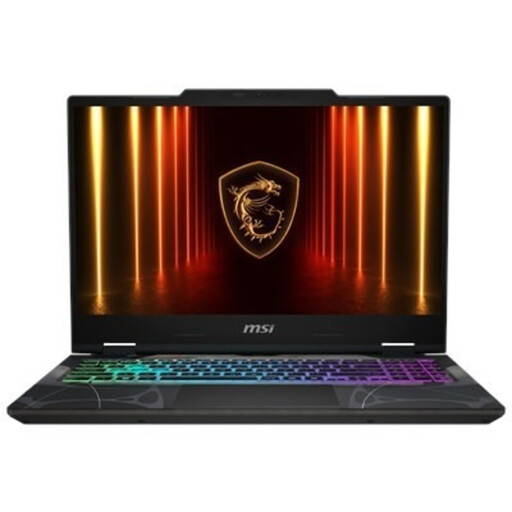 No image available
Could be a good fit if you’re looking for a 15.6-inch laptop and the listed HDMI connection is compatible with your monitor. Check the connections on the exact configuration.
The product title lists a 144 Hz Full HD screen and 16 GB DDR5 RAM. The product description lists HDMI 2.1 and Windows 11 Home.
 No image available
Could be a good fit if you want to use two external monitors at once. Check that your educational software works with macOS and what connections your monitors require.
The product description lists 16 GB of memory, a 15.3-inch screen and support for up to two external displays. A power adapter isn’t included; according to the description, you’ll need a USB-C adapter rated at 35 W or higher.
No. If you use your laptop screen as the first screen, you only need one external monitor for a two-screen setup. If you mean two external screens as well as your laptop screen, check how many external monitors the exact model supports at once.
Connect a compatible monitor, then choose your preferred layout in Windows display settings. Microsoft Support explains how to identify and arrange your screens.
Not necessarily. The Consumentenbond says 8 GB is enough for light use and recommends 16 GB where possible if you keep several programmes open at once. Choose based on the applications you use.
When you buy as a consumer in the Netherlands, you’re entitled to a product that meets reasonable expectations. According to the Dutch Government, the retailer must resolve problems with faulty goods. For distance sales, you’ll usually also have a 14-day cooling-off period, with some exceptions. For a business purchase, check the applicable terms separately.
If you process pupils’ personal data, schools have obligations under the Dutch Data Protection Authority’s guidance, including taking demonstrable technical and organisational measures. The procedures you need to follow depend on how the data is processed and your school’s policies; there is no general requirement to use a particular laptop model.