For viewing source material alongside a lesson plan, a laptop with a video output that matches your monitor is a good starting point. If you need two external monitors, you’ll also need to check the screen limit for the exact configuration. Lenovo PSREF lists support for up to four screens in total for certain ThinkPad E14 Gen 7 processor families, while Apple UK specifies up to two external displays alongside the built-in screen for the MacBook Air with M5. Portability, the available space on the laptop screen and the connections at your workspace will all help determine which configuration works for you.
Who is this guide for?
Teacher with a permanent monitor
You want to view a historical source and your lesson plan at the same time on your laptop and existing monitor. Microsoft Support explains how to use and arrange multiple displays, so check that the laptop’s output matches your monitor’s input.
Teacher who moves between classrooms and home
You take your laptop with you and connect it to different workspaces. Lenovo PSREF and Apple UK describe different connection options for each model, so compare the ports on your chosen configuration with the monitors you use.
Teacher who often works without a monitor
Sometimes you prepare lessons using only your laptop screen, and want enough room to view your sources and lesson plan. HP lists a 16-inch screen for the ProBook 4 G1i configuration B9YJ5ET#ABH. For other configurations, check the listed screen size and consider how well it suits the way you work.
What should you look for when choosing?
Laptop screen plus one monitor
A good fit if: you want to view a source on one screen and your lesson plan on the other.
Bear in mind: check that the laptop’s video output matches your monitor’s input. Microsoft Support explains how to use an extended desktop in Windows.
Two external monitors
A good fit if: you want to connect two separate monitors, perhaps alongside the laptop screen.
Bear in mind: Lenovo PSREF lists support for up to three external monitors alongside the built-in screen for certain ThinkPad E14 Gen 7 processor families. Apple UK lists support for up to two external displays for the MacBook Air with M5. Check the processor variant and the combination you want to use.
| Consideration |
What should you check? |
Who is this most relevant to? |
| Connecting a second workspace |
Check the video capabilities of the port on the exact configuration and your monitor’s input. Also decide whether you mean one or two external monitors. |
If I want to view sources and my lesson plan at the same time, the connection needs to match my monitor. Around 33% of consumers prioritise connecting to a permanent second monitor. |
| Planning in different workspaces |
Compare the laptop’s ports with the monitors at the places where you work. |
If you take your laptop between school and home, you won’t want to find that the connections are different at each workspace. Around 27% of consumers give moving between workspaces top priority. |
| Working without a monitor |
Consider how often you work without a monitor and compare the screen sizes of the specific configurations. |
If I sometimes work using only my laptop, I want enough room to view my source and lesson plan clearly. Around 20% of consumers prioritise space on the built-in screen. |
| Accessories and service |
Check which cables or adapters you already have and read the service terms for the specific configuration. |
If you’re considering your whole workspace and after-sales support, you’ll want to know in advance which connection you need and what service comes with the product. Around 20% of consumers make accessories and service their main consideration. |
Things to consider before buying
-
Assuming every USB-C port supports video
The presence of a USB-C port alone doesn’t confirm that it can send video to your monitor.
Check the documented video capabilities of the port on the exact laptop configuration against your monitor’s input.
Depending on the combination, you may need a different cable or adapter.
-
Assuming one external monitor means support for two
Using the laptop screen plus one external monitor is a different set-up from using two external monitors. Support for the first set-up doesn’t automatically confirm support for the second.
Count the built-in screen and external monitors separately, and check the specifications for the exact configuration. Lenovo PSREF and Apple UK list screen limits for specific product families and models.
Your set-up may also require a compatible dock or a different configuration. Check this alongside the port and screen limits.
-
Confusing manufacturer service with your statutory rights
A manufacturer’s service period isn’t the same as your statutory rights if a product is faulty. The Dutch Government states that there is no fixed statutory guarantee period in the Netherlands, and that the retailer is your point of contact if a product is faulty.
Check any additional service terms separately and keep your proof of purchase.
Brands to compare
Lenovo
The ThinkPad E14 Gen 7 (Intel) may be worth considering if you want to use the built-in screen alongside external monitors.
- Lenovo PSREF lists support for up to four independent screens in total for certain processor families: the built-in screen plus three external monitors.
- Ports vary by configuration, so check the processor variant and connections on the specific model.
Apple
The 13-inch MacBook Air with M5 is a compact macOS option for working on the built-in screen and with external displays.
- Apple UK specifies support for up to two external displays while the built-in screen remains active.
- Check that the Thunderbolt 4/USB-C port suits your monitor, and that the software you use for school is compatible with macOS.
HP
The HP ProBook 4 G1i may be worth considering if you’re looking at a configuration with a larger built-in screen.
- HP’s Dutch product page lists a 16-inch screen and two years of collection and return service for configuration B9YJ5ET#ABH.
- For the exact configuration, check how many external displays it supports and which connections it has. Consider the service terms separately from your statutory rights.
Dell
The Dell Pro 14 PC14250 is a 14-inch business laptop range listed on Dell’s Dutch online shop.
- The model name and product range give you a specific configuration to compare if you’re looking for a 14-inch laptop.
- Check the connections and the number of supported external displays for your chosen configuration.
Joybuy laptops to compare
These Joybuy laptops are options to compare for preparing lessons on the built-in screen. For each exact configuration, check that the video outputs match the monitors you want to use.
 No image available
ASUS ROG Zephyrus G16 GU605CM-QR026W
An option to compare if you want to connect an external monitor. Check that the connections suit your workspace.
16-inch screen; Intel Core Ultra 9 285H; RTX 5060; 16 GB RAM; 1 TB SSD. Listed connections include HDMI 2.1 FRL and Thunderbolt 4 with DisplayPort.
View on Joybuy
 No image available
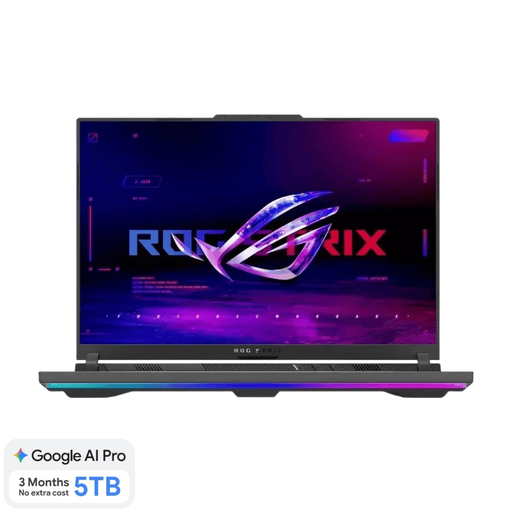
ASUS ROG Strix G16 G614FR-S5252W
A 16-inch option to compare if you also prepare lesson materials on the built-in screen.
16-inch screen; AMD Ryzen 9 9955HX; RTX 5070 Ti; 16 GB RAM; 1 TB SSD.
View on Joybuy
 No image available
HP OmniBook 3 14-hy0058ndx
A 14-inch option to compare if you take your laptop between workspaces. Check that the HDMI output matches your monitor.
14-inch screen with 1920 × 1200 resolution; HDMI 2.1 output; approximately 1.42 kg. No charger is included.
View on Joybuy
 No image available
ASUS Vivobook S16 S3607QA-SH109W
An option with a 16-inch built-in screen to compare if you prepare lessons without an external monitor.
16-inch WUXGA OLED screen; Snapdragon X processor; 16 GB LPDDR5X; 512 GB SSD; Windows 11 Home.
View on Joybuy
 No image available
MSI Modern 14 F1MG-867NL
An option to compare if you’re looking for a 14-inch laptop with connections for an external monitor.
14-inch Full HD screen; HDMI and USB-C with DisplayPort; Intel Core 7 150U; 16 GB DDR4; 512 GB SSD; approximately 1.40 kg.
View on Joybuy
Frequently asked questions
Does using two screens always mean using two external monitors?
No. Using the laptop screen plus one monitor is a different set-up from using two external monitors. If you want to use two separate monitors, check how many external displays the manufacturer supports for the exact configuration.
How do you show a source and your lesson plan on separate screens in Windows?
Connect the monitor, select the extended display option and arrange the screens in Windows display settings. Microsoft Support recommends testing the screen arrangement. If you have connection problems, also check the video capabilities of the port and adapter.
Do you need an adapter or dock for your monitor?
It depends on the video output on your chosen laptop configuration and the input on your monitor. Compare these connections with the cables and adapters you already have before deciding whether you need anything else.
Are you always entitled to exactly two years’ statutory guarantee on a laptop in the Netherlands?
No. The Dutch Government states that there is no fixed statutory guarantee period in the Netherlands: a product should last as long as you can reasonably expect it to. If there’s a fault, the retailer is your point of contact. A manufacturer’s guarantee is separate from this statutory right. This applies to purchases made as a consumer.


