What should you look for when buying?
First check that the laptop can use its own screen and the classroom screen independently. Then compare workspace, portability and what you’ll need for the complete setup.
| What to consider |
What should you check? |
Who is this important for? |
| Two independent screens |
Check the video output on the exact configuration, the input on the classroom screen and support for extended display mode. |
I want to keep my notes on my laptop and show the class only the slides. Around 36% of consumers prioritise independent display output. |
| Workspace for slides |
Compare screen sizes and consider whether you can comfortably work with your slides, reference materials and notes side by side. |
If I want to refer to teaching materials alongside my slides, usable space on the laptop screen matters. Around 29% of consumers give workspace the highest priority. |
| Moving between classrooms |
Check which cable or adapter the rooms you use require, and consider this alongside the screen size. |
I take my laptop to different classrooms and want to be able to connect it each time. An estimated 21% of consumers prioritise portability and connectivity. |
| Complete setup and aftercare |
Find out which connection accessories are included, which software you can use and who to contact if something goes wrong. |
I want to know in advance what my complete presentation setup requires and what to do if I have a problem. Around 14% of consumers put costs and aftercare first. |
Laptops available at Joybuy
These laptops are suited to editing lesson slides on your own screen. For the exact configuration, check that its video connection and display support work with the classroom screen and software you use.
 No image available
HP OmniBook 5 Flip 14-fp0075nd C5VM5EA#ABH
A 14-inch model to consider if you’re looking for a laptop for lesson slides. Check the connection for the classroom screen on the exact configuration.
This configuration requires a compatible USB-C charger of at least 45 W, which isn’t included.
View at Joybuy
 No image available
HP OmniBook 3 14-hy0058ndx — Ryzen 5 7520U, 8 GB, 512 GB SSD
A 14-inch configuration to compare if you want to edit slides on the laptop’s own screen. Check which connection you’ll need for the classroom screen before buying.
This laptop is supplied without a charger.
View at Joybuy
 No image available
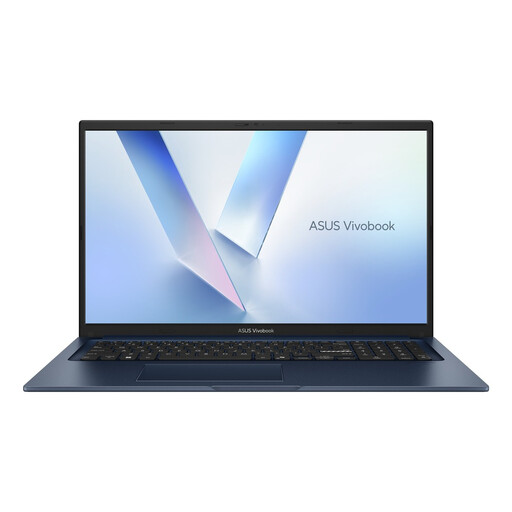
ASUS Vivobook 17 X1704MA-AU153W — Core 5 320, 8 GB, 256 GB SSD
The 17.3-inch screen is worth comparing if you’d like a larger built-in display for working on teaching materials. Check the connections on this exact configuration to make sure they suit your setup.
The product name specifies a QWERTY keyboard.
View at Joybuy
 No image available
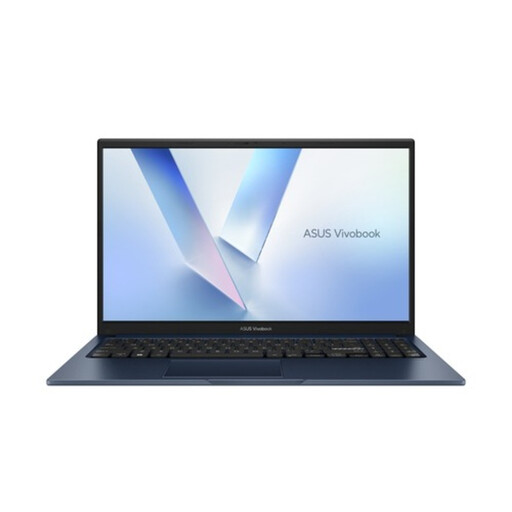
ASUS Vivobook 15 X1504MA-BQ534W — Core 5 320, 8 GB, 256 GB SSD
The 15.6-inch screen could be a good option if you want to edit slides on the laptop’s own display. Before buying, check that the connections work with the classroom screen you use.
The product name specifies a QWERTY keyboard.
View at Joybuy
 No image available
Lenovo IdeaPad Slim 3 14AHP10 — Ryzen 7 8840HS, 16 GB, 1 TB SSD
A 14-inch configuration to compare if you edit teaching materials on the built-in screen. Check that the video output on this exact configuration is compatible with the room.
The product name specifies a QWERTY keyboard.
View at Joybuy
Frequently asked questions
How can you keep speaker notes on your laptop while showing the class only the slides?
Connect the classroom screen, set the displays to extend and use Presenter View in PowerPoint. Before the lesson, check which screen is showing the slides. If the displays are the wrong way round, you can switch the presentation and Presenter View.
Will any USB-C dock automatically work with a second screen?
No. HP says that, for the full video and data features of an HP dock, the laptop must support DisplayPort Alt Mode, a compatible Thunderbolt mode or USB4 over USB-C. Check the requirements for both the exact laptop and the dock you choose.
If you’re an employee who works with screens for long periods, should you be able to use additional workstation equipment?
According to the Dutch Arboportaal, employees who work with screens for more than 2 hours a day must use a screen and keyboard that aren’t attached to each other. If they use a laptop, they must be able to use a separate screen or keyboard. Whether this rule applies to you depends on your work and how long you use the equipment; it isn’t a general minimum requirement for every laptop you buy.
What rules apply to cooling-off periods and warranties when buying online in the Netherlands?
ACM ConsuWijzer states that, where the statutory cooling-off period applies to an online purchase, it ends 14 days after delivery. Check the terms and exceptions that apply to your purchase. If a product doesn’t perform as you could reasonably expect during normal use, the seller is responsible under the statutory warranty. A manufacturer’s warranty period doesn’t automatically limit this statutory right.
Is PowerPoint for school included with the laptop?
You can’t tell from the laptop specifications. Microsoft describes Microsoft 365 for education as subscription plans that include apps and have separate system requirements. Ask your school which licence and app version you can use, then check that they’re compatible with the laptop.


