What should you look for?
First, count the laptop screen and decide how many separate screens you want to use at the same time. Then choose a laptop and, if needed, a dock to suit your setup and development software.
| What to consider |
What should you check? |
Who is this important for? |
| Screen setup |
Make a note of how many screens need to be active at once. Then check the model specifications, resolutions and the intended cable or dock connection. |
If I want to use my editor and terminal on separate screens, I need to be sure they’ll all work at the same time. Around 36% of consumers give having the right screen setup top priority. |
| Development environment |
Check the system requirements for your editor, runtimes, testing tools and any container software on your chosen operating system. |
If you want to run several development processes or containers locally, you’ll want to know whether the laptop and software you’ve chosen suit your workflow. Around 29% of consumers put their development workflow first. |
| Screens on the move |
Decide whether you need two physical screens in different locations, and see whether the built-in screen and keyboard layout work for you. |
If I want to work with two screens in different places without a separate monitor, I’ll look for a laptop with two built-in displays. Around 21% of consumers prioritise this mobile setup. |
| Complete setup |
Check which monitors, cables or docks you still need, and what’s included with the specific configuration. |
If you want to put together a complete workspace, you’ll want to know in advance which extra components you need. Around 14% of consumers put the complete setup ahead of other considerations. |
Laptops on Joybuy
These laptops are worth considering for command-line development using the laptop screen and one or more external monitors. Check that the connections on each model suit your screen setup.
 No image available
ASUS Vivobook S16 S3607QA-SH109W, 16-inch WUXGA OLED
An option to consider for a development workflow with several apps open.
Snapdragon X processor, 16 GB LPDDR5X, 512 GB SSD and Windows 11 Home.
Joybuy
 No image available
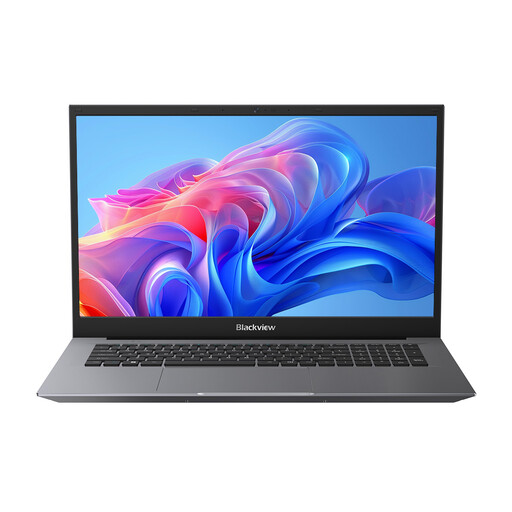
Blackview AceBook 10, 18.5-inch LCD
This configuration is suited to a workspace with an editor and terminal, plus one external screen. Check that the intended video connection is compatible with your monitor.
Intel Pentium Silver N6000, 16 GB DDR4, 512 GB SSD and Windows 11 Pro. The listed connections are HDMI and USB-C.
Joybuy
 No image available
Apple MacBook Air 15-inch M5, 16 GB, 512 GB, Starlight
An option for anyone wanting to use two external displays alongside the built-in screen. Check which combinations your monitors support.
M5 chip, 16 GB memory, 512 GB SSD and a 15.3-inch screen. The power adapter isn’t included; a suitable USB-C adapter is sold separately.
Joybuy
 No image available
Apple MacBook Pro 14-inch M5 Pro, 24 GB, 1 TB, Space Black
An option to compare for a development workflow with several processes and up to two external displays. Check the screen combination you need.
M5 Pro chip, 24 GB unified memory, 1 TB SSD, HDMI and three Thunderbolt ports.
Joybuy
 No image available
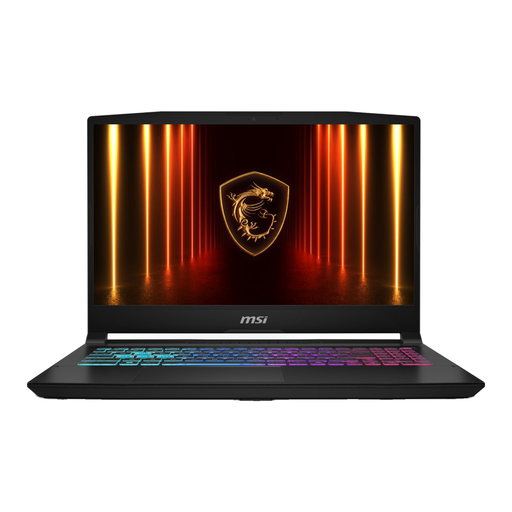
MSI Cyborg 15 B13WFKG-804NL, 16 GB, 512 GB
This configuration is suited to a workspace with an editor and terminal, plus one external screen. Check that HDMI is suitable for the monitor you want to use.
Intel Core i7-13620H, GeForce RTX 5060, 16 GB DDR5, 512 GB SSD and a 15.6-inch Full HD screen. The power adapter isn’t included and must be purchased separately.
Joybuy
Frequently asked questions
Are two USB-C ports enough for two external monitors?
No, the number of USB-C ports alone doesn’t prove that. Check support for the exact laptop model, the resolution and refresh rate you want, and the capabilities of any dock you plan to use. Apple publishes supported combinations for the MacBook Air with M5; Lenovo PSREF specifies the video outputs for configuration 21Y60029ZA.
What should you check if you want to use containers?
Before buying, check the current installation requirements for your chosen container platform and operating system. Docker Docs describes different backends and separate system requirements for Windows; containers aren’t essential for every command-line tool.
Might a dock require software or extra permission?
It depends on the dock technology. DisplayLink explains that DisplayLink Manager on macOS needs screen recording permission to show extended displays through a DisplayLink device. This requirement doesn’t automatically apply to every direct display connection.
What are your rights when buying a laptop online in the Netherlands?
For eligible distance purchases, you’ll generally have a 14-day cooling-off period, according to the Dutch government. The statutory guarantee also applies: if a product doesn’t meet what you could reasonably expect under normal use, the seller must offer an appropriate solution, according to ACM ConsuWijzer. Check who the seller is and which terms and conditions apply to your order.


