
Designer using two external monitors
You want to spread your design, preview page and reference material across several screens. Check that the laptop supports your preferred screens at the same time and has the right connections.


First decide whether you’ll use the laptop screen with one external monitor, or connect two external monitors alongside the built-in screen. The number of screens supported at once and the connections you need will differ. For design work done mainly in a browser, a powerful dedicated graphics card isn’t necessarily essential; if you also edit images, consider your software’s requirements, memory and storage. Always check the full model specification, as screens, connections and memory can vary between versions.
You want to spread your design, preview page and reference material across several screens. Check that the laptop supports your preferred screens at the same time and has the right connections.
You work mainly in a browser, using the laptop screen and one monitor, and want enough room to work without automatically needing a workstation.
Alongside designing homepages, you use software for larger image files and want to match the memory, storage and screen to the applications you use.
First decide whether you’ll work with the laptop screen and one external monitor, or with two external monitors alongside the built-in screen. Then weigh up memory, screen and portability to suit your software and workspace.
| What to consider | What should you check? | Who is this important for? |
|---|---|---|
| Two screens at once | Check how many screens can be used at the same time with the exact model, and which cables or dock you’ll need. | If I want to view my design, preview page and references at the same time, my chosen setup needs to be supported. Around 36% of consumers say being able to use their preferred screen setup is their top priority. |
| Multiple applications | Compare the memory configuration with your software’s requirements. Adobe recommends at least 16 GB RAM for Photoshop 27.x. Also check whether the memory can be upgraded. | If you use design or image-editing software as well as a browser, you’ll want to know whether the configuration you choose can handle it. Around 29% of consumers prioritise working with multiple applications. |
| Screen for reviewing designs | Check the panel and resolution specifications for the full model code. A specification for a product range won’t necessarily apply to every version. | If I review colours and images on the laptop screen, I want to know the specifications of that exact version. Around 21% of consumers prioritise the screen they use to view their designs. |
| Working away from your usual spot | Compare the screen size and stated battery life with how you plan to use the laptop. The manufacturer’s figure isn’t a guaranteed working time. | If you take the laptop with you and don’t always have an external monitor, a built-in screen suited to your work can be useful. Around 14% of consumers say portability and working away from their usual workspace are their top priorities. |
A laptop may have several video connections without necessarily supporting your preferred combination of screens at the same time.
Check the maximum number of independent screens supported by the exact model, and make sure the connections are compatible with your monitors.
You may need a suitable cable or dock to connect the monitors.
The UX3405CA-QL535W is listed with a WUXGA OLED screen. ASUS also describes a 2880 × 1800 screen for the wider UX3405 range, but that specification doesn’t automatically apply to every version.
Check the screen specification against the full model code before choosing a laptop based on its resolution.
Figma is largely browser-based, while additional image-editing software has its own system requirements. So extra graphics power isn’t automatically necessary for every portfolio homepage.
First make a note of the applications and files you use, then compare their requirements with the specifications of the exact laptop version.
The MacBook Air with M5 is a macOS option for use with its built-in screen and external displays.
The Yoga Slim 7 14ILL10 is a Windows option with documented support for two external monitors alongside the built-in screen. The ThinkPad P14s Gen 6 is a separate, more powerful workstation range.
The Zenbook 14 OLED UX3405 is a compact Windows range with HDMI and Thunderbolt connections.
These laptops are options for design work where screen space, memory or storage matter. Check each model separately to see whether it supports your preferred external screen setup.
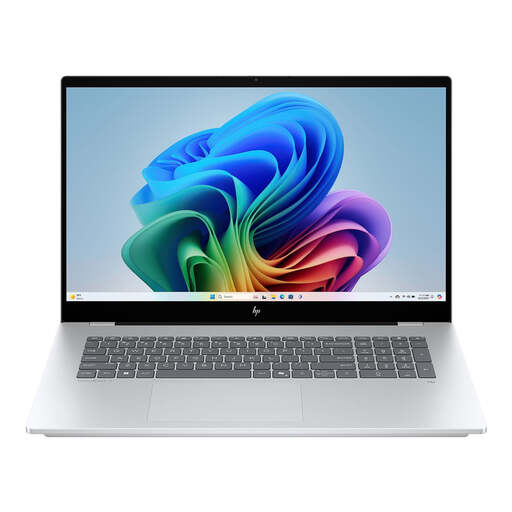 No image available
The 17.3-inch screen gives you a large built-in workspace. Check separately whether it supports your preferred external screens at the same time.
16 GB RAM, 1 TB SSD and a 17.3-inch IPS screen.
 No image available
The 14-inch OLED version is an option if you’re looking for a more compact built-in screen. Check separately that it supports your external screen setup.
16 GB RAM, 512 GB SSD and a 14-inch OLED screen. According to the product information, a charger isn’t included; a suitable USB-C charger of at least 45 W is required.
 No image available
The 17.3-inch IPS touchscreen version gives you a large built-in workspace. Check that it supports your external screens at the same time for your setup.
16 GB RAM and a 1 TB SSD.
 No image available
The 16-inch built-in screen may suit you if you want more workspace on the laptop itself. Check external screen support for this version separately.
16-inch WUXGA OLED screen, Snapdragon X processor, 16 GB LPDDR5X and 512 GB SSD.
 No image available
This version combines a 15.6-inch screen with memory and storage suited to design work. Check separately that it supports your preferred monitor combination.
15.6-inch Full HD screen, Intel Core i5-13420H, 16 GB DDR5 and 512 GB SSD.
Not based on Figma’s general system requirements alone: the Figma Help Center describes the software as largely browser-based. Check the requirements of any other software you use separately. This doesn’t mean every large Figma file will run equally smoothly on every laptop.
Look up support for simultaneous displays using the full model code, and check which ports you’ll need. For example, Lenovo lists the Yoga Slim 7 14ILL10 as supporting the built-in screen plus two external monitors via HDMI and Thunderbolt. Don’t rely on the number of ports alone.
Connect the monitors, check the cables, then use Windows settings to arrange the detected screens and choose a display mode. Settings can’t add a display output that the laptop or dock doesn’t support.
Adobe recommends at least 16 GB RAM for Photoshop 27.x. Compare this with the version you’re looking at, and check whether the memory can be upgraded if you want to use other programmes at the same time in future.