
Form builder with a fixed workstation
You want to view the contact form alongside an example or reference material. First decide whether you’ll use your laptop’s built-in screen with one external monitor, or whether you need two external monitors.


If you’re using your laptop screen alongside one external monitor, choose a laptop with a video output that matches your monitor. For two external monitors, the manufacturer must explicitly confirm that the exact laptop configuration supports both screens at the same time; the number of ports alone isn’t enough to tell you. Then consider the screen space and memory your open windows require, and check which cables, adapters or dock you’ll need.
You want to view the contact form alongside an example or reference material. First decide whether you’ll use your laptop’s built-in screen with one external monitor, or whether you need two external monitors.
You switch between a form, browser and other programmes as you work. So compare the memory and screen space available on the exact configuration. In its buying guide dated 14 August 2026, Consumentenbond recommends 16 GB where possible for running several programmes at once.
You use a monitor at home, but also want to work using just your laptop screen elsewhere. Weigh up the built-in screen and the connections you need against how you plan to carry your laptop.
Choose this set-up: if you want to see the form on one screen and an example or reference material on the other. Check that your laptop’s video output matches your monitor’s input and desired resolution.
Bear in mind: the usable space on the laptop display depends on its screen configuration.
Choose this set-up: if you want to use two separate monitors at a fixed workstation. Check with the manufacturer that the exact laptop configuration supports both at the same time, potentially alongside the built-in screen.
Bear in mind: the monitors, cables and any dock must work together with your laptop to support your desired set-up; counting ports alone isn’t enough.
| Priority | What to look for | Who is this important for? |
|---|---|---|
| Number of independent screens | Decide whether you want one external monitor alongside your laptop screen or two external monitors. Check the support offered by the exact configuration and the monitor connections. | If I want to put the form and example on separate screens, I need to know which set-up works at the same time. Around 36% of consumers put the number of independent screens first. |
| Space for windows | Compare the memory and built-in screen configuration with the programmes you use at the same time. | If you switch between a form, browser and other programmes while building, pay particular attention to how smoothly multiple windows run. Around 29% of consumers prioritise this. |
| Working without a monitor | Compare the screen size and resolution, and check that the connections suit your fixed workstation. | If I regularly continue working somewhere else, the built-in screen needs to provide enough workspace. Around 21% of consumers put mobile working without a fixed monitor at the top of their list. |
| Connections and accessories | Compare your laptop’s video outputs with your monitors’ inputs. Check whether cables, adapters, a dock and charger are included or needed. | If you want to use your laptop with monitors you already own, you’ll want to know in advance which connections and extra components you need. Around 14% of consumers give a complete set of connections top priority. |
A connection on the laptop doesn’t, by itself, tell you whether your monitors will work at the same time or at the desired resolution.
Before choosing connection accessories, compare the specifications of the exact configuration with your monitors’ inputs and resolutions.
Depending on your set-up, you may need a suitable adapter or dock.
Microsoft Support warns that a display splitter won’t extend your desktop to more than one independent external screen.
Check how many external screens the laptop supports at the same time, and choose connections that suit that set-up.
The monitor connections you need depend on your set-up. For HP configuration D4TM6EA#ABH, HP states that the charger is sold separately.
Before buying, check what comes with the configuration and make a list of any cables, power supply, adapter or dock you’ll need.
If the charger or necessary connection accessories aren’t included, you may need to buy them separately.
The ThinkPad E14 Gen 6 (AMD) is worth considering if you want to compare support for multiple independent screens.
The MacBook Air with M5 is worth considering if you want to use a Mac with its built-in screen and external monitors.
The 16-inch ProBook 4 G1i is worth considering if a larger built-in workspace matters to you.
These Joybuy products suit those looking for workspace on the built-in screen and, depending on the exact configuration, the option to use external monitors. Check screen support and connections before choosing a laptop for two external monitors.
 Image unavailable
An option to compare if you also want workspace on the built-in screen without an external monitor.
16-inch WUXGA OLED screen, Snapdragon X processor, 16 GB LPDDR5X, 512 GB SSD and Windows 11 Home.
 Image unavailable
Compare this configuration if you want to weigh the listed memory and storage against your needs when working with multiple windows.
16 GB DDR4 RAM, 512 GB SSD and a 3050E processor. The title also mentions a fingerprint reader and backlit keyboard.
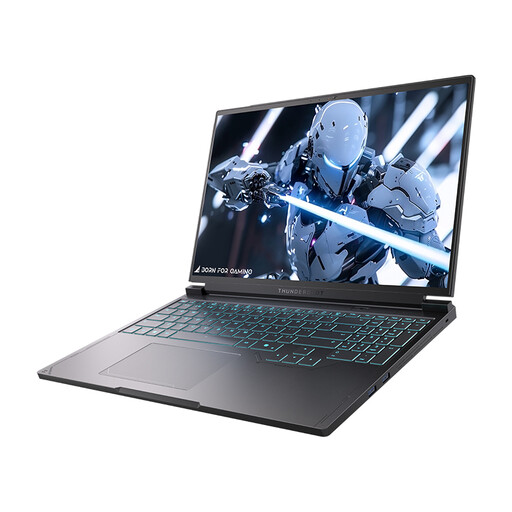 Image unavailable
An option to compare if a large built-in screen and the listed connections suit your workstation. Check that the exact configuration supports your monitor set-up.
16-inch QHD+ 240Hz screen, Core i7-13650HX, NVIDIA GeForce RTX 5060, 16 GB DDR5 RAM and 1 TB SSD.
 Image unavailable
An option if you want to compare a MacBook Air with M5 for a workstation with external monitors. Apple states that the MacBook Air with M5 supports up to two external displays; check the connections you need for your monitors.
15-inch configuration with M5, 16 GB memory, 512 GB storage and QWERTY keyboard.
 Image unavailable
Compare this configuration if you want to weigh the listed memory and storage against your needs when working with multiple windows. Before choosing, check whether the exact configuration supports your external monitor set-up.
14-inch configuration with M5 Pro, 24 GB memory, 1 TB storage and QWERTY keyboard.
Those are two different set-ups. First decide which one you want, then check how many external screens the manufacturer lists for the exact laptop configuration.
In display settings, choose the option to extend the displays and arrange them there. If a connected screen doesn’t appear, you can ask Windows to detect it in those settings, according to Microsoft Support.
No. Microsoft Support warns that a display splitter won’t extend your desktop to more than one independent external screen. Check which combination of external screens your laptop actually supports.
A manufacturer’s warranty doesn’t replace your statutory guarantee. ACM ConsuWijzer explains that if a product breaks sooner than you could reasonably expect under normal use, the seller must put it right free of charge—for example, by repairing or replacing it, or refunding your money.
For an online purchase in the Netherlands, ACM ConsuWijzer describes a statutory cooling-off period that ends 14 days after delivery. Check the applicable returns process and terms. Also check separately whether the laptop meets the features that were promised.