Start by choosing the document software you and any co-editors use. Windows, macOS and ChromeOS can arrange windows side by side, but that doesn’t automatically mean every feature you need will work in your document app. If you write at a desk, a larger built-in screen can be useful; if you regularly carry your laptop around, you’ll need to balance screen space against portability. For everyday text work, you won’t necessarily need a laptop designed for demanding gaming or video editing.
Who is this choice relevant to?
Writer working with two documents
You keep your draft guide and, for example, rehearsal notes open at the same time. Before opting for extra processing power, check how readable two windows are, how much screen space you need and whether the keyboard is comfortable to use. Microsoft Support, Apple Support and Google Chromebook Help explain how to put windows side by side.
Guide editor collaborating with others
You share drafts and comments with other choir members. Start with the document platform you’ve agreed to use, then check that it supports the features you need for comparing, collaborating and working offline. Google Help explains that you need to configure Google Docs in advance to use it offline.
Writer on the go
You take your laptop to rehearsals or write wherever you can find a place to work. Weigh screen space against the weight of the exact configuration, and check the conditions attached to the stated battery life. Apple publishes separate test conditions for the battery figures of MacBook Air models.
What should you look for when choosing?
First check whether your document app supports the comparison you need. Then choose the screen space, software and portability that suit the way you write.
Windows laptop
A good fit if: you use Windows programmes or want to compare two Word documents in a version where Microsoft documents this feature.
Bear in mind: Windows Snap arranges app windows, but it isn’t the same as Word’s separate feature for viewing documents side by side.
MacBook
A good fit if: you already use macOS and the apps you rely on support Split View.
Bear in mind: Apple says many Mac apps support Split View, but you should check your own apps. A larger screen gives you more physical space, but can be less convenient to carry around.
Chromebook
A good fit if: you create your guide mainly in a browser or Google Docs and want to arrange ChromeOS windows side by side.
Bear in mind: you need to configure Google Docs in advance to work offline. Don’t assume Word for the web has every feature available in desktop Word, either.
| What to consider |
What should you check? |
Who is this important for? |
| Two documents readable side by side |
Try the documents at the screen size you’re considering, and check the resolution, aspect ratio and any connection for an external display. |
If I want to read the guide and source notes at the same time, I need enough space without making the text too small to read. Around 33% of consumers prioritise being able to read two documents side by side. |
| A document workflow that works for you |
Test the actual app version and file format, along with the features for comparing, commenting, sharing and opening files offline. |
When several choir members work on files, I want their apps to work with my document workflow. Around 27% of consumers prioritise compatibility with their shared document workflow. |
| Taking it to rehearsals |
Compare the weight of the exact configuration and check the conditions under which its battery life is stated. |
If I take my laptop with me regularly, I want to balance its weight against the screen space I need. Around 20% of consumers prioritise portability. |
| Cost for working with text |
Compare what you need for document software, power and any display connections; check the memory and screen specifications for each configuration. |
For everyday text work, I don’t want to pay for features I won’t use, but I do want to check that I have the software and accessories I need. Around 20% of consumers prioritise the total cost of working with text. |
Buying pitfalls
-
Confusing a window feature with a Word feature
Putting two app windows side by side doesn’t prove that your version of Word can also compare documents with synchronous scrolling.
Before buying, open two sample documents in the version of the app you actually plan to use and test the feature you need.
If your version doesn’t include that feature, you may need different document software or a subscription.
-
Assuming a feature listed for a product range applies to every configuration
According to the specifications for that configuration, the Acer Aspire Go 15 NX.JRREH.015 has a 15.6-inch Full HD screen with a 16:9 aspect ratio. Features listed for the range don’t automatically apply to this model.
Compare the full model code with the specifications for the exact configuration you’re considering.
-
Assuming a charger is included
Acer states that the Acer Aspire Go 15 NX.JRREH.015 doesn’t come with a charger and specifies 65 W USB-PD.
Check what’s included in the box and the power requirements for the exact configuration.
If you don’t already have a compatible charger, you may need to buy one separately.
-
Treating stated battery life as guaranteed writing time
Apple publishes separate maximum battery life figures for video streaming and wireless internet use on MacBook Air models. These don’t directly show how long your combination of documents, screen brightness and connections will last.
Compare battery figures only when the conditions are the same, and make sure you can charge your laptop during longer sessions.
Brands to consider
Lenovo
The IdeaPad Slim 5 Gen 8 configuration 82XG0094MH is a Windows option with a 16-inch WUXGA screen.
- For this configuration, Lenovo lists 16 GB of soldered memory, a 512 GB SSD and an English (Euro) keyboard.
- These specifications apply to the configuration listed; check them against the full model code.
Apple
MacBook Air M5 is an option if you use macOS and are choosing between 13-inch and 15-inch screen sizes.
- For the 13-inch base configuration, Apple specifies 16 GB of memory and a 512 GB SSD; the stated weight for this model is 1.23 kg.
- Apple says Split View works in many, but not necessarily all, apps. Stated battery life figures are maximums under specific test conditions.
Acer
The Aspire Go 15 NX.JRREH.015 is a Windows configuration with a 15.6-inch screen for everyday text work.
- For this configuration, Acer lists 16 GB of memory, a 512 GB SSD and Full HD resolution in 16:9.
- According to Acer, this configuration doesn’t come with a charger. Screen features listed for the range don’t automatically apply to this model.
HP
HP positions OmniBook 5 for everyday work and multitasking.
- This positioning comes from HP itself and can help you identify a range to compare further.
- That positioning doesn’t prove an independent performance advantage. Compare the screen, memory and included power adapter for each configuration.
ASUS
The Vivobook 16 OLED (M1605) range may be worth considering if a larger screen or connections for an external display are important to you.
- For this range, ASUS lists a 16-inch WUXGA OLED screen and connections including HDMI and USB-C.
- Check the screen type, connections and other specifications against the full model code of the configuration.
Joybuy laptops for working with documents
This selection includes Windows laptops with larger screens and a MacBook for those who use macOS. Compare app compatibility and screen space with your writing workflow.
 No image available
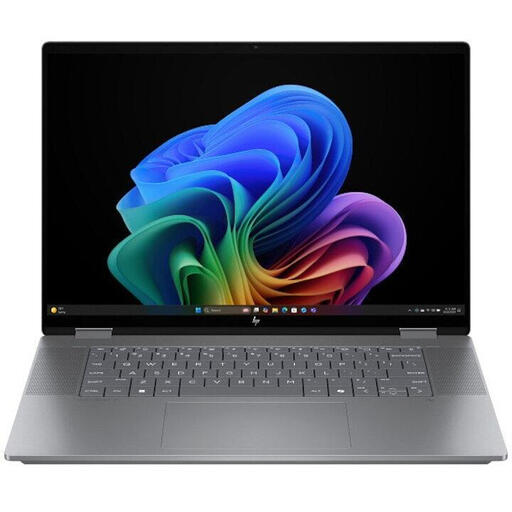
HP OmniBook X Flip NG AI PC 16-ar0070nd
A Windows laptop with a 16-inch screen for anyone who wants to use app windows side by side.
The description lists a 3K OLED screen, 24 GB of memory, a 1 TB SSD and Windows 11.
It also mentions a 360° hinge with laptop, tent, tablet and reverse modes.
View at Joybuy
 No image available
MSI Venture 16 AI A2HMG-068NL
This Windows 11 Pro configuration has a 16-inch screen with 1920 × 1200 resolution and a 16:10 aspect ratio for working with documents.
The description lists 32 GB of DDR5 memory, a 512 GB SSD and a weight of around 1.9 kg.
According to the description, this configuration is supplied without a power adapter.
View at Joybuy
 No image available
ASUS Zenbook A16, 16-inch WUXGA, 16 GB, 512 GB SSD
A Windows laptop with a 16-inch screen for anyone who wants to view documents side by side.
The description lists WUXGA, a 16:10 aspect ratio, an anti-glare IPS screen, 16 GB of memory, a 512 GB SSD and Windows 11 Home.
View at Joybuy
 No image available
Apple MacBook Air 15-inch M5, 16 GB, 512 GB, Starlight
A MacBook for anyone who uses macOS. Apple says Split View works in many Mac apps, so check the document apps you use.
The description lists a 15.3-inch screen, a weight of 1.51 kg and two Thunderbolt 4 ports. The product title lists M5, 16 GB of memory and 512 GB of storage.
View at Joybuy
 No image available
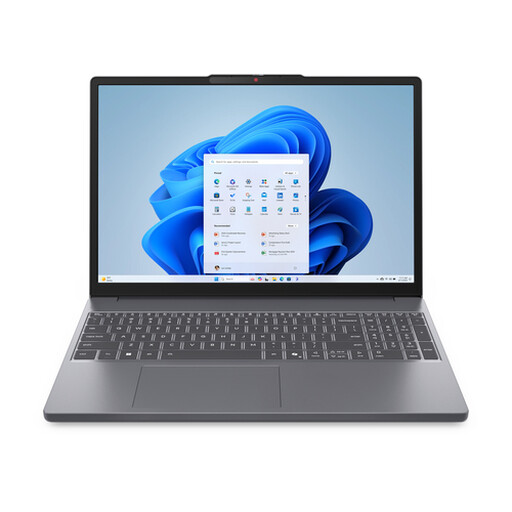
Lenovo IdeaPad Slim 3 15AHP10, Ryzen 7 8840HS
This Windows 11 Home configuration has a 15.3-inch screen for anyone who wants to view two documents side by side.
The description lists a 1920 × 1200 IPS screen with a 16:10 aspect ratio, 16 GB of memory, a 512 GB SSD and a weight of 1.59 kg.
According to the description, the power adapter must be bought separately.
View at Joybuy
Frequently asked questions
Do you need a separate graphics card to view two documents side by side?
Not for this writing task alone. First check that your document app supports the view you want and that both windows remain readable on the screen. The Consumers’ Association distinguishes light office work from more demanding computing tasks.
Is opening two app windows the same as comparing Word documents with synchronous scrolling?
No. Window arrangement is an operating system feature. Microsoft documents ‘View Side by Side’ and synchronous scrolling separately for the Word versions listed on its support page. Test the feature in your own version of the software.
Can you carry on writing in Google Docs without an internet connection?
Yes, if you set up offline access in advance by following Google’s instructions. Google lists requirements including Chrome or Edge, the Google Docs Offline extension, the correct settings and enough storage space on your device.
What product safety rule applies to a laptop sold in the Netherlands?
The Dutch Government states that electronic devices sold in the EU must meet the applicable safety requirements and carry a CE marking. This general rule doesn’t confirm that an individual configuration has been checked separately.
Does the manufacturer’s warranty always mark the limit of your rights in the Netherlands?
No. ACM ConsuWijzer distinguishes between a manufacturer’s or seller’s warranty and your statutory rights. If a product breaks earlier than you could reasonably expect under normal use, the seller is responsible for providing a statutory remedy.


