For updating a travel journal at the kitchen table, a comfortable keyboard, an easy-to-read screen and enough storage matter more than demanding creative specs. Also consider how often you’ll take your laptop with you, how many photos you keep and whether your writing app and files work offline. Check the keyboard layout and the connections you’ll need, too.
Who is this choice for?
Journal writer at the kitchen table
If you mainly write longer pieces, look for a comfortable typing experience and an easy-to-read screen. The Dutch Consumers’ Association recommends a 14-inch Full HD IPS screen as a starting point for light everyday tasks.
Traveller who also writes on the go
If you take your laptop with you regularly, weigh up its size and weight against the screen’s working area. Also consider how you’ll access your writing when you’re out and about without an internet connection.
Writer with lots of travel photos
If you regularly add or edit photos, consider local storage, memory and connections for a camera or external storage. The Dutch Consumers’ Association recommends 512 GB or more if you frequently work with large files.
What should you look for?
Start with your main everyday task: writing, carrying your laptop around, storing photos or working with the apps and files you already use. The percentages indicate how consumers might split their top buying priorities for this type of use.
| Buying concern |
What to look for |
Who will find this most important? |
| Comfortable writing |
Try out the keyboard and touchpad, check the layout and see how well the screen performs in the light you’ll be writing in. |
If I’m writing longer pieces at the table, I want to type and read in comfort. Around 33% of consumers put writing comfort first. |
| Portability and charging |
Compare the weight of the exact model and check which chargers are included. When looking at battery life, also check the manufacturer’s test conditions. |
If you take your laptop with you regularly, you’ll want to know how portable it is and whether you can write without a mains socket; around 27% of consumers prioritise portability. |
| Storing photos |
Decide how many photos you want to store locally and whether you’ll edit them. The Dutch Consumers’ Association recommends 512 GB or more for frequent use of large files. |
If I keep travel photos with my journal, I look at storage and the connection for my camera or storage device. Around 20% of consumers prioritise photo storage. |
| Apps and files |
Test your own writing app and file format. Google explains that Drive files can be made available offline in advance; according to Google, you need OneDrive to edit files using the Microsoft 365 app on a Chromebook. |
If you want to use familiar apps or documents on the go, check compatibility and offline access in advance; around 20% of consumers prioritise being able to continue working with their files. |
Pitfalls to avoid
-
Choosing high-end specs when you mainly write
What you need for writing and light everyday use is different from what you need to edit large photo or video files regularly. A more powerful configuration may be unnecessary if you don’t do those tasks.
First, work out how much you write, how many photos you keep and whether you edit them. Then choose the storage and memory you need.
-
Assuming your journal app works the same on every Chromebook
Apps and file workflows can vary. Google describes a process for editing files with the Microsoft 365 app on a Chromebook that requires OneDrive.
Check your own app and try an existing document before choosing ChromeOS. Make any files you’ll need on the go available offline in advance.
Switching may mean using a different app, service or way of working with files.
-
Not checking the keyboard layout or included adapter
The Lenovo IdeaPad model reviewed has an English (Euro) keyboard. HP states that the 65 W USB-C adapter for the OmniBook model mentioned is sold separately.
Check the product details for the exact model you’re choosing and confirm which keyboard layout and accessories are included.
If a required adapter isn’t in the box, you’ll need to find a suitable one yourself.
-
Choosing a Chromebook without checking its update schedule
Google says that security and browser updates stop after the final software update, and some features may no longer work.
Check the update schedule for the specific device in ChromeOS before choosing a Chromebook.
Brands to consider
These brands and product ranges cover different operating systems and configurations. Their inclusion here doesn’t necessarily mean they’re available in the product selection below.
Lenovo
The IdeaPad Slim 3 14 model 82XN008RMH is a Windows option for writing and storing photos locally.
- According to Lenovo, this model has Windows 11 Home, 16 GB of memory, a 512 GB SSD and an anti-glare 14-inch IPS screen.
- The memory is soldered, and the stated keyboard layout is English (Euro); these details apply to this model.
Acer
The Chromebook Plus 514 CB514-5H, part number NX.JKAEH.001, is a ChromeOS option for browser-based writing and supported document apps.
- The Dutch product information lists a matt 14-inch IPS screen, 8 GB of memory, a 256 GB SSD and a weight of around 1.41 kg.
- Check that your writing app works and look up the end-of-updates date for this device. The stated maximum battery life won’t necessarily match the length of your writing sessions.
Apple
The 13-inch MacBook Air with M5 is a macOS option for writing and managing photos.
- Apple specifies 16 GB of memory, 512 GB of storage, a 13.6-inch screen and two Thunderbolt 4 ports for the base configuration.
- The stated battery life is based on tasks described by Apple. Check that your peripherals work with the available ports and that the right adapter is included.
HP
The OmniBook 5 14-hm0610ndx is a Windows model with a 14-inch screen for writing and storing photos.
- According to HP, this model has Windows 11 Home, 16 GB of RAM and a 512 GB SSD.
- HP says the 65 W USB-C adapter for this model is sold separately; check what’s included with the specific product.
Joybuy laptops for this use
This selection features Windows laptops for updating a travel journal, with a focus on typing, photo storage and occasional travel.
 No image available
Lenovo IdeaPad Slim 3 14AHP10, Ryzen 7 8840HS, 16 GB, 1 TB SSD, QWERTY
A 14-inch model for updating your writing and keeping travel files stored locally.
16 GB of memory and a 1 TB PCIe SSD.
The product name specifies a QWERTY keyboard; check that the layout suits you.
View at Joybuy
 No image available
ASUS Zenbook A14 UX3407QA-QD479W, 14-inch, 16 GB, 512 GB SSD, Dutch QWERTY
A compact 14-inch option for taking your travel journal and photos with you and storing them locally.
Snapdragon X, 16 GB of RAM, a 512 GB SSD and a WUXGA OLED screen.
A compatible 65 W USB-C Power Delivery adapter is required; according to the product information, it isn’t included.
View at Joybuy
 No image available
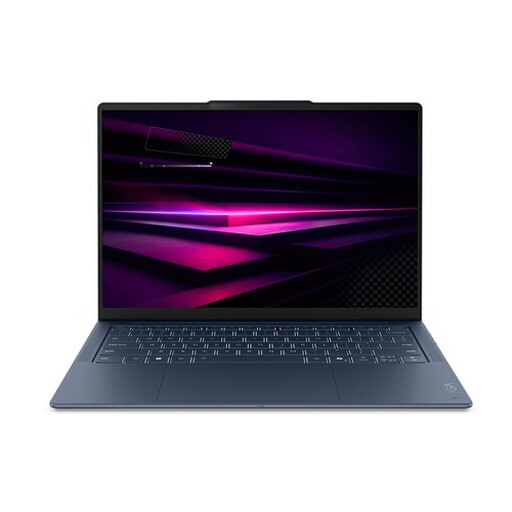
Lenovo Yoga Slim 7 14Q8Y11 Copilot+, Snapdragon X2P-42-100
The listed model weighs 1.17 kg and is designed for updating writing and photos on the go as well as at home.
14-inch WUXGA OLED screen, 16 GB of memory and a 512 GB SSD.
The product name specifies a QWERTY keyboard; check the layout of the model you choose.
View at Joybuy
 No image available
HP OmniBook 3 14-hy0058ndx, Ryzen 5 7520U, 8 GB, 512 GB SSD
A Windows laptop for updating journal entries and keeping documents or photos stored locally.
14-inch IPS screen with 1920 × 1200 resolution, 8 GB of memory and a 512 GB SSD.
The charger isn’t included according to the product information; make sure you have a suitable one for use.
View at Joybuy
 No image available
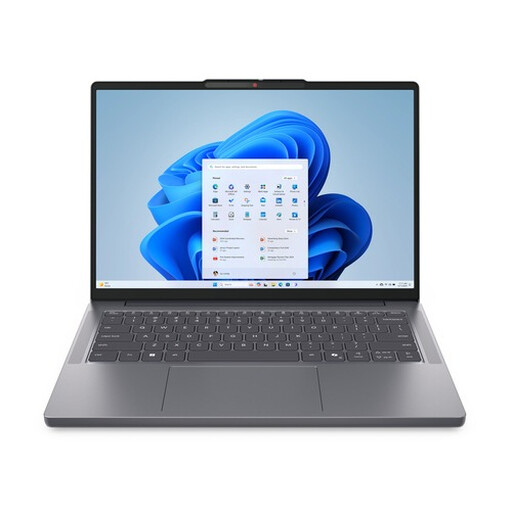
Lenovo IdeaPad Slim 3 14AHP10 R7, 16 GB, 512 GB SSD, QWERTY
The listed model weighs around 1.39 kg and has a 14-inch screen for writing at home and on the go.
WUXGA IPS screen with an anti-glare finish, 16 GB of memory and a 512 GB SSD.
The product name specifies a QWERTY keyboard; check that the layout matches your preference.
View at Joybuy
Frequently asked questions
Do I need a laptop for demanding photo editing if I only want to write and browse the internet?
No, not if you mainly write and carry out light everyday tasks. The Dutch Consumers’ Association distinguishes this kind of use from creative work involving lots of photo and video editing, so first think about what you’ll actually do with your laptop.
Can I carry on writing on a Chromebook without an internet connection?
Yes, as long as you set up the relevant app and files for offline use in advance. Google explains how to select Drive files for offline access; try this with your own journal document before you leave.
How can I avoid losing my travel journal?
Back up your files regularly. On a compatible Windows PC, Windows Backup can sync selected folders with a personal Microsoft account via OneDrive; check that you have enough storage space available.
How should I look after the battery if my laptop usually stays at the kitchen table?
The Dutch Consumers’ Association advises against leaving a laptop plugged in all the time and recommends considering smart charging if your model has this feature. Check the manufacturer’s guidance for the settings on your model.
When buying a laptop online in the Netherlands, do I have a cooling-off period and a statutory guarantee?
For a standard online purchase, ACM ConsuWijzer says you’ll generally have a statutory cooling-off period of up to 14 days after delivery; check whether an exception applies to your purchase. You’re also entitled to a statutory guarantee if the product doesn’t perform as you could reasonably expect under normal use. The seller is responsible for this; a fixed two-year guarantee isn’t the general rule under Dutch law.


