
Travellers who do a lot of typing on the go
If you create or rewrite slides during your journey, you’ll benefit from a screen that’s comfortable to use in the space available and a keyboard that suits the way you work.


Choose a laptop that lets you use your presentation app and files without relying on a reliable Wi-Fi connection. Then compare its size, keyboard and battery information with the length of your journey. If you’ll need to show your slides on an external screen later, check the ports on the exact model and whether you’ll need an adapter: compact doesn’t automatically mean it has HDMI.
If you create or rewrite slides during your journey, you’ll benefit from a screen that’s comfortable to use in the space available and a keyboard that suits the way you work.
If you want to keep working without charging or an internet connection, you can set up the app and files you need for offline use in advance, then test your workflow at home. NS notes that charging on the train isn’t always possible.
If you’ll be showing your slides on your own screen or a projector later, make sure your laptop’s software, file format and video connection are compatible with the equipment at your destination.
A good fit if: you use Windows presentation software, type a lot and want a handy-sized screen.
Bear in mind: check the weight, keyboard layout, included charger and whether HDMI is available on the specific model.
A good fit if: macOS and the available presentation apps suit the way you work.
Bear in mind: Apple lists Thunderbolt 4 but no HDMI for the M5 model, so you’ll need a compatible adapter for an HDMI screen. The stated battery life is for streaming video or browsing the internet wirelessly, not for working on slides on the train.
A good fit if: your presentation workflow is based on Google Slides and you can make your files available offline in advance.
Bear in mind: Google notes that some apps don’t work offline. Check your files, account settings and required software in advance.
A good fit if: extra space for slides and source material, or the ability to draw on the screen, matters more than convenience in a cramped seat.
Bear in mind: compare the dimensions and weight of the exact model. Not everyone needs a larger screen or touchscreen.
| What to consider | What should you check? | Who is this important for? |
|---|---|---|
| Size and workspace | Compare the screen size and casing with the space available; decide whether you want to view slides and notes at the same time. | If I want to edit slides in a limited seating space, I’m looking for a size that’s comfortable to use and easy to carry. Around 28% of consumers prioritise portability and workspace. |
| Battery and offline working | Compare battery information only under the same usage conditions, and test your presentation file offline before you travel. | If you want to keep working without a power socket or Wi-Fi, it helps to have a charged laptop and files that open offline. Around 22% of consumers say power and offline access are their main buying concerns. |
| App and file compatibility | Check the presentation app you need, its licence, any organisation requirements and the file format. | If I use a particular programme and specific files, I want to know in advance that my presentation will still work with them. Around 22% of consumers prioritise software and file compatibility. |
| Screen and keyboard | Check that slides are easy to read and that the keyboard layout suits you. The Consumers’ Association lists 14-inch, Full HD IPS, 8 GB RAM and 256 GB storage as a checklist for basic office work, not as general minimum requirements. | If you edit a lot of text during your journey, you’ll benefit most from a screen and keyboard that are comfortable for the work you do. Around 17% of consumers say editing and typing are their main selection criteria. |
| Ports and extras | Check the input on the external screen, the ports on the exact laptop model and which accessories are included. | If I want to connect my laptop to a projector later, I want to know whether I’ll need an adapter or other accessories. Around 11% of consumers prioritise ports and additional purchases. |
Manufacturers’ figures are based on specific activities. NS also warns that charging during your journey isn’t always possible.
Compare battery figures only when the test conditions match, and allow for how you’ll use the laptop during your journey.
The specifications for the ASUS Zenbook 14 OLED mentioned here list HDMI; the ports listed for the MacBook Air mentioned here don’t include HDMI.
Check the input on the screen at your destination and the connections on the exact laptop model before choosing an adapter.
You may need a suitable video adapter for an HDMI screen.
HP says the recommended 65 W USB-C adapter for the OmniBook 5 14-hh0600ndx is sold separately.
Check what’s in the box and your software licences before deciding which extras you need.
You may need to buy a charger or software licence separately.
Google explains that Drive files on a Chromebook need to be made available offline in advance. Having Microsoft 365 apps installed and using them offline also doesn’t mean documents stored online will automatically be ready to use.
Make the right file available offline, then try opening and editing it without an internet connection before you leave.
The OmniBook 5 14-hh0600ndx is a Dutch-market Windows model with 16 GB RAM, a 512 GB SSD and, according to HP, USB-C, USB-A and HDMI.
The Zenbook 14 OLED UX3405 series includes Dutch-market Windows models with a 14-inch screen.
The Dutch-market 13-inch MacBook Air with M5 is a macOS option if you work in that software environment.
The Dutch-market ThinkPad X1 Carbon Gen 14 Aura Edition is a business laptop series with a 14-inch screen.
The Dell 14 Plus DB14250 is a configurable 14-inch Windows laptop series.
This selection of Joybuy products includes compact Windows laptops for creating slides on the go, including models with a flip screen.
 No image available
The 14-inch Flip model may suit you if you work on slides while travelling and want to use the screen in different positions.
The charger isn’t included; you’ll need a compatible USB-C Power Delivery charger.
 No image available
This 14-inch Windows laptop may suit you if you want to prepare slides on a handy-sized screen.
The product name lists an AMD Ryzen 5 7520U, a 512 GB SSD and Windows 11 Home. The charger must be bought separately.
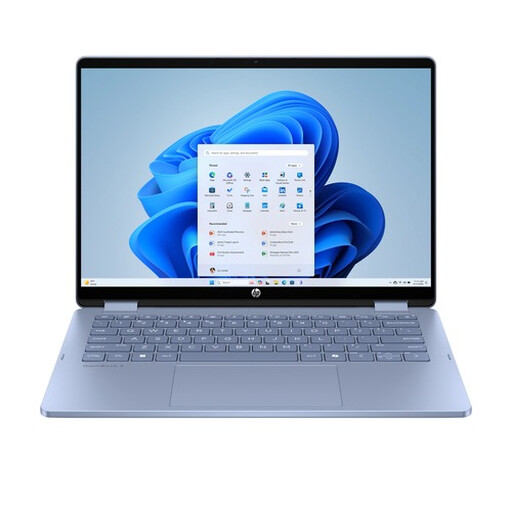 No image available
This 14-inch 2-in-1 model may suit you if you type up slides and want to use the screen in a different position too.
The product name lists a touchscreen and Windows 11 Home. The charger and stylus aren’t included; you’ll need a compatible USB-C Power Delivery charger.
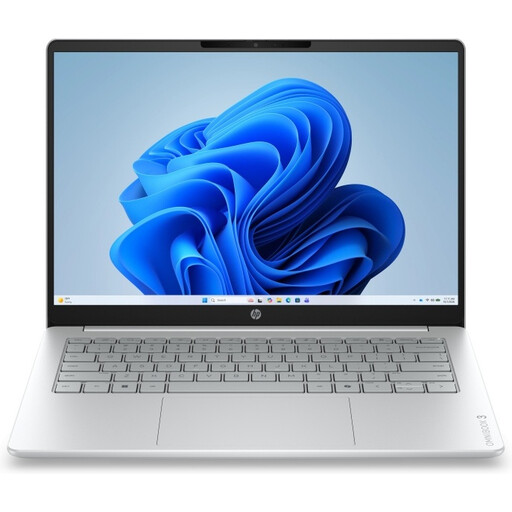 No image available
This 14-inch Windows laptop may suit you if you want to prepare presentations during a train journey.
The product name lists a 2K IPS screen and Windows 11 Home. The charger isn’t included and must be bought separately.
 No image available
The 14-inch model with a Dutch QWERTY layout may suit you if you do a lot of typing on the go.
The product name lists a WUXGA OLED screen and Windows 11 Home. The charger isn’t included; you’ll need a compatible 65W USB-C Power Delivery charger.
Yes, as long as your app and file are set up for offline use in advance. Microsoft says installed Microsoft 365 apps can be used offline, but documents stored online need to be prepared first. Google explains how to make Drive files, including Slides, available offline on a Chromebook. Test your file without an internet connection before you leave.
No, don’t count on it. NS says charging during your journey isn’t always possible. If you want to work on the train, make sure your laptop is charged before you set off.
First check the input on the screen, then check the ports on your exact laptop model. The specifications for the ASUS Zenbook 14 OLED UX3405 mentioned here list HDMI; for the MacBook Air mentioned here, Apple lists Thunderbolt 4 and no built-in HDMI. So, for an HDMI screen, you’ll need a suitable adapter for that MacBook Air.
No, extra cover isn’t a legal requirement. According to the Dutch Government, you’re entitled to a product that works properly and the seller must resolve any problem; the Netherlands has no fixed statutory guarantee period. If you’re considering paid extra cover, check whether it actually offers anything more.
For many online purchases from a business, the Dutch Government says you have a 14-day cooling-off period. Check which terms apply to your purchase; an online purchase from a private seller isn’t covered by the same rules.