
Comparing timetables without an external screen
You want to read timetables side by side on your laptop screen. So consider the usable screen space and whether the text is easy to read in your set-up.


If you often compare timetables on one screen, start by considering the readability and screen space of a larger model. If you already have a monitor and regularly take your laptop with you, weigh up the connections and portability too. A larger screen won’t automatically make your workspace easier to adjust.
You want to read timetables side by side on your laptop screen. So consider the usable screen space and whether the text is easy to read in your set-up.
You work in one place and want to position your screen and input devices appropriately. Arboportaal advises adjusting display-screen equipment to suit your body measurements.
You take your laptop with you or work in different places. In that case, weigh up its portability against the screen space you need at your desk.
A good fit if: you regularly want to compare several timetables on your laptop itself.
Bear in mind: screen size alone doesn’t tell you whether the screen will be at the right height. Also check what’s included with the configuration you choose.
A good fit if: you take your laptop with you but can use a monitor at your regular workstation.
Bear in mind: check that the laptop’s connections are compatible with your monitor, and that any cables, a dock and separate input devices are available.
A good fit if: you mainly use websites and basic office applications, with few programmes open at once.
Bear in mind: RAM matters more when you’re running several programmes at once. The Consumentenbond recommends 16 GB where possible for smooth use with multiple programmes.
First, decide how you want to read timetables: on the laptop screen itself or on an external monitor. Then check the connections and amount of RAM against the way you plan to use your laptop.
| What to consider | What to look for | Who should pay particular attention? |
|---|---|---|
| Reading several timetables | Compare screen size and resolution, and assess text size and reflections in the set-up you’ll be using. | If you don’t use an external monitor, you’ll want to read times and view several windows clearly on the laptop’s own screen. Around 36% of consumers prioritise screen space. |
| Workspace set-up | Check the ports on the exact laptop configuration and whether they’re compatible with your monitor. Also consider how you can position your screen and input devices. | If you work in one place, you’ll want to position your monitor and input devices appropriately. Around 29% of consumers prioritise their workspace set-up and connections. |
| Portability | Weigh up size and weight against the option of connecting a monitor at your regular workstation. | If you often move between locations, you’ll want to take your laptop with you without overlooking the screen space you need at your desk. Around 21% of consumers prioritise portability. |
| RAM and how you use your laptop | Decide how many browser windows and programmes you use at once, and check the specifications of the exact configuration. | If you mainly do light web-based tasks, you won’t want to choose more computing power than you need. Running several programmes at once may call for different specifications. Around 14% of consumers mainly choose a basic configuration. |
Screen space and the positioning of your screen and input devices are separate considerations. Arboportaal states that for employees who work at a display screen for more than 2 hours a day, the screen and keyboard must not be attached to each other.
Consider screen height, input position and connections together, both when sitting and standing. Also check that your set-up suits your own body measurements.
A separate set-up may require a monitor, keyboard, stand or suitable connection.
A quoted battery life isn’t a measure of how you’ll use the laptop. When comparing timetables, readability, the number of windows you use at once and the connections you need are all important factors to consider.
First decide how you’ll use the laptop, then check the relevant specifications, including RAM if you use several programmes at once.
In the Netherlands, the statutory warranty has no fixed duration and is separate from any manufacturer’s or seller’s warranty, according to ACM ConsuWijzer.
Keep your purchase and product information, and contact the seller if a fault is their responsibility.
HP offers both 14- and 16-inch configurations in its OmniBook 3 range, so you can compare different screen sizes.
The MacBook Air M5 is available in 13- and 15-inch models, allowing you to weigh up screen size against the space you need.
The ThinkPad E16 Gen 3 Intel is a 16-inch product range to consider if connections for a regular workstation are important.
These Joybuy laptops have relatively large built-in screens and are intended for anyone who wants to compare timetables on the laptop itself. Check the connections and specifications for each configuration to make sure they suit your workspace and needs.
 No image available
The 16-inch screen gives you room to compare timetables at your desk.
16-inch IPS screen with 1920 × 1200 resolution; 16 GB RAM; 1 TB SSD; USB-C and mini-HDMI.
 No image available
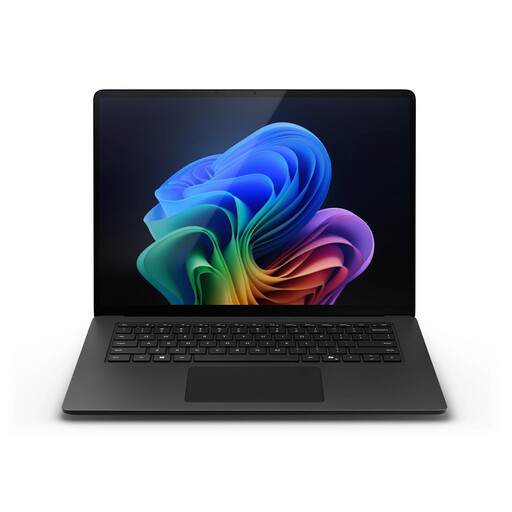
The 15-inch screen could suit you if you want to view timetables on the laptop itself.
15-inch touchscreen with 2496 × 1664 resolution; 3:2 aspect ratio; 16 GB RAM; 512 GB storage; USB4.
 No image available
The 16-inch screen is an option for comparing timetables on the laptop itself.
16-inch WUXGA screen with 1920 × 1200 resolution and anti-glare finish; 16 GB RAM; 512 GB SSD; two USB4 Type-C ports.
 No image available
The 15.6-inch screen gives you room to view timetables on the laptop itself.
Full HD IPS screen with anti-glare finish; 16 GB RAM; 512 GB SSD; Windows 11 Home; HDMI and USB-C.
 No image available
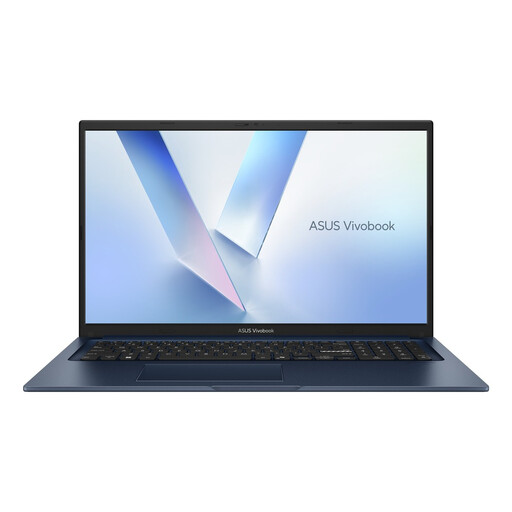
The 17.3-inch screen gives you plenty of space for desk use.
Full HD screen with anti-glare display; 8 GB RAM; 256 GB SSD; Quiet Blue; QWERTY keyboard.
The Consumentenbond recommends 16 GB RAM where possible for smooth use with multiple programmes; this configuration has 8 GB.
The same legal requirement doesn’t apply to every user. According to Arboportaal, for employees who work at a display screen for more than 2 hours a day, the screen and keyboard must not be attached to each other. So check what separate input devices or additional screen you need for your working arrangements.
Adjust your display-screen equipment to suit your body measurements, and consider legible text, reflections and lighting. Arboportaal lists a sit-stand desk as one way to alternate between sitting and standing; the right screen position will still depend on your workspace.
Check whether the required power adapter, monitor connection, any dock and separate input devices are included. For the OmniBook 3 16-bu0645ndx, HP recommends a USB-C adapter, sold separately. Check what’s included with the specific configuration.
No. The statutory warranty in the Netherlands has no fixed duration. If a fault is the seller’s responsibility, you have statutory remedies; a separate manufacturer’s or seller’s warranty does not replace those rights, according to ACM ConsuWijzer.
For many purchases made remotely from a business, you have a 14-day cooling-off period, but there are exceptions. Check the seller’s terms and information for your specific purchase.