
Viewing timetables side by side
You compare departure and arrival times or several timetables at once, and need enough screen space to keep the windows easy to read. Microsoft explains how to arrange windows side by side using Snap.


When comparing timetables at a shared workspace, the main choice is between a larger built-in screen and a more compact laptop connected to a suitable external display. Check the screen size and resolution of the exact model, the ports on the dock available at your workspace, and whether the required software will run. Microsoft’s Snap feature can arrange windows side by side, but it can’t physically make a small screen bigger. Arboportaal also outlines workstation requirements for employees who spend more than two hours a day working with display screens.
You compare departure and arrival times or several timetables at once, and need enough screen space to keep the windows easy to read. Microsoft explains how to arrange windows side by side using Snap.
You often connect an external display or other peripherals at a shared desk. The laptop’s connections need to match the equipment at that workspace. For example, Lenovo lists HDMI and USB-C with DisplayPort for model 21MW0000LT.
You take your laptop to another desk and weigh the convenience of a more compact device against the screen space offered by a larger model. HP lists both 14-inch and 16-inch screens for specific ProBook models.
Start by considering how you want to view timetables. Then check that the laptop connects to the equipment at your shared workspace and is suitable for the software you need and the length of time you’ll use it.
| What matters | What should you check? | Who is this most relevant to? |
|---|---|---|
| Reading timetables at the same time | Compare the screen size and resolution of the exact model, and try arranging the windows you need side by side. | If I want to compare several timetables on my laptop screen, readability matters most to me. Around 29% of consumers put this first. |
| Connecting to your workspace | Compare the laptop’s ports and video output with the display or dock available at your workspace. | If you want to use an existing display or dock at a shared desk, you’ll want to know in advance whether the connections are compatible. Around 23% of consumers prioritise workspace connectivity. |
| Carrying it between desks | Compare the dimensions and weight of the exact model, and check whether there’s an external display at the other workspace. | If I often move between desks, I weigh the convenience of a more compact laptop against the screen space I need when I’m on the move. Around 18% of consumers prioritise portability. |
| Software and security | Confirm which apps and desktop programmes you need, and how the laptop will be locked. | If you use required software in a shared space, you’ll want to make sure the apps are available and the device can be secured. Around 18% of consumers make this their top priority. |
| Purchase and service costs | Compare the configuration you’ve chosen, the workspace accessories you need and the applicable service terms. | If I mainly do light office work, I want suitable performance without spending unnecessarily on the laptop or workspace setup. Around 12% of consumers prioritise total purchase and service costs. |
A USB-C port alone doesn’t prove that a laptop will work with a particular dock and display. Lenovo specifies HDMI and USB-C with DisplayPort for model 21MW0000LT, but you should also check the connection on the specific dock.
Compare the laptop model’s connections and required video output with the documentation for the dock and display at your workspace.
For employees who spend more than two hours a day working with display screens, Arboportaal outlines workstation requirements, including that the screen and keyboard must not be attached to each other.
Choose a laptop and workspace to suit how long you’ll use them. Arboportaal also advises against using a laptop without accessories for more than two hours a day or for more than one hour at a time.
The listed configuration of the Dell Pro 14 PC14250 excludes a charger, while HP lists service terms for each model. So a business product range doesn’t automatically tell you what’s included with every product code.
Before you buy, check the final configuration, included accessories and service terms. For the Dell configuration mentioned, check whether you already have a suitable charger.
The Dutch ProBook range includes business models with 14- and 16-inch screens, including options with Windows 11 Pro and WUXGA displays.
The ThinkBook 16 G7 ARP, model 21MW0000LT, is a documented 16-inch option with Windows 11 Pro.
According to Dell, the Dell Pro 14 configuration PC14250 has a 14-inch FHD+ display. The configuration shown includes 16 GB RAM and a 512 GB SSD.
The ExpertBook B1 B1503 is a business range that includes models with 15.6-inch screens.
These laptops have a built-in 15.6- or 16-inch screen, making them suitable if you want to compare timetables on the laptop itself.
 No image available
The 16-inch WUXGA OLED screen is a good fit if you want to view timetables alongside other windows on the built-in display.
Snapdragon X, 16 GB LPDDR5X, 512 GB SSD and Windows 11 Home.
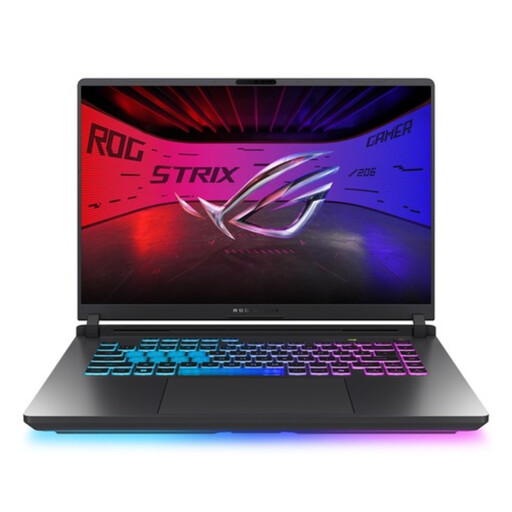 No image available
The 16-inch screen gives you built-in space to compare timetables on the laptop itself.
Core Ultra 9, RTX 5070 Ti, 32 GB memory, 1 TB SSD, Windows 11 Home and a QWERTY keyboard.
 No image available
The 16-inch anti-glare IPS screen is worth considering if you compare timetables on the built-in display.
16 GB DDR5, 512 GB SSD, Windows 11 Pro and a QWERTY keyboard. The product description lists HDMI, Thunderbolt 4/USB4, USB-C with DisplayPort and RJ-45; it weighs around 1.70 kg.
 No image available
The 16-inch screen with a 1920 × 1200 resolution is a good option if you want to view timetables alongside other windows on the laptop itself.
Core Ultra 7 255H, 32 GB DDR5, 512 GB SSD and Windows 11 Pro. This model is supplied without a power adapter, so check in advance whether you have a suitable one.
 No image available
The 15.6-inch Full HD IPS screen with an anti-glare finish is worth considering if you want to read timetables on the laptop itself.
Core 7 150U, 16 GB RAM, 512 GB SSD and Windows 11 Home. The product description lists HDMI, USB-C and Gigabit Ethernet.
In Windows, you can use Snap to move windows to the left and right edges of the screen and adjust their width. Microsoft explains how the feature works. Then check that the text remains easy to read on your laptop’s screen.
For employees who spend more than two hours a day working with display screens, Arboportaal outlines a requirement that the screen and keyboard must not be attached to each other. It also advises against using a laptop without accessories for more than two hours a day or for more than one hour at a time. The requirement and the usage advice are separate points; how long you work determines which considerations are relevant.
Lock the screen before you leave. For Windows, Microsoft lists the Windows key + L shortcut and also describes automatic screen locking as an additional option.
If a business buys the laptop, consumer rules on statutory guarantees and cooling-off periods don’t necessarily apply. Business.gov.nl distinguishes between business-to-business and consumer sales, so check the purchase agreement and the service terms that apply to the business purchase.
You can use Microsoft 365 web apps on a Chromebook, according to Microsoft. The Windows and Mac desktop versions of Microsoft 365 can’t be installed on a Chromebook. So ask in advance which version and other programmes your office needs.