Start by considering how much space the open laptop, your hands and any papers will take up on your desk. A 13- or 14-inch model is a starting point, not a guarantee that it will fit. Then choose based on how you work: a basic laptop may be enough to view tide tables in a browser, while creating your own charts, using multiple windows or running specific software may call for something different. Before buying, check the exact configuration, ports and included power supply. A more powerful processor won’t, by itself, make tide data more accurate.
Who is this choice relevant to?
Workspace with limited room
You view tide data alongside notes and want the open laptop to fit on your desk. First, compare the exact model’s external dimensions with the space available; the screen diagonal doesn’t tell you how large the casing is. Rijkswaterstaat provides tide data in table and chart form.
Tide chart creator
You turn time and water-level data into charts yourself, or want to keep a table and chart open at the same time. Consider how you’ll arrange things on screen, and check that your spreadsheet software works with the operating system you choose. Microsoft Support explains how to create a chart from selected data.
Checking tides on the go
You want to view data away from your usual workspace too. Check separately which files can be made available offline in advance and which applications need an internet connection. An astronomical prediction is also not the same as a current measurement.
What should you look for when choosing?
First measure the space available on your desk, then decide whether you’ll only be viewing data or creating charts yourself too. How you work will determine how much screen space and which software you need.
| What to consider |
What to look for when buying |
Who should prioritise this? |
| Desk space |
Measure the space available and compare it with the external dimensions of the exact model; allow room for cables and ports. |
If I want to use the laptop alongside papers, I’ll also need space to work. Around 29% of consumers say the space available on their desk is their top priority. |
| Table and chart at the same time |
Try out your usual layout on screen and check the screen specifications for the full model. |
If I want to compare times and water levels alongside a chart, the amount of visible screen space matters. Around 22% of consumers prioritise being able to read tables and charts at the same time. |
| Software compatibility |
Check the requirements for your applications, files and operating system; test whether you can open and plot the data you need. |
If my workflow requires a specific spreadsheet or desktop app, I want to know in advance whether it will work on the laptop. Around 21% of consumers say software compatibility is their top priority. |
| Working on the go or offline |
Check which files and applications work offline and whether the required power supply is included with that model. |
If I want to check data away from my usual workspace, I need to know what will still be available without a connection. Around 14% of consumers prioritise working on the go or offline. |
| Everything you need |
Check the included accessories, the ports you need and the software; compare the model with how you’ll use it. |
If I mainly view tables and create standard charts, I don’t want to pay for features I won’t use. Around 14% of consumers prioritise avoiding unnecessary spending. |
What to watch out for when buying
-
Choosing by screen size alone
The screen diagonal won’t tell you whether the open laptop will fit on your desk alongside cables, your hands and notes.
Measure the space available and compare it with the external dimensions of the exact model. Also try out your usual layout for a table and chart.
-
Mistaking an astronomical prediction for a current measurement
Predicted and measured water levels can differ. A different or more powerful laptop won’t change that.
Choose the right location and, when making boating decisions, also check current data and relevant navigation information.
-
Assuming the power supply, ports and software will all be suitable
Included accessories and ports vary by model, and not every application you want will work with every operating system.
Before buying, check the full model code, box contents, ports and software requirements.
You may need to buy a suitable power adapter or converter separately. Check what’s included with the exact model before you buy.
Brands to consider
Apple
The 13-inch MacBook Air M5 is an option if a compact screen and macOS suit the way you work.
- Apple lists a 13.6-inch screen and two Thunderbolt 4 ports for this range.
- Check that your software works with macOS and whether your peripherals need an adapter. Apple’s stated battery life hasn’t been measured for this specific task.
Lenovo
The ThinkPad E14 Gen 7 is a 14-inch Windows option for working with a spreadsheet and multiple windows.
- The Dutch configuration 21SXCTO1WWNL5 lists Windows 11 Pro, 16 GB of memory and an anti-glare IPS screen.
- Lenovo sells several E14 configurations; check the screen, keyboard and port setup of the full model.
ASUS
The Zenbook 14 OLED UX3405 range is a 14-inch Windows option if screen layout and portability matter to you.
- One UX3405 configuration shown by ASUS has a 14-inch WUXGA OLED screen.
- The configuration mentioned has a glossy finish. Specifications vary, so check the full model number and whether a power adapter is included. ASUS’s performance descriptions are manufacturer claims.
Acer
The Swift Go 14 range is another 14-inch Windows option; Acer lists the SFG14-63 among its models.
- The range includes different screen configurations.
- Don’t assume that features listed on the general Swift Go page apply to the specific SFG14-63 configuration without checking. Acer’s battery life and performance statements are manufacturer claims.
HP
The OmniBook 7 Aero 13 is a 13.3-inch Windows alternative if you’re looking for a smaller screen.
- HP’s Dutch product range includes configurations with a compact screen size.
- Memory and screen specifications vary between configurations. Check the specifications for the full model number.
Joybuy products
These Joybuy products offer 13- and 14-inch options for a small workspace, from compact screens to models with room for multiple windows.
 No image available
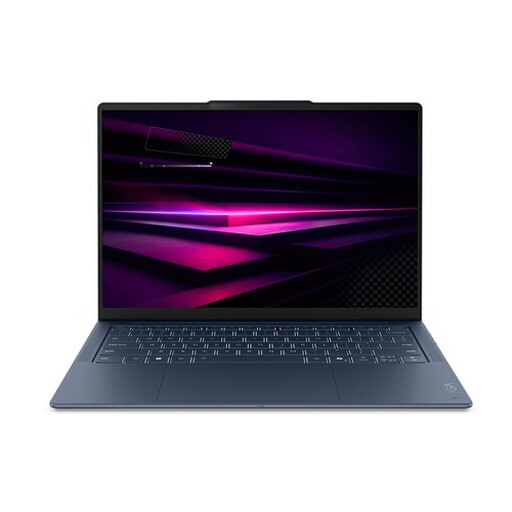
Lenovo Yoga Slim 7 14Q8Y11 Copilot+ PC
The 14-inch screen layout is an option for using a table and spreadsheet in a compact workspace.
14-inch WUXGA OLED screen with 16:10 aspect ratio; 16 GB memory; 512 GB SSD; Windows 11 Home; weight 1.17 kg.
View at Joybuy
 No image available
HP OmniBook 7 AeroNGAI 13-bg1051nd NL Copilot+
The 13.3-inch screen is a compact starting point if you want to keep desk space free.
13.3-inch IPS screen; 16 GB memory; 512 GB SSD; weight 1.46 kg; dimensions 29.73 × 21.12 cm.
View at Joybuy
 No image available
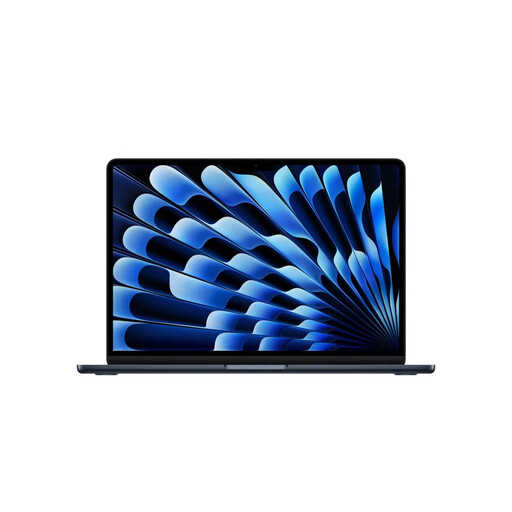
Apple MacBook Air 13-inch M5, 24 GB, 1 TB, Midnight (2026)
This 13-inch configuration is a compact option. Check that the software you use works with the operating system you choose.
13.6-inch screen; 24 GB memory; 1 TB SSD; weight 1.23 kg.
View at Joybuy
 No image available
HP OmniBook 5 Flip 14-fp0075nd C5VM5EA#ABH
The 14-inch screen is an option if you want to compare having more room for a table and spreadsheet with a more compact configuration.
14-inch OLED touchscreen; 1920 × 1200; 16 GB memory; 512 GB SSD; Windows 11 Home. A compatible USB-C charger is not included.
View at Joybuy
 No image available
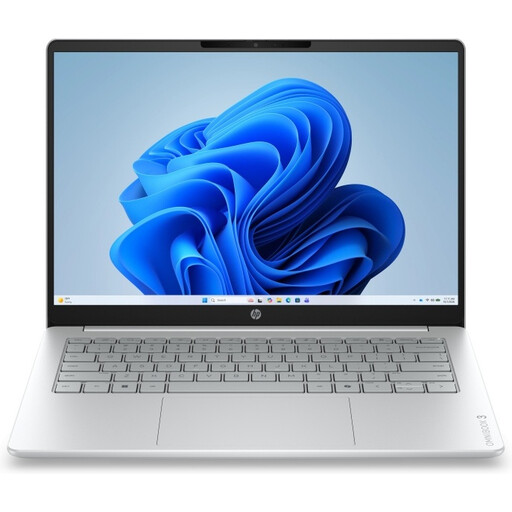
HP OmniBook 3 14-HY0005NDX
The 14-inch screen layout is an option for viewing documents, tables and spreadsheets as part of your workflow.
14-inch 1920 × 1200 anti-glare IPS screen with 16:10 aspect ratio; 12 GB memory; 512 GB SSD; Windows 11 Home. A charger is not included.
View at Joybuy
Frequently asked questions
Do I need a powerful laptop to create a tide chart?
Not if you’re just viewing a table or creating a standard chart in a spreadsheet. Check how many windows you use at once and whether any specific software has additional requirements; the Consumers’ Association distinguishes between light office work and more demanding computing tasks.
How do I create and save a chart using tide data?
You can view Rijkswaterstaat tide data for each location as a table or chart. To create your own chart, select the relevant time and water-level data in your spreadsheet and plot it. When transferring data, check the location, date and units used.
Can I work with my files without an internet connection?
Some Google Drive files, including Sheets files, can be used offline on a Chromebook if you make them available offline in advance. Google says that not all apps work offline, so current online water levels won’t automatically be available offline.
Is a tide prediction the same as the current water level?
No. Rijkswaterstaat provides astronomical tide data for each location, but predicted and measured water levels can differ, for example because of wind. If you’re using the information for boating, also check current data and relevant navigation information.
What are my rights when buying a laptop online in the Netherlands?
For online consumer purchases, you generally have a 14-day cooling-off period from delivery; check whether an exception applies. A product must also do what you can reasonably expect it to do. If there’s a fault, contact the seller about your statutory warranty. ACM ConsuWijzer explains these consumer rights.


