
Editors working with long or multi-camera recordings
You want a responsive timeline and enough room for source files, cache and exports. Before choosing, work out which resolutions and camera angles you’ll actually be using.


Start with your source footage and editing software: the resolution, codec and number of camera angles all affect how much memory, graphics power and fast storage will be useful. Then choose between a Windows laptop with a dedicated GPU, a MacBook Pro or a lighter laptop with a proxy workflow, based on your software, ports and workspace. A smooth edit using proxy files doesn’t necessarily mean the final export will work well with the original footage.
You want a responsive timeline and enough room for source files, cache and exports. Before choosing, work out which resolutions and camera angles you’ll actually be using.
You take your laptop to meetings or reviews, so alongside performance, you’ll want to consider screen size, ports and how you’ll present your edit.
You want to finish the recording without automatically opting for the most powerful configuration. A proxy workflow and external storage may be options if they suit the way you work.
A good fit if: you use Windows software or GPU-intensive effects and do most of your editing at a fixed workstation.
Bear in mind: a dedicated GPU isn’t enough on its own; compare the full configuration, including memory and SSD storage.
A good fit if: macOS suits your project and you also use or present from your laptop in different locations.
Bear in mind: check the exact screen size and memory configuration, along with compatibility for your codecs and plug-ins.
A good fit if: large original files are slowing down your timeline and your editing software supports proxy files.
Bear in mind: allow space and preparation time for proxies, and switch back to the original media for your final export.
| What to consider | What to look for when buying | Who should consider this? |
|---|---|---|
| Smooth editing and reliable exports | Make a note of your software, resolution, codec and number of camera angles. Then compare the exact configuration with your software’s requirements and test an export using your own project. For Premiere on Windows at 4K and above, Adobe recommends 32 GB RAM or more; this isn’t a general requirement for every workflow. | If you don’t want to wait for a demanding timeline or export, make performance a priority. Around 33% of consumers prioritise editing and export performance when making this choice. |
| Space for media and final files | Work out how much space your source files and any proxies will need. Check the internal SSD, available space and ports for an external drive. Adobe recommends fast storage for media files and cache. | If you want to keep source footage, cache and final files to hand, consider storage capacity and media management. Around 27% of consumers put storage first. |
| Screen, ports and portability | Check which screen you’ll use for the review and which connection it requires. Compare the ports and screen size of the exact model. | If you take your laptop with you and want to show your edit at the review venue, portability and presentation options matter too. Around 20% of consumers prioritise editing and presenting on the go. |
| A workflow that avoids an unnecessarily powerful configuration | Check whether your software supports proxies for your files. Set aside storage and time to create them, and test an export using the original files before the review. | If you want to avoid choosing more hardware than your workflow needs, find out whether a proxy workflow suits your footage. Around 20% of consumers prioritise an affordable, less powerful configuration. |
A laptop with a dedicated GPU may still be limited by its combination of RAM and storage. For Premiere on Windows at 4K and higher resolutions, Adobe recommends 32 GB RAM or more. Compare this recommendation with the exact laptop configuration and your own project.
Before buying, check the RAM, GPU memory and available SSD space on the exact model.
Your project may need a configuration with more storage or a different memory option.
Proxy files are lighter copies used for editing. You’ll need to use the original media again for your final export.
Make sure you also test an export using the original files well before the review.
Creating proxies takes extra preparation time and storage space.
Recognisable people and protected creative contributions may involve separate rights or agreements.
Before publishing, check what legal basis and agreements apply to the footage, performance and music in your recording.
The MacBook Pro is a macOS option for editing and presenting in different locations. Compare the 14-inch and 16-inch models, as well as the exact chip and memory configuration.
The Legion 5 is a Windows option with a dedicated GPU. Configurations vary, so always check the full model code and specification.
The ProArt P16 H7606 is a range of creative Windows laptops with a variety of model codes.
The OMEN Transcend 14 is a compact Windows option. Consider its screen and portability alongside the configuration and workspace you need.
This Joybuy selection features Windows laptops with dedicated GPUs. For each model, compare the listed configuration with your editing software’s requirements and the scale of your project.
 No image available
A 16-inch Windows laptop with a dedicated GPU, ready to compare with the requirements of your editing project.
Intel Ultra 9 285H, RTX 5060, 16 GB RAM and 1 TB SSD. The power adapter must be purchased separately.
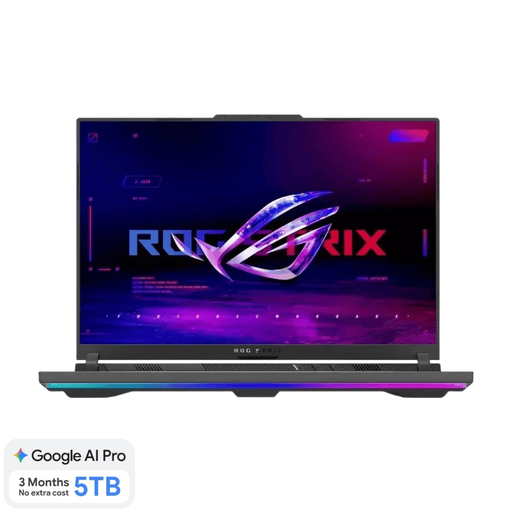 No image available
A 16-inch Windows laptop with a dedicated GPU to compare with the software and screen requirements of your editing work.
Ryzen 9 9955HX, RTX 5070 Ti, 16 GB RAM and 1 TB SSD.
 No image available
An 18-inch Windows laptop with a dedicated GPU, for those who want to factor a large built-in screen into their editing and review setup.
Ryzen 9 8940HX, RTX 5060, 16 GB RAM and 1 TB SSD. The power adapter must be purchased separately.
 No image available
A 16-inch Windows laptop with a dedicated GPU to compare with the requirements of your editing software and files.
Intel Core 7 240H, RTX 5070, 16 GB DDR5, 1 TB SSD and Dutch QWERTY keyboard.
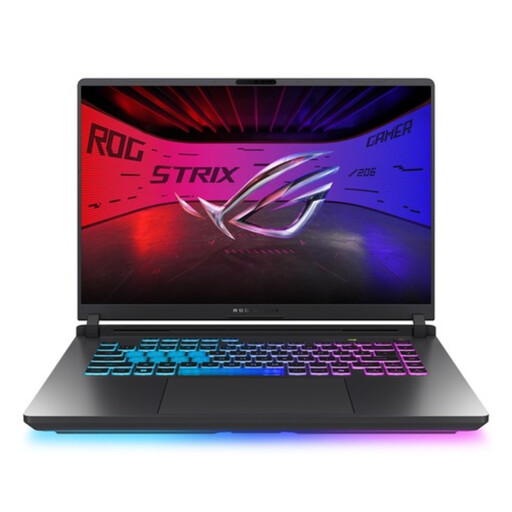 No image available
A 16-inch Windows laptop with a dedicated GPU, to match the requirements of your editing workflow.
Core Ultra 9, RTX 5070 Ti and QWERTY keyboard.
No, it isn’t a general rule. For Premiere on Windows at 4K and higher resolutions, Adobe recommends 32 GB RAM or more. What’s right for you depends on your software, operating system and source footage. Check the requirements for the software you actually use.
In Premiere, you can create proxies for supported video files and edit using lighter copies. Keep the originals and switch back to them for your final export. Remember to allow for the extra storage space these files need.
Report the fault to the seller. According to the Government of the Netherlands, if a product is faulty, the seller can’t simply refer you to the manufacturer.
For eligible distance purchases from a business, you generally have a 14-day cooling-off period. Check whether this applies to your purchase. According to the Government of the Netherlands, online purchases from a private individual aren’t covered by the distance-selling rules.
Don’t assume you automatically have the right to publish the footage. If the GDPR applies, you may need a lawful basis for including recognisable people. Copyright in music, for example, and performers’ related rights may also be relevant. Before publishing, check the agreements and rights that apply to your recording. Whether you can show it solely during a private review also depends on those agreements.