
Editor working with large source files
Wants to organise and edit footage from multiple recordings, while allowing space for originals, cache and any proxies. Adobe recommends fast storage for media and cache in Premiere workflows.


Choose between a compact MacBook Pro and a larger Windows laptop based on your editing software, source files and workspace; neither is automatically right for every workflow. Check the codec, resolution, memory, storage and ports on the exact configuration. Adobe lists fast media storage and proxies as part of a Premiere workflow, but proxies require extra files and depend on the file type.
Wants to organise and edit footage from multiple recordings, while allowing space for originals, cache and any proxies. Adobe recommends fast storage for media and cache in Premiere workflows.
Weighs up a more compact device against the extra built-in screen space of a larger model. Apple's MacBook Pro range includes 14- and 16-inch configurations; check the one you're considering.
Wants to match memory, graphics and file compatibility to the software they use. For Adobe Premiere, Adobe recommends 32 GB or more for 4K and higher resolutions; this isn't a general requirement for every editor.
First, work out which software and file formats you use, and how much storage you need. Then compare the size and screen space of the exact laptop configuration.
Suitable for: editing in different locations, if macOS and your software work with your files.
Trade-off: a 14-inch screen offers less built-in timeline space than a 16-inch model; also check the memory and SSD in the configuration.
Suitable for: those who mainly edit in one place and want to compare a larger built-in screen and a specific configuration.
Trade-off: more screen space doesn't replace suitable codec support or enough room for source files and cache.
Suitable for: those who want to edit large or complex files and use software that supports proxies for those files.
Trade-off: proxies are extra files that you need to create and manage. Adobe describes this workflow for Premiere, subject to certain conditions.
| Consideration | What should you check? | Who is this important to? |
|---|---|---|
| Space and speed for source files | Compare the project size with the SSD and check the ports for any external media storage. Adobe recommends fast storage for media and cache in Premiere workflows. | If I store several large recordings, I also want enough room for cache and any proxies. Around 36% of consumers prioritise space and speed for source files. |
| Editing performance and file compatibility | Compare your software, codec and resolution with the full configuration. For Premiere, Adobe recommends 32 GB or more for 4K and higher resolutions. | If I edit a complex timeline, I want to know whether my software and camera files are compatible with the configuration. Around 28% of consumers prioritise editing performance and compatibility. |
| Moving between editing locations | Compare the size of the exact configuration and check whether you need extra screen space or adapters when you're on the move. | If I move between rehearsal spaces and home, I weigh portability against the working space provided by the built-in screen. Around 18% of consumers prioritise portability. |
| Screen space for selecting and checking footage | Compare the screen specifications of the configuration on offer and decide whether you'll use an external screen. | If I select and review footage on the laptop itself, I want enough built-in workspace. Around 18% of consumers prioritise screen space. |
Originals, cache and any proxies all take up storage space. Capacity alone doesn't tell you whether the drive suits the way you work with media.
Estimate how much space the whole project will need and check the ports for any external drive you might use.
You may still need a suitable charger or adapter for that configuration.
The MacBook Pro range includes 14- and 16-inch configurations and may be worth considering if macOS suits your editing workflow.
The ProArt P16 H7606 range is a Windows option for comparing laptops with a built-in 16-inch screen and separately specified graphics.
The Legion Pro 7 16IAX10H is another Windows range with a 16-inch screen and configurable graphics.
The ZBook Studio G11 is a mobile workstation range to compare if upgradeable memory or a professional configuration matters to you.
These laptops offer a range of sizes and configurations to compare for editing, from more compact models to larger Windows laptops. Always check that the exact configuration suits your software and source files.
 No image available
Compare this 16-inch configuration for a fixed editing workspace if it suits your software and files.
Intel Core Ultra 9 285H; RTX 5060; 16 GB RAM; 1 TB SSD.
 No image available
A 16-inch model to compare if you edit in one place; check that the configuration suits your editing software.
Intel Core 7 240H; NVIDIA GeForce RTX 5070 8GB; 16GB DDR5; 1TB SSD; WUXGA 144Hz; Windows 11 Home; Dutch QWERTY keyboard.
 No image available
Compare this more compact model if you move between editing locations, and check that your software and files are compatible beforehand.
16 GB memory; 512 GB SSD.
 No image available
A more compact configuration to consider for changing workspaces; first check that your editing software and source files will work with it.
16 GB; 512 GB SSD.
 No image available
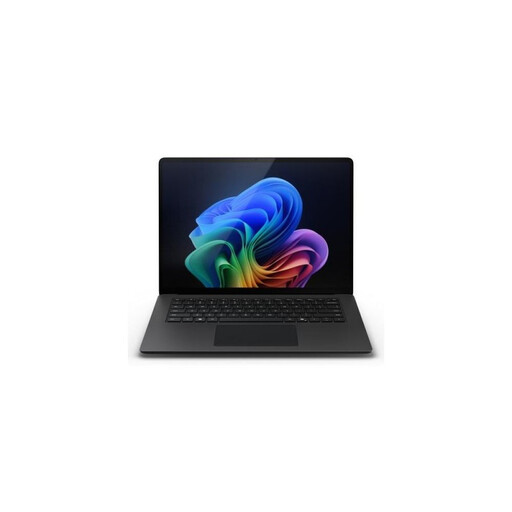
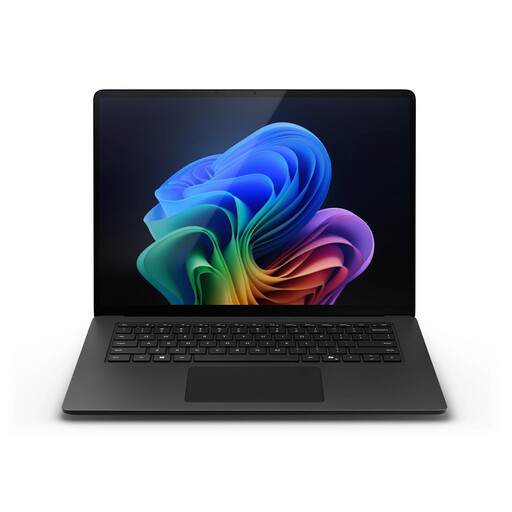
Compare this 16-inch Windows workstation configuration if you want to match its listed specifications to your editing software and source files.
NVIDIA RTX Spark N1X; 64 GB RAM; 1 TB SSD; Windows 11 Pro; QWERTY.
No. First consider your software, codec, resolution and the size of your source files. Adobe describes fast media storage and proxies as possible parts of a Premiere workflow; the proxy feature doesn't automatically apply to every file type.
Adobe recommends fast storage for media and cache, and also lists fast external storage as an option. Compare this setup with the capacity and ports you actually need for originals, working files and exports.
Check the exact offer to see whether a suitable charger is included and whether you need adapters or extra storage. One Joybuy offer for a MacBook Pro that we checked stated ‘No charger’; this doesn't tell you anything about other offers.
No. According to the Dutch government, there is no fixed statutory guarantee period in the Netherlands: you're entitled to a product that meets the terms of the agreement. If the product is faulty, you can contact the seller for a solution; the manufacturer's warranty may offer additional cover.
No. The Dutch government states that when you buy from a business online or at a distance, you often have 14 days to change your mind. There are exceptions, and a purchase from a private seller doesn't fall under the same rules. So check who the seller is and which type of sale applies.