
Readers who need magnification
You read and label reviews using larger text, and want to see how much of the review and index remain visible at the same time.


Start by considering the screen space and magnification settings you need to view a review and your index. Test them in the software you use. OCR, or optical character recognition, is a separate software step for scans; it isn’t a standard laptop feature. A larger screen gives you more room to work, while a more compact model may be easier to carry.
You read and label reviews using larger text, and want to see how much of the review and index remain visible at the same time.
You make paper reviews or image scans searchable and add index details. The capabilities of your OCR software are therefore part of your decision.
You take your laptop with you to read reviews or enter details, weighing portability against the space available for enlarged text.
First, test the magnification and software with one of your own reviews. Then compare screen space, input and portability against your day-to-day workflow.
| Consideration | What should you check? | Which shoppers should pay particular attention? |
|---|---|---|
| Readability when magnified | Try your preferred text size or zoom level in your own app. Check whether you can still see the index alongside it. | If you read reviews with magnification, you’ll also want to keep track of where you are in the index. Around 36% of shoppers make readability when magnified their top priority. |
| Making scans searchable | Test OCR with a representative scan and check that names, titles and dates are recognised correctly. | If your archive consists of scans, you’ll want to be able to find and check recognised text. Around 29% of shoppers prioritise making scans searchable. |
| Entering index details | Try the keyboard layout with your own input fields and check that the configuration you choose has the keyboard you need. | If you regularly enter titles, performance dates and locations, you’ll want to type efficiently while referring back to the review. Around 21% of shoppers make ease of data entry their top priority. |
| Taking your laptop to another location | Compare the weight of the exact configuration and check whether the screen gives you enough working space at your preferred magnification level. | If you work in different places, you’ll want to take your laptop with you without giving up too much screen space for magnification. Around 14% of shoppers prioritise portability. |
According to Microsoft Support, Windows 11 includes Magnifier. Apple Support describes text size and zoom settings for macOS, but notes that text magnification works in supported apps. Always test the indexing software you use.
OCR depends on the software and your workflow. Microsoft Support describes text recognition in certain desktop versions of OneNote, while Adobe Acrobat Help explains OCR for scanned PDFs. Check that your version can handle your scans and file formats.
A scan may be an image from which you can’t select text directly. OCR is a separate step, and its capabilities vary between applications.
Test the entire process with one of your own scans: recognise the text, search for a name and check the results before transferring details to your index.
A larger screen doesn’t guarantee that a review and index will sit comfortably side by side when you enlarge the text.
Open a representative review at your preferred magnification level and check that the index and input fields are still usable.
According to ASUS Store Netherlands, the Dutch retail configuration of the ASUS Vivobook 16 X1607CA that was reviewed doesn’t include a power adapter. This doesn’t automatically apply to other Vivobook configurations.
Check what’s included in the box for the exact model and see whether you already have a compatible adapter.
According to the Dutch Government, statutory consumer rights in the Netherlands have no fixed legal warranty period. Paying for additional cover doesn’t replace your statutory rights.
Before taking out extra cover, compare the additional services it offers and contact the retailer about any fault.
The ThinkPad E16 Gen 3 is a 16-inch Windows option to compare if you need screen space for reading and indexing.
The Vivobook 16 X1607CA is a Windows option with a 16-inch screen to consider for reading and data entry.
The 15-inch MacBook Air with M5 is a macOS option if you can use your indexing software on a Mac.
The OmniBook 5 range includes 16-inch Windows laptops that you can compare for screen space and keyboard layout.
This Joybuy selection features Windows laptops with spacious screens for reading with magnification and indexing. For each model, check whether the magnification and indexing software work with your own reviews.
 No image available
An option to consider if you want a Windows laptop with a large screen for enlarged reviews and index details.
The product name lists a 16-inch 3K OLED touchscreen with 120 Hz, 128 GB RAM, a 2 TB SSD and Windows 11 Pro. The product description also mentions a full-size keyboard.
 No image available
The 16-inch screen and numeric keypad are worth considering if you read reviews and enter a lot of index details.
The product name lists a 16-inch 1920 × 1200 screen with 144 Hz, 32 GB DDR5 memory, a 512 GB SSD and Windows 11 Pro. The product description says that a power adapter isn’t included.
 No image available
A 16-inch Windows option to test with your own magnification settings and indexing software.
The product name lists a 16-inch QHD+ screen with 240 Hz, an AMD Ryzen 7 7745HX, 16 GB DDR5 memory, a 1 TB SSD and Windows 11 Home.
 No image available
The 17.3-inch screen gives you plenty of room to view enlarged reviews and index details. Its listed weight is worth considering if you plan to carry the laptop with you.
The product name lists a Full HD screen, 16 GB DDR5 memory, a 512 GB SSD and Windows 11 Home. The product description mentions an anti-glare IPS screen and a weight of 2.4 kg.
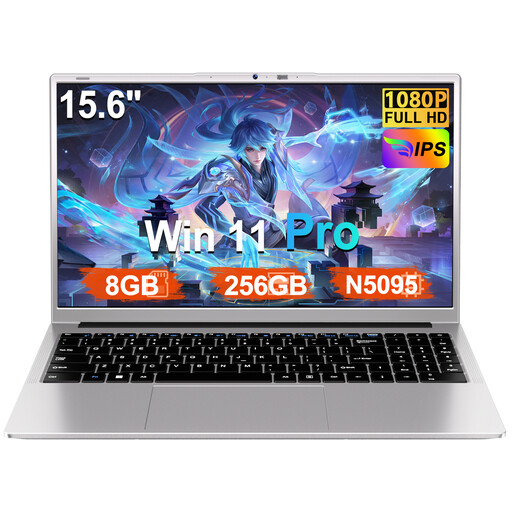 No image available
A laptop with a numeric keypad to compare if you enter data and a 15.6-inch screen suits your workspace.
The product name lists a Full HD screen, 8 GB RAM, a 256 GB SSD and Windows 11 Pro. It also mentions an N5095 processor and a numeric keypad.
Not for the basic features described here: Windows 11 includes Magnifier, and macOS has settings to make text appear larger. However, check that your review and indexing software works comfortably at your preferred magnification level.
First, check whether you can select text in the scan. OCR can recognise text in images or scanned PDFs: Microsoft describes this for supported desktop versions of OneNote, and Adobe Acrobat Help covers scanned PDFs. Check for recognition errors before copying names and titles into your index.
Not for the feature Microsoft describes for copying text from inserted images. Microsoft says the web version doesn’t have this OCR capability and recommends using the desktop app on Windows or Mac.
According to ACM ConsuWijzer, online purchases of products are generally covered by a statutory 14-day cooling-off period from delivery; check the applicable terms and exceptions. The Dutch Government also says that statutory consumer rights apply to products that should last, with no fixed legal warranty period. If there’s a fault, contact the retailer; an additional warranty doesn’t replace your statutory rights.