What should you look for?
Your editing software, source footage and the client’s setup determine which features should take priority. Check the exact configuration before comparing a model with your workflow.
| What to consider |
What should you check? |
Who should pay extra attention? |
| Editing and exporting |
Compare your software version’s requirements with the RAM, GPU memory and codec support. In its recommendations dated 21 January 2026, Adobe specifies 32 GB RAM or more and a GPU with at least 4 GB of memory for Premiere on Windows or Intel-based Mac systems. |
If I need to edit and export before a client meeting, I want my software and source files to be a good match for the configuration. Around 33% of consumers give editing and exporting top priority. |
| Storage for media and cache |
Check the SSD in the configuration you’re considering and allow space for original files, your project, cache, backups and exports. Adobe recommends fast SSD or NVMe storage and describes using separate storage for the system, cache and media. |
When I have lots of footage, I want to keep my source files, cache and finished reel organised. Around 27% of consumers make storage their top priority. |
| Presenting to the client |
Check which connection and playback method the venue uses, and test the final export in advance. Adobe lists format, resolution, frame rate and codec as video output settings. |
If I need to show the reel on an external screen, I want to know in advance that the laptop, cable or adapter and playback file will work with the setup. Around 20% of consumers put confidence in the presentation first. |
| Taking it on location |
Compare the weight and screen size of the exact configuration. Also check whether the power supply and any adapter are included in the box. |
When I travel between my editing space and the client’s location, I want to take my equipment with me without the screen or power supply making things difficult. Around 20% of consumers make portability their top priority. |
Joybuy laptops for editing and presenting
These Joybuy products are laptop options for video editing and connecting to an external screen. For each configuration, compare screen size, memory, storage, connections and your software requirements.
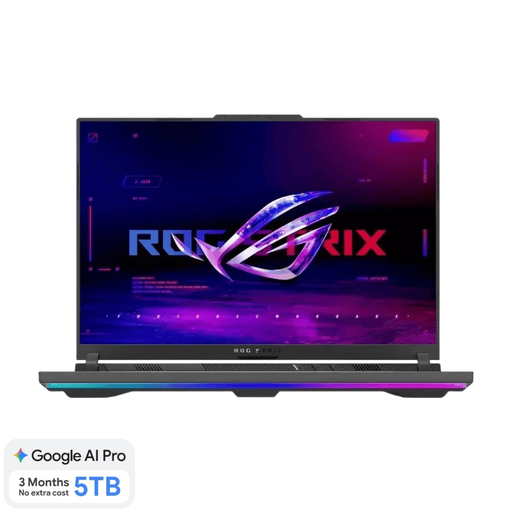 Image unavailable
ASUS ROG Strix G16 G614FR-S5252W
An option to compare if graphics processing and connecting to an external screen matter to you.
16-inch WQXGA screen; Ryzen 9 9955HX; RTX 5070 Ti with 12 GB GDDR7; 16 GB RAM; 1 TB SSD; HDMI 2.1; QWERTY keyboard.
Joybuy
 Image unavailable
Thunderobot 16-inch laptop, i7-14700HX
An option to consider if you want to include 32 GB RAM and an HDMI connection in your comparison for editing and presenting.
RTX 5070; 32 GB RAM; 1 TB SSD; 16-inch 2560 × 1600 IPS screen; HDMI.
Joybuy
 Image unavailable
ASUS ProArt P16 H7607BA-SE030X
A 16-inch option to compare if built-in screen space and a connection to an external screen matter to you.
64 GB RAM; 1 TB SSD; NVIDIA RTX Spark N1X; 16-inch 4K OLED screen; HDMI 2.1; approx. 1.85 kg; Windows 11 Pro.
Joybuy
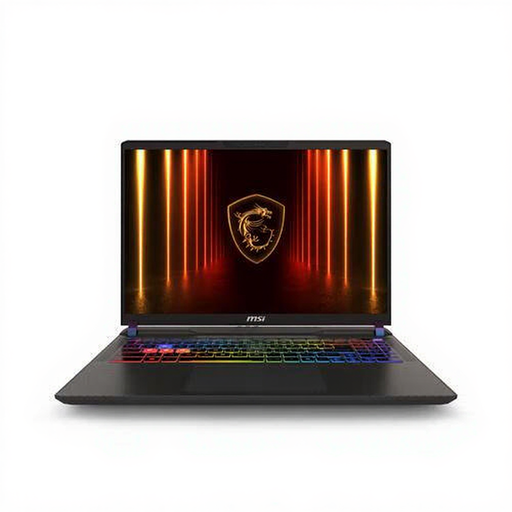 Image unavailable
MSI Vector A16 HX A8WIG-025NL
An option to compare if graphics processing and the ability to upgrade the memory are important to you.
Ryzen 9 8940HX; RTX 5080 with 16 GB video memory; 16 GB RAM, upgradeable to 96 GB; 1 TB PCIe 4.0 SSD; 16-inch 2560 × 1600 screen; HDMI 2.1; SD card reader.
Joybuy
 Image unavailable
MSI Titan 18 HX AI A2XWJG-492NL
A configuration to compare if plenty of internal storage and a large built-in screen matter to you. Bear in mind its stated weight of 3.6 kg when travelling.
18-inch UHD+ screen; Intel Core Ultra 9 285HX; RTX 5090 Laptop GPU with 24 GB GDDR7; 64 GB RAM; 6 TB SSD; HDMI 2.1; Windows 11 Pro.
Joybuy
Frequently asked questions
Do I always need a dedicated graphics card for a short theatre reel?
No, the length of the reel alone doesn’t determine that. Start by looking at your software, resolution, codec and effects. Adobe outlines GPU and memory specifications for Premiere; hardware acceleration depends on the supported GPU and media. Proxy files can help with demanding source footage.
How do I prepare my laptop for editing and presenting?
Plan storage for your source footage, project and cache, keep the original files and test the export using the intended presentation setup. Adobe describes separate storage locations for media and cache, as well as a proxy workflow for demanding source footage.
What might require extra preparation after purchase?
Depending on the configuration, you may need fast external storage, a suitable screen adapter or a power adapter. The ASUS product listing reviewed says that no power adapter is included with the relevant ProArt P16 configuration; check the offer you choose.
What warranty and cooling-off period apply to an online purchase in the Netherlands?
According to the Dutch government, statutory warranty in the Netherlands has no fixed legal time limit; if a product is faulty, the retailer is your point of contact. For online consumer purchases, a 14-day cooling-off period applies in many cases, with some exceptions. Don’t assume the same consumer rules apply if the laptop is bought for business use.
Can I show a client a theatre reel featuring identifiable audience members or performers, or publish it?
That depends on the purpose and lawful basis for using the footage. The Dutch Data Protection Authority says that a lawful basis under the GDPR is needed to capture and publish identifiable footage at an event. Check with the organisation responsible who is allowed to view the reel and whether it can be shared more widely.


