
Teacher using specific school software
You organise teaching materials in applications managed by your school and want to know in advance which devices they work with.


Start with the programmes and file environment your school uses, then choose a laptop that suits the connections available at your shared workstation. A compact model is easier to carry, while a larger built-in screen gives you more room to work. Also check which files need to be available offline, and follow your school’s policy when handling pupil data.
You organise teaching materials in applications managed by your school and want to know in advance which devices they work with.
You move between workstations and want to connect your laptop to the monitor and input devices available there.
You want to find materials easily and decide which files you’ll also need without an internet connection.
A good fit if: your school requires Windows applications or its working environment is set up for Windows.
Bear in mind: OneDrive files stored online only can’t be opened without an internet connection, according to Microsoft Support.
A good fit if: your school uses approved web applications and its IT administrator allows the apps you need.
Bear in mind: Google says an administrator can restrict the installation of Android apps. Also check the end-of-update date for the exact model.
A good fit if: the school programmes you need support macOS and you can connect the laptop to the existing monitor and accessories.
Bear in mind: Apple lists two Thunderbolt 4 ports for the 13-inch MacBook Air M5 reviewed here. Check whether you’ll need an adapter at your shared workstation.
| What to consider | What should you check? | Who should pay extra attention? |
|---|---|---|
| School software | Ask which applications and operating systems are required, and whether there are restrictions on managed devices. | If I need to use specific programmes, I want to know in advance which laptop they work with; around 36% of consumers put software compatibility first. |
| Workstation connections | Compare the ports on the exact model with the cables or dock at your workplace. | When I move between desks, I want to connect my laptop to the equipment provided without any hassle; around 29% of consumers give the shared workstation top priority. |
| Data protection | Follow your school’s policy on accounts, storage and device security; don’t assume a product claim guarantees compliance. | If I handle pupil data, I want to know what arrangements my school has in place; around 21% of consumers put data protection first. |
| Offline files | Decide which folders you need offline and test how synchronisation works with your school account. | If I need teaching files without an internet connection, I want to know in advance which ones I can make available locally; around 14% of consumers give offline access top priority. |
An IT administrator can restrict app installations on a managed Chromebook. It’s important to check in advance which applications your school allows.
Ask your school which programmes and operating systems it supports before making your choice.
Microsoft Support says that OneDrive files stored online only can’t be opened without an internet connection.
Set any files you need to be available offline in advance, and check that synchronisation has finished.
Files stored locally take up space on your laptop.
Arboportaal states that for employees who spend more than two hours a day working with a screen, the screen and keyboard must not be attached to one another.
Check the existing workstation and discuss the setup with your employer before buying accessories.
Depending on what’s already available, you may need a separate screen or keyboard.
The ThinkPad E14 is a compact business Windows range worth comparing if you work at different desks.
The ProBook 4 is a business Windows range with a 14-inch model to include in your comparison.
The TravelMate P2 and Chromebook Plus offer different options: a Windows laptop or a Chromebook for a compatible ChromeOS school environment.
The MacBook Air is a macOS option if it works with the school software and equipment you need.
These laptops are for anyone organising teaching materials and considering the connections available at a shared workstation.
 No image available
This 16-inch model may suit you if you want a larger built-in screen at a shared desk; check that Windows 11 Home works with your school software.
AMD Ryzen 5 7520U, 8 GB RAM, 512 GB SSD, 2K IPS screen and Windows 11 Home.
The product description says the charger is not included.
 No image available
This model may suit you if you want a larger screen for documents at a shared workstation; check that Windows 11 Pro and the connections match what your school uses.
15.6-inch anti-glare Full HD screen, Intel Core i5-13420H, 16 GB DDR5, 512 GB SSD, Wi-Fi 6 and Windows 11 Pro.
 No image available
This 16-inch model may suit you if you want a larger screen; check in advance that your school software and the connections at your shared workstation are compatible with this model.
32 GB RAM, 1 TB SSD, 3K OLED touchscreen with 120 Hz and Windows 11 Pro.
 No image available
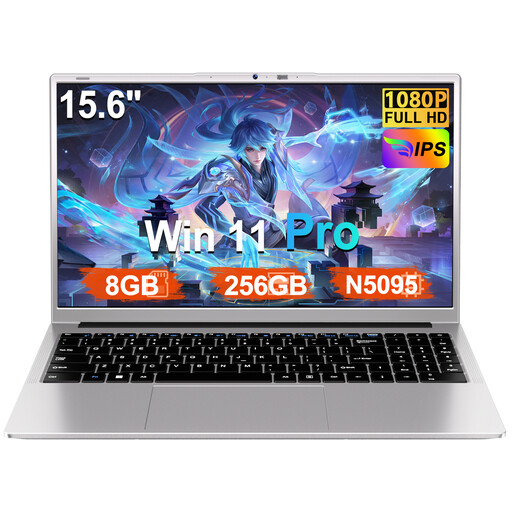
Before buying this model, check that it works with your school software and that the listed connections suit the equipment at your shared desk.
N5095 processor, 8 GB RAM, 256 GB SSD, FHD screen and Windows 11 Pro. The product name states that storage can be expanded up to 1 TB.
 No image available
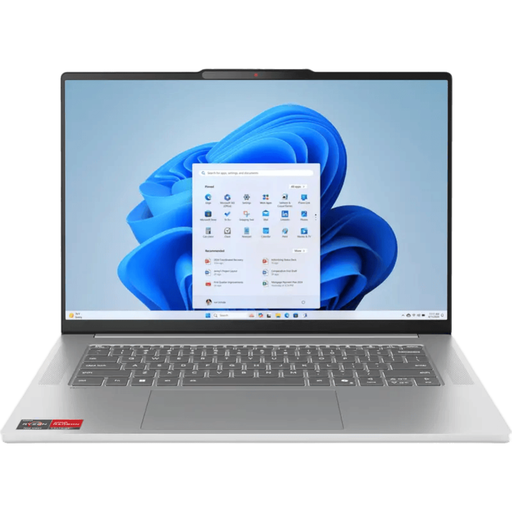
Check that the exact model works with your school software and that it connects to the monitor and peripherals at your shared workstation.
The product name lists R7, 16G, 512G and a Qwerty keyboard. The product description says the charger must be purchased separately.
Ask your IT administrator which applications, operating systems and account settings your school supports. On a managed Chromebook, the administrator can restrict the installation of Android apps.
For employees who spend more than two hours a day working with a screen, Arboportaal states that the screen and keyboard must not be attached to one another. Discuss your workstation setup with your employer.
If you use OneDrive, you can set the files you need to ‘Always keep on this device’ in advance. Microsoft Support says files stored online only can’t be opened without an internet connection; check whether your school allows this synchronisation method.
Follow your school’s policy on accounts, storage and device security. The Dutch Data Protection Authority states that schools have an accountability obligation under the GDPR, so discuss your laptop choice and how you’ll use it with your school.
Google says the end-of-update date for each device is listed under ‘Update schedule’ in the ChromeOS settings. Check the date for the specific Chromebook you’re considering.