First, choose a laptop that runs your document software and any school or printer tools you need. Then compare screen size, portability, battery life and ports for working in a café. A compact Windows laptop offers a range of connection options, a MacBook is an option if you can work with macOS, and a Chromebook is best suited to you if browser apps are enough. Manufacturers’ battery-life figures don’t guarantee how long the laptop will last while you work.
Who is this buying guide for?
Teacher who relies on specific school software
You create worksheets using document software or school tools, and check before choosing whether they work with your preferred operating system. Microsoft Support explains which versions of Microsoft 365 are available on a Chromebook.
Teacher who writes on the go
You take your laptop to a café and weigh up screen space against portability, battery life and ports. Apple Netherlands and Acer Netherlands publish specifications for specific configurations.
Teacher who mainly uses web apps
You create simple handouts in a browser and want to know in advance whether a Chromebook will do the job, rather than assuming you can use desktop software. Microsoft Support explains how to access Microsoft 365 web apps on a Chromebook.
What should you look for when buying?
| What to consider |
What to look for |
Who is it important for? |
| Document and school software |
Check the required app version, account access, file format and any offline features on your chosen operating system. |
I want to be sure my school software and the document features I need will work; around 36% of consumers prioritise compatibility. |
| Portability and battery life |
Compare screen size, weight and charging options. When checking battery life, also look at the test conditions and type of use. |
If I’m taking my laptop with me and want to keep working in a café, size and battery life matter a lot; around 29% of consumers prioritise this kind of mobile working. |
| Ports and build quality |
Make a note of the ports you need and check that the laptop connects directly to your screen, projector or other equipment. |
I want to share or finish handouts using the equipment I already have; around 21% of consumers put connections for their devices at the top of their list. |
| Purchase and running costs |
Check which software and accessories you’ll need, and what’s included with the exact configuration. |
I want to compare the laptop and any essential extras together in advance; around 14% of consumers make total cost their main consideration. |
Common pitfalls
-
Choosing a Chromebook without checking which version of Word you need
Microsoft Support says that the Windows and Mac desktop versions of Microsoft 365 can’t be installed on a Chromebook. So it’s important to check whether the web version suits the way you create handouts.
Before choosing this setup, try out the required template and features in the web version.
-
Assuming a quoted battery life is guaranteed working time
Apple gives separate maximum figures for activities such as video streaming and wireless internet use. These figures don’t show how long your laptop will last while you’re creating teaching materials.
Compare battery-life figures only alongside their stated test conditions, and factor in your own screen use and connectivity.
-
Overlooking ports and included accessories
The MacBook reviewed has two Thunderbolt 4 ports; Apple says that a power adapter isn’t included with the relevant purchase. The Acer configuration reviewed also lists HDMI and USB-A. Always check the exact configuration.
Compare the ports and box contents with the equipment you already own. You may need a suitable adapter to connect a peripheral.
If a required adapter isn’t included, you may need to buy it separately. Check the details for the exact configuration.
Brands to consider
Apple
The MacBook Air is an option if you use macOS and want a compact laptop.
- For the 13-inch MacBook Air M5, Apple quotes a 13.6-inch display and up to 15 hours of wireless internet use. This is Apple’s own figure, not an independent battery test.
- Apple lists two Thunderbolt 4 ports, as well as MagSafe and a headphone jack. Check whether you need an adapter for your existing equipment.
Acer
The Aspire 14 AI A14-52M-59XZ is one example of a Windows laptop with several types of connection.
- For this configuration, Acer lists a 14-inch OLED display, 16 GB of memory, a 512 GB SSD, and HDMI, USB-A and USB-C connections.
- These specifications apply to the A14-52M-59XZ and don’t automatically apply to other Aspire configurations.
Lenovo
The 14-inch IdeaPad Slim 5 Gen 10 is a Windows range designed for everyday work on the go.
- Lenovo lists an HDMI port and a microSD slot among the features available across the range.
- Check the exact model number, configuration and availability; range specifications may not cover every configuration in full.
HP
The OmniBook X Flip 14 is a Windows option to consider if a touchscreen suits the way you work.
- For the 14-kc0600ndx, HP lists Windows 11 Home, 16 GB of RAM, a 512 GB SSD and a 14-inch touchscreen.
- These specifications don’t tell you how long the battery lasts or how much the laptop weighs.
ASUS
An ASUS Chromebook may suit a browser-based workflow if it supports the school services you need.
- Microsoft Support says that Microsoft 365 web apps are accessible on a Chromebook.
- The Windows and Mac desktop versions of Microsoft 365 can’t be installed on a Chromebook. Check the features and workflow you need in advance.
Laptops for creating teaching materials in a café
This selection includes portable Windows laptops and compact MacBooks for creating handouts in a café.
 No image available
HP OmniBook 7 Aero 13-bg1051nd
A Windows laptop to take with you when you need a range of connections for work or other equipment.
13.3-inch IPS display with a 16:10 aspect ratio; 16 GB of memory and a 512 GB SSD; Windows 11 Home; HDMI, USB-A and USB-C; 1.46 kg.
View at Joybuy
 No image available
HP OmniBook 5 Flip 14-fp0250ndx 2-in-1
A Windows option for creating and formatting handouts, with a touchscreen and a hinge that lets you use it in different positions.
14-inch IPS touchscreen, 1920 × 1200 and 16:10; 8 GB of memory and a 512 GB SSD; Windows 11 Home; HDMI 2.1, two USB-A and two USB-C ports; approx. 1.60 kg; 360-degree hinge.
View at Joybuy
 No image available
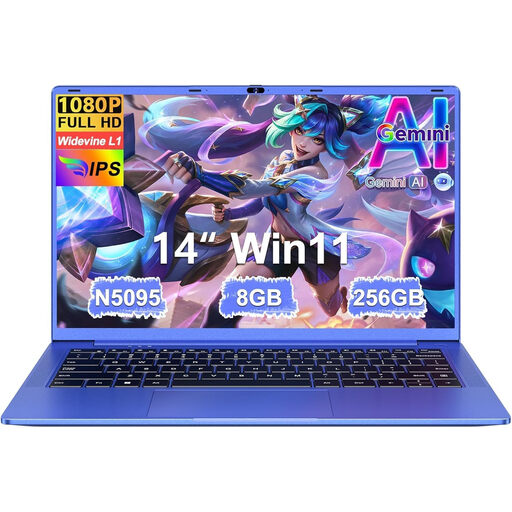
Ruzava 14-inch laptop, 8 GB RAM, 256 GB SSD, N5095, purple
A 14-inch laptop to take with you if you want to compare an IPS display and the listed essential ports.
FHD IPS display; 8 GB RAM and a 256 GB SSD; N5095 processor; USB 3.0, USB-C for data and Mini-HDMI; 1.39 kg; 180° hinge. The description says storage can be expanded to 1 TB using a TF card slot.
View at Joybuy
 No image available
Apple MacBook Air 13-inch M5, 16 GB, 512 GB, Midnight
A compact macOS laptop to consider if you can work with macOS and its ports suit your equipment.
13.6-inch display; 16 GB of memory and 512 GB of storage; two Thunderbolt 4 ports; 1.23 kg. Apple quotes up to 15 hours of wireless internet use for the 13-inch MacBook Air. This is a manufacturer’s figure, not a guarantee of how long it will last for you.
View at Joybuy
 No image available
Apple MacBook Neo 13-inch A18 Pro, 8 GB, 512 GB, silver
A compact macOS option to take with you if this configuration suits your software and workflow.
13-inch display with 2408 × 1506 resolution; 8 GB of memory and a 512 GB SSD; macOS; 1.23 kg. According to the product description, a USB-C power adapter of at least 20 W isn’t included.
View at Joybuy
Frequently asked questions
Can you use Word on a Chromebook to create a lesson handout?
You can use the web version of Microsoft 365 Word on a Chromebook. The Windows and Mac desktop versions can’t be installed on it, so check whether the features and workflow you need are available in the web version.
How can you prepare a laptop for working without reliable Wi-Fi?
Check in advance that you can access the files and programmes you need without an internet connection. If you’re using a Chromebook, don’t assume you can work with desktop Office in the same way as on Windows or macOS.
Who can help if your laptop doesn’t work properly after you buy it?
If a product is faulty in the Netherlands, you should contact the seller for a solution; you aren’t required to go to the manufacturer. Manufacturer and seller warranties are in addition to your statutory rights. Whether a specific fault is covered depends on the circumstances. The Government of the Netherlands explains these rights.
Do you have a cooling-off period for a laptop bought online?
For many online purchases from a business, you have a 14-day cooling-off period, according to the Government of the Netherlands. Check how the purchase was made and which terms apply; these rules don’t apply to online purchases from a private seller.
Can you leave teaching materials containing pupils’ personal data open in a café?
Don’t assume that this is automatically allowed. The Dutch Data Protection Authority identifies the security of personal data as a basic principle and advises protecting sensitive documents. Follow the relevant school policies and privacy rules for pupil data.


