What should you look for?
First, check that your teaching files and the apps you need work on the laptop. Then look at the connection for your presentation and choose a size that suits working on the go.
Windows laptop
A good fit if: you edit your teaching files in specific Windows programmes or need a Windows-based workflow.
Bear in mind: having Windows does not guarantee that the apps or licences you need are included.
MacBook Air
A good fit if: your editing programmes work on macOS and you’re looking for a 13- or 15-inch model with Thunderbolt video output.
Bear in mind: Apple specifies Thunderbolt 4 with DisplayPort support. If you need to connect to an HDMI screen, arrange the right connection in advance.
Chromebook
A good fit if: you can edit your lessons using compatible web apps, such as Google Docs and Slides.
Bear in mind: set up offline access in advance and check that the files and formatting suit your workflow.
| Consideration |
What to look for |
Who should give this more weight? |
| Editing software and proofreading |
Check the file format, required apps and licences. Test the Dutch proofing language using a sample file in the app you use. |
If I need to keep editing client files in specific apps, I want to know in advance whether the software and file format are compatible. Around 36% of consumers put compatibility first. |
| Connection to the presentation screen |
Ask which input your client uses, then test the laptop, cable or adapter and display mode before the meeting. |
When I present to a client, I want to be able to connect my laptop to their screen in advance. Around 29% of consumers give projecting the highest priority. |
| Portability and offline access |
Compare the size of the exact model. Set up offline access and make the necessary files available if you’ll be working without an internet connection. |
If I finish teaching materials in different locations, I want to be able to open the file I need without a connection. Around 21% of consumers prioritise working on the go. |
| Costs and support |
Check what’s included and what support comes with the exact model or purchase. |
If you want to assess what’s included and what help is available if something goes wrong, compare the service terms and package contents. Around 14% of consumers make extra costs and support their main consideration. |
Joybuy laptops for teaching materials and presentations
These Joybuy products are Windows laptops for editing teaching materials. Check that the apps you need and the connection to your presentation screen are compatible with each model.
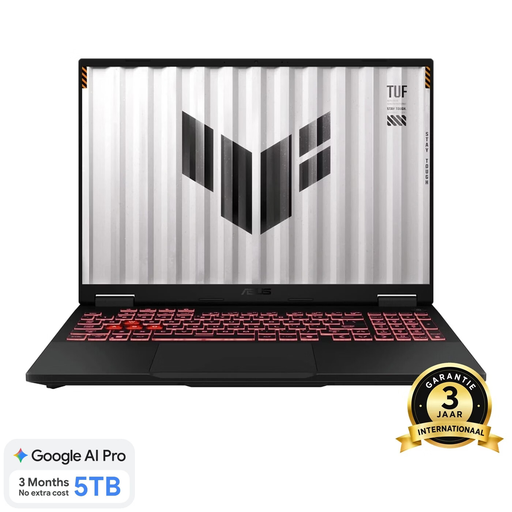 Image unavailable
ASUS TUF Gaming A18 FA808UP-S8011W
The 18-inch size may suit you if you want to view teaching materials and reference sources side by side.
18-inch, Ryzen 7 260, RTX 5070, 16 GB RAM, 1 TB SSD, Jaeger Gray and QWERTY keyboard.
Check that the exact model is compatible with the programmes you need and the connection for your presentation.
View on Joybuy
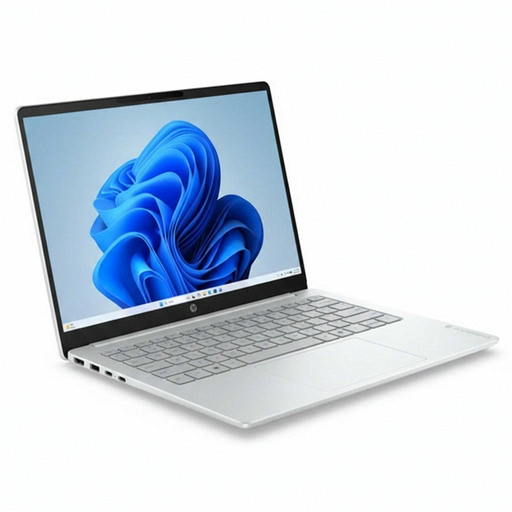 Image unavailable
HP OmniBook 3 AI PC 14-ht0013nd
A 14-inch Windows laptop to consider if you edit teaching materials in a Windows environment.
Intel Core 3 304, 8 GB RAM, 512 GB SSD and Windows 11 Home.
Check that your teaching files and required apps work on this model.
View on Joybuy
 Image unavailable
HP OmniBook 3 16-by0058ndx
The 16-inch screen may suit you if you’d like more room to view documents and teaching materials.
AMD Ryzen 5 7520U, 8 GB RAM, 512 GB SSD, 2K IPS display and Windows 11 Home.
Check that the connection you choose matches the presentation screen at your destination.
View on Joybuy
 Image unavailable
HP OmniBook 3 14-hy0058ndx
A 14-inch model may suit you if you use your laptop in different locations.
AMD Ryzen 5 7520U, 8 GB RAM, 512 GB SSD and Windows 11 Home.
Check the connection on the exact model before using it for a client presentation.
View on Joybuy
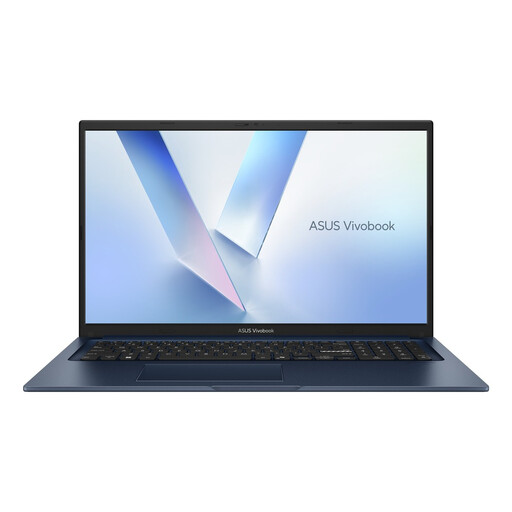 Image unavailable
ASUS Vivobook 17 X1704MA-AU153W
The 17.3-inch screen may suit you if you want to view teaching materials on a larger built-in display.
Core 5 320, 8 GB RAM, 256 GB SSD, Quiet Blue and QWERTY keyboard.
Check that the screen size and presentation connection you need suit the way you’ll use the laptop.
View on Joybuy
Frequently asked questions
Do you need a Dutch keyboard to check Dutch spelling?
No. Spelling and grammar checking is a software setting. Also check that you find the physical keyboard layout comfortable; for example, the Acer Chromebook Plus 514 NX.KV1EH.002 is listed with an English-layout keyboard.
How do you prepare a presentation with speaker notes?
Connect the external screen, test the extended display and set up Presenter View in PowerPoint. Microsoft Support explains how to use multiple screens; check in advance which screen displays the slides and which shows your notes.
Can you work on your lessons while travelling without an internet connection?
Yes, you can use Google Docs and Slides if offline access is set up and the files you need have been made available offline. Google Help explains these steps; try opening the specific lesson file without a connection before you leave.
Does a laptop bought for client work automatically come with a 14-day cooling-off period and statutory consumer guarantee?
Not automatically: ACM ConsuWijzer distinguishes between consumer purchases and agreements used mainly or exclusively for business. A cooling-off period applies to eligible online consumer purchases; check ACM ConsuWijzer for the exact period and conditions. For a business purchase, review the terms you’ve agreed to.
Which privacy rules apply if your teaching materials contain personal data?
According to the Dutch Data Protection Authority, an organisation that processes personal data must take appropriate security measures based on the risks. This does not automatically determine which laptop model you should buy; first check whether your teaching materials contain personal data and which processing policy applies.


