
Regular minute-taker
Types and reads for long periods at a shared desk and wants to adjust the screen and keyboard properly. Arboportaal recommends reassessing your workstation when you move to a new seat.


Choose a laptop that works with your minute-taking software and the screens and keyboards available at your shared workspace. If you’ll be writing up minutes for long periods, it’s also important to be able to set up your workstation properly. Check which operating systems your organisation supports and what rules it has for confidential minutes, too: choosing a laptop doesn’t replace those rules.
Types and reads for long periods at a shared desk and wants to adjust the screen and keyboard properly. Arboportaal recommends reassessing your workstation when you move to a new seat.
Moves between desks regularly and wants to connect to the screens and peripherals already there. Check what equipment and connections are available at each workstation.
Works with minutes that may contain personal data and needs to follow their organisation’s access and security rules. The Dutch Data Protection Authority recommends using organisation-provided equipment where possible.
Start with a comfortable set-up and the connections you need at the shared workspace. Then compare portability and compatibility with your organisation’s security policy.
| What to consider | What should you check? | Who should give this more weight? |
|---|---|---|
| Comfort when typing and reviewing | Check screen readability and the keyboard layout, and whether you can connect a separate screen or keyboard. | If I’m writing up minutes for a long time, I want to read and type comfortably at a properly set-up workstation. Around 33% of consumers put reading and typing comfort first. |
| Connecting to the workstation | Compare the ports on the exact laptop configuration with those on the screen or dock available, and check whether you need USB-C charging. | When I move between shared desks, I want to connect my laptop straight away to the screen and keyboard available. Around 27% of consumers give workstation connectivity top priority. |
| Carrying it between meetings | Compare the listed weight of the configuration and treat battery-life figures as results under the manufacturer’s stated test conditions. | If I take my laptop with me regularly, I want to weigh its size and weight against the screen space I need. Around 20% of consumers put portability first. |
| Protecting minutes | Ask which operating systems, storage services and security features your organisation supports. | When minutes contain personal data, I want to work in line with my organisation’s access and security rules. Around 20% of consumers give protecting confidential minutes top priority. |
For taking minutes over long periods, a practical set-up also depends on the screen, keyboard and dock at the shared desk. Arboportaal states that for employees who spend more than two hours a day working with display screens, the screen and keyboard must not be attached to each other.
Before you buy, make a list of the equipment and connections available. Talk to your employer about setting up the workstation for extended screen work.
If the desk doesn’t have suitable connections or peripherals, you may need a dock, adapter or separate keyboard.
Configurations within the same laptop range can differ, and the keyboard layout may not be what you expect.
Check the full model code, keyboard layout, ports and operating system of the specific configuration you’re planning to buy.
The Dutch government says there is no fixed statutory warranty period in the Netherlands. A manufacturer’s warranty or extra service offer is separate from your statutory rights against the seller.
Check exactly what any additional service includes, and ask what solution the seller offers if a product doesn’t meet your reasonable expectations.
The ThinkPad E14 Gen 7 is a business 14-inch Windows range worth comparing for a flexible workspace.
The MacBook Air M5 is an option if you’re looking for a portable macOS laptop and your organisation supports macOS.
The ProBook 4 G1ah is a business 14-inch range worth comparing if service terms matter to you.
The ExpertBook B1 B1403 is a business laptop range worth comparing for its ports and keyboard configurations.
This selection includes laptops to compare for writing up minutes at a shared desk. Check that the ports and layout of each configuration suit your workstation.
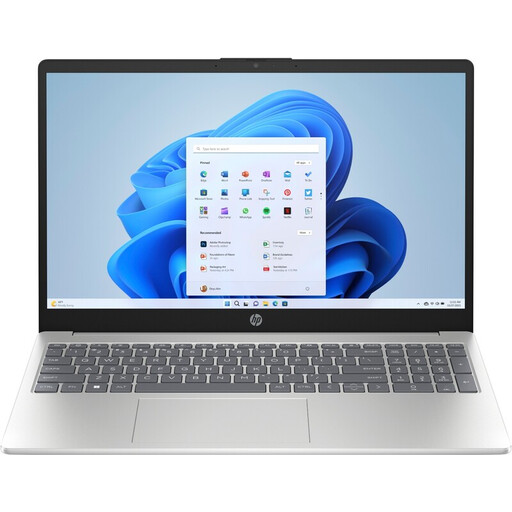 No image available
An option to compare if you want a matt screen and plan to take your laptop with you.
Matt 15.6-inch Full HD screen; 8 GB DDR5 memory; 512 GB SSD; listed weight 1.59 kg.
The power adapter isn’t included.
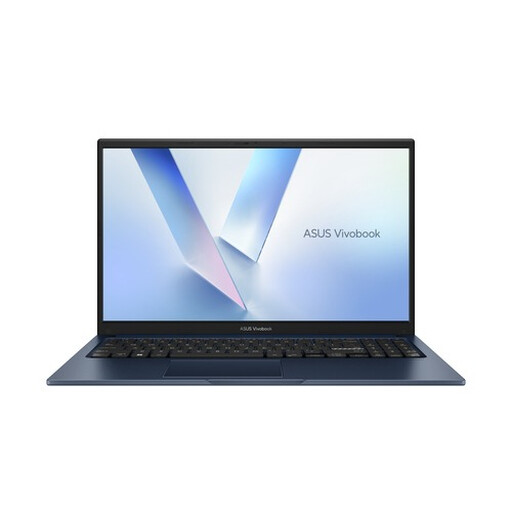 No image available
An option to compare if an anti-glare 15.6-inch screen is important when reviewing minutes.
Full HD screen; 8 GB RAM; 256 GB SSD; QWERTY keyboard.
The description mentions a 180° hinge and a physical webcam shutter. Check that the keyboard layout suits your preference.
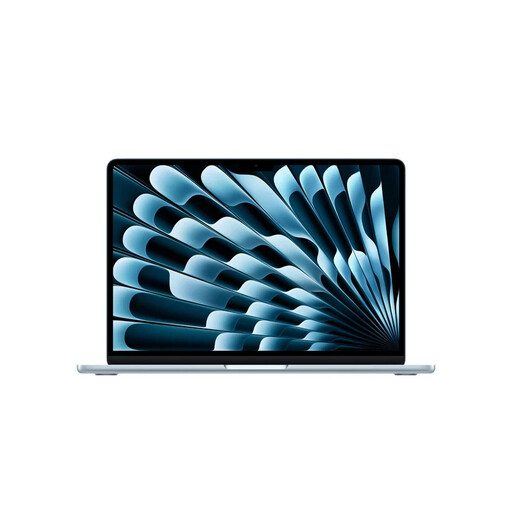 No image available
An option if your organisation supports macOS and you often take your laptop between meetings.
16 GB memory; 512 GB storage; two Thunderbolt 4 ports; support for up to two external displays; listed weight 1.23 kg.
This configuration has a QWERTY keyboard. Check that it suits your software and the connections at your workstation.
 No image available
An option to compare if an anti-glare screen and space for documents are important to you.
15.3-inch screen with a resolution of 1920 × 1200 pixels; 16 GB memory; 512 GB SSD; listed weight approximately 1.50 kg.
The description lists an English EU keyboard; this doesn’t confirm a Dutch layout.
 No image available
An option to compare if you want a 14-inch touchscreen and connections for an external display.
Touchscreen with a resolution of 1920 × 1200 pixels; HDMI, USB-C with DisplayPort and USB-A; listed weight 1.62 kg.
The screen has a glossy finish, not an anti-glare one. The description says the charger must be purchased separately.
Not necessarily. Arboportaal says that for employees who spend more than two hours a day working with display screens, the screen and keyboard must not be attached to each other. Talk to your employer about a set-up that suits your workstation.
Reassess the workstation and adjust the chair and screen to suit you. Arboportaal recommends reviewing your workstation every time you move to a new seat; a laptop won’t set it up properly for you.
Don’t assume this is allowed just because you’ve chosen a particular laptop. The Dutch Data Protection Authority recommends using your organisation’s equipment and secure environment where possible. Ask which devices and storage services your organisation allows.
No. The Dutch government says there is no fixed statutory warranty period in the Netherlands; you’re entitled to a product that meets your reasonable expectations. A manufacturer’s warranty and additional service are separate from this.