
Student who travels to the library every day
Wants to type up notes without constantly looking for a power socket, so pays attention to size, weight, keyboard and battery life.


If you’ll mainly be typing, reading and organising, a portable laptop with a comfortable keyboard and enough battery life for your library session is a sensible starting point. You won’t necessarily need a powerful processor for these tasks. Next, check whether your study software runs on ChromeOS, Windows or macOS, and whether your notes are available offline and sync correctly later. A Chromebook may suit a web-based workflow; choose Windows or macOS if your study apps require it. Always compare the exact configuration, ports and included accessories.
Wants to type up notes without constantly looking for a power socket, so pays attention to size, weight, keyboard and battery life.
Wants to open and edit files without Wi-Fi, then reliably sync changes later.
Reads and organises documents alongside note-taking apps, weighing up extra memory and screen space against cost and size.
Best suited to: using mostly compatible web apps and being able to make files available offline in advance.
Check: the study software you need, available storage and the update expiry date for the exact model.
Best suited to: courses that require Windows software, or if you often use documents and programmes side by side.
Check: the exact configuration, screen, weight, keyboard and any adapter you may need.
Best suited to: students whose required apps run on macOS and who want a compact laptop for typing and organising.
Check: software compatibility and ports. The stated battery life is not guaranteed to match your usage.
| What to consider | What should you check? | Who should pay extra attention? |
|---|---|---|
| Portability and battery life | Compare the weight, screen size and keyboard, and check the conditions behind the stated battery life for the exact configuration. | If I often take my laptop with me and spend a long time working in the library, I don’t want to rely on a power socket. Around 33% of consumers prioritise portability and battery life. |
| Offline notes and syncing | Check app support, make files available offline in advance, and check after use that changes have synced. | If I want to keep working without Wi-Fi and need my changes on another device later, I check both offline access and syncing. Around 27% of consumers put access to their notes first. |
| Cost for basic tasks | Compare the cost of your chosen configuration, the software you need and any adapter that isn’t included. | If I mainly want to type and organise notes, I don’t want to pay for capacity I don’t need. Around 20% of consumers focus first on the cost of basic typing and organisational tasks. |
| Space for sources and programmes | Consider how many windows you use at once and whether the screen size suits your bag and workspace. | If I want to read sources alongside my notes, I weigh up the extra workspace against the size I’ll need to carry. Around 20% of consumers prioritise using several sources and programmes at once. |
For light use, the Consumentenbond says 8 GB of memory is enough; for running several programmes at once, it recommends 16 GB where possible as a useful guide. That doesn’t mean every student needs 16 GB: choose based on the apps you use and how you work.
The stated battery life may apply to a specific activity and isn’t a measure of how long your combination of apps and screen settings will last.
Compare how the manufacturer describes battery life and bear your own usage in mind.
If a required programme doesn’t work, you may need to choose different software or a different laptop.
The HP listing we checked asks you to add an adapter; the Lenovo ThinkPad E14 configuration mentioned has an English (EU) keyboard.
Check which accessories are included with the exact configuration and which keyboard layout is listed.
The Chromebook Plus 514 CB514-4HT-36BJ is an example of a Chromebook suited to a web-based note-taking workflow.
The 13-inch MacBook Air is a compact macOS option if your study apps run on it.
The ThinkPad E14 Gen 7 is an example of a 14-inch Windows configuration for working with documents.
The Dutch range includes Windows laptops and 2-in-1 models with touchscreens.
The Chromebook CM1402FM2A-EC0215 is listed in a student guide as a Chromebook for lighter tasks.
These laptop options are suited to typing and organising notes, taking your laptop to the library and working with study files.
 No image available
A Windows laptop option for taking notes and working with documents on the go.
14-inch screen, AMD Ryzen 5 7520U, 8 GB RAM, 512 GB SSD and Windows 11 Home.
The USB-C charger is not included.
 No image available
A macOS option for study apps and working with multiple documents, provided the software you need is compatible.
13.6-inch screen, 16 GB memory and 512 GB SSD.
The adapter is not included, but a MagSafe cable is listed.
 No image available
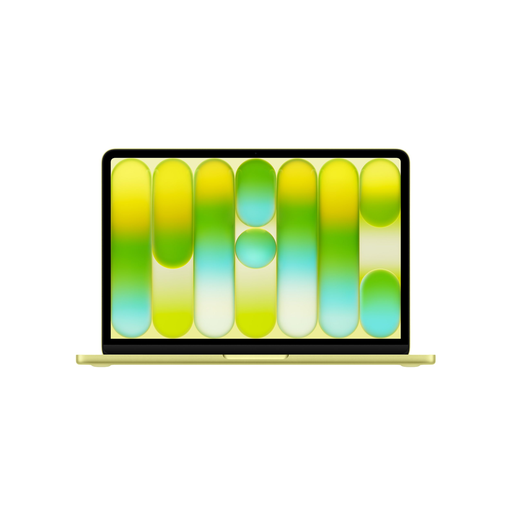
A compact macOS option for light study and document work, if the apps you need run on it.
13-inch screen, 8 GB RAM and 256 GB SSD.
A USB-C power adapter is not included; the product description recommends an adapter of at least 20 W.
 No image available
A Windows laptop option for documents and using several windows while studying.
14-inch WUXGA OLED screen, Snapdragon X, 16 GB RAM and 512 GB SSD.
The 65W USB-C adapter is not included. This configuration has a Dutch QWERTY keyboard and no touchscreen.
 No image available
The larger screen may suit you if you want more space for sources alongside your notes, and the size works for your bag and workspace.
15.3-inch screen, Ryzen 5 7535HS, 16 GB RAM and 512 GB SSD.
The USB-C power adapter is not included. The product description lists an English EU keyboard.
Yes, if you set up offline access in advance and make the relevant files available offline. Google Docs Editors Help recommends checking that you have enough storage and that a document is ready for offline use.
Check the sync status in your note-taking app before shutting down your laptop. Microsoft Support says OneNote syncs automatically at intervals, and you can also sync manually if you want to upload changes straight away.
Check the update expiry date for the exact device under Settings, About ChromeOS and Additional details. Google Chromebook Help warns that security and browser updates, among others, stop after the final update.
No. According to ACM ConsuWijzer, statutory warranty in the Netherlands depends on what you could reasonably expect from the product with normal use; it is not limited to a fixed two-year period. If a product is faulty, the seller is responsible for providing an appropriate solution.
Relevant European product rules apply to electrical equipment with Wi-Fi or Bluetooth. The Dutch government explains that the manufacturer is responsible for the required conformity assessment, CE marking and EU declaration of conformity; a product listing alone does not confirm that a specific item complies with these rules.