
Student who needs specific presentation software
You edit lecture slides and need to know whether browser-based features are enough or whether you need the desktop version. Microsoft Support explains how PowerPoint features differ across platforms.


If you mainly create simple slides in Google Slides or PowerPoint for the web, a Chromebook may be enough, provided your course’s features are available in the browser. If you need desktop PowerPoint or other required software, choose a Windows laptop or MacBook that can run it. Then check the screen size, ports and what you need for your workspace. Microsoft Support explains how PowerPoint differs across platforms.
You edit lecture slides and need to know whether browser-based features are enough or whether you need the desktop version. Microsoft Support explains how PowerPoint features differ across platforms.
You mainly create presentations and simple office documents, and want to check which specifications and software access you’ll need. The Consumentenbond provides a guide to basic everyday office use; Microsoft explains the requirements for accessing Microsoft 365 Education.
You work in your room and may want to connect an external monitor or take your laptop to a presentation. So check the screen size and ports on the exact configuration.
First check which software and features your course requires. Then compare the ports and screen with your workspace and the way you study.
A good fit if: your course allows browser-based work and you mainly create simple presentations in Google Slides or PowerPoint for the web.
Keep in mind: PowerPoint for the web doesn’t have all the features of the desktop version, including the ability to edit the slide master. Also check Google’s update schedule for the specific Chromebook model.
A good fit if: your course requires Windows software or desktop PowerPoint, or you’re looking for a configuration with the right port for a monitor or projector.
Keep in mind: memory, screen and ports vary by configuration, so check the specifications of the exact model.
A good fit if: macOS meets your course’s software requirements and you want one laptop for use in your room and on the go.
Keep in mind: Apple lists two Thunderbolt 4 ports and no built-in HDMI port for the MacBook Air 13-inch M5 reviewed here. Check whether you’ll need an adapter.
| What to consider | What should you check? | Who should pay extra attention? |
|---|---|---|
| Software compatibility | Check which applications and file features are required. If you’ve been given slides, find out whether editing them in a browser is enough; Microsoft Support explains the differences between platforms. | If my course requires desktop software or specific PowerPoint features, I want to be sure my laptop can handle them. Around 40% of consumers give compatibility with presentation software their top priority. |
| Configuration and software access | Choose memory and storage to suit your tasks, and check which apps are available through your school account. The Consumentenbond suggests 8 GB RAM and 256 GB storage as a guide for basic office work, not a fixed requirement for every student. | If I mainly create simple slides, I don’t want to choose a configuration without first checking my actual needs and school licence. Around 30% of consumers prioritise this consideration. |
| Screen and ports | Compare the screen size and check that the exact configuration has the port required by your existing monitor or projector. Lenovo, Acer, Apple and HP publish specifications for each configuration. | If I use an external monitor in my room or connect my laptop to a projector, I want to know whether the ports are compatible and whether I’ll need an adapter. Around 20% of consumers choose mainly based on their workspace and ports. |
| Portability and working offline | Check the dimensions and ports of the specific model. Google says you need to make files available offline in advance to work on them without an internet connection. | If I take my laptop with me and sometimes want to keep working without internet, I want to know in advance whether my files are available offline. Around 10% of consumers give portability and offline working their top priority. |
Microsoft Support explains the differences between PowerPoint for the web and the desktop version. For example, you can’t edit the slide master in PowerPoint for the web.
Open a representative lecture file and check whether you can make the changes required by your course in the browser before choosing an operating system.
According to HP, the charger is sold separately for the HP OmniBook configuration reviewed here. A laptop without the port your monitor or projector needs may also require an adapter.
Check what’s included in the exact offer, which ports are available and what software access comes with your school account.
Google says a Chromebook will no longer receive ChromeOS or browser updates after its final software update.
Check the update schedule for the specific model, especially if you’re considering an older or second-hand device.
The IdeaPad Slim 3 configuration 82XN008RMH is a useful reference for locally editing presentations on Windows. Lenovo specifies Windows 11 Home, 16 GB soldered memory, a 512 GB SSD and an anti-glare 14-inch Full HD IPS screen for this configuration.
The Chromebook Plus 514 CB514-4HT-36BJ, part number NX.J06EH.001, is a ChromeOS configuration for students whose required slide features are available in a browser. Acer identifies this model and part number in its Dutch product specifications.
The MacBook Air 13-inch M5 is a macOS alternative if your course’s software works on macOS. Apple specifies 16 GB memory, a 512 GB SSD and two Thunderbolt 4 ports for the basic configuration reviewed here.
The HP OmniBook 5 14-mh0051ndx is a Windows configuration to compare if you’re looking for a built-in display output. HP lists 8 GB RAM, a 512 GB SSD, HDMI and USB-C for model E75YQEA#ABH.
These models are Windows laptops and MacBooks for editing lecture slides. Check that the operating system of the configuration you choose meets your course’s software requirements.
 No image available
A Windows laptop for students who want to edit slides on Windows.
14-inch anti-glare IPS screen; 8 GB RAM; 512 GB SSD; Windows 11 Home. According to the product information, the charger must be purchased separately.
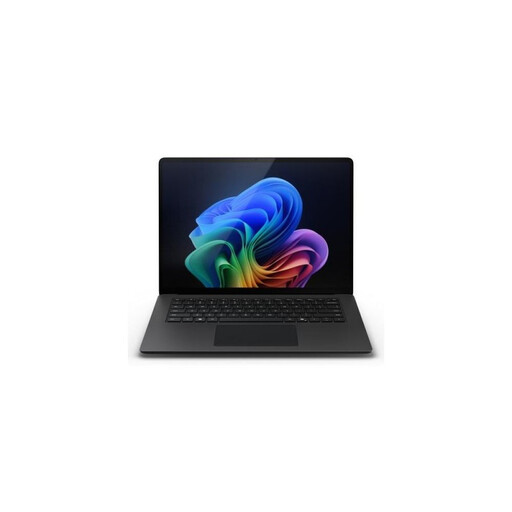 No image available
A Windows laptop with a 13.8-inch screen for students who want to edit presentations on a more compact built-in display.
13.8-inch touchscreen; 16 GB RAM; 512 GB SSD.
 No image available
A Windows laptop for students who want to edit lecture slides using software that works on this configuration.
14-inch; Ryzen 7 8840HS; 16 GB RAM; 1 TB SSD; Luna Grey; QWERTY keyboard.
No image available
A Windows laptop with a 16-inch screen for students who want more room to view and edit presentations on the built-in display.
16-inch anti-glare WUXGA IPS screen; Intel Core Ultra 5 135H; 16 GB DDR5; 512 GB SSD; Windows 11 Pro.
 No image available
A MacBook for students whose required software works on macOS and who want to edit presentations on a 15-inch screen.
15-inch; M5; 16 GB memory; 512 GB SSD; Starlight; QWERTY keyboard. The power adapter isn’t included.
Yes, if you’ve set up offline access and made the files available offline in advance. Google says you’ll need a supported browser, the offline extension and enough local storage space, among other things.
No, don’t assume that you do just because you’re a student. Microsoft says pupils and students at eligible institutions can sign up for Microsoft 365 Education for free. Check what access is available through your school account.
According to the Dutch government, you’re entitled to a product that works as it should, but there’s no fixed statutory warranty period in the Netherlands. If a product is faulty, the retailer is responsible for putting things right; a manufacturer’s warranty doesn’t replace your statutory rights.
For eligible distance purchases, the Dutch government generally allows a 14-day cooling-off period. Check the terms and exceptions that apply to your specific purchase.