
Collector with an existing catalogue
Wants to transfer their catalogue, scans and linked documentation to a new laptop without losing the links.


First, choose a laptop that runs your catalogue software, then check whether linked files still open after you move them. A larger screen or more storage won’t fix broken links. Next, compare the space you need for scans, the screen and the connections for your scanner or external drive. A lighter laptop can be useful if you also catalogue on the go, but be sure to check which ports and adapters you’ll need.
Wants to transfer their catalogue, scans and linked documentation to a new laptop without losing the links.
Adds images and source material, and needs enough screen space, storage and connections for their equipment.
Wants to access their collection away from their usual workspace and weigh up portability against screen space, ports and offline access.
Choose this option: if your catalogue software requires Windows, or if you’ve tested your existing Excel workflow and scanner with the configuration you’re considering.
Keep in mind: Windows won’t automatically fix file links when you move files.
Choose this option: if your catalogue software, scanner and file links work on macOS.
Keep in mind: the MacBook Air M5 reviewed has two Thunderbolt 4 ports with USB-C; check whether your existing USB-A devices need an adapter.
Choose this option: if you’ve tested your complete catalogue workflow on ChromeOS beforehand, including linked files and any offline use.
Keep in mind: Google explains that certain Drive files are available offline, but some apps don’t work offline.
Microsoft Support explains how file links work in Excel, while the LibreOffice Documentation Team explains that Calc can insert images as links to source files. So test your own software and folder structure before choosing a laptop.
| What to consider | What should you check? | Who is this important for? |
|---|---|---|
| Software and file links | Note the exact software and version. Test a copy of your catalogue with linked scans and documents on the operating system you’re considering, including after moving the folder. | If I want to keep using my existing catalogue, I’ll first check that both the software and source files work. Around 31% of consumers give software and links top priority. |
| Space for scans and backups | Check the size of your catalogue folder, including source files, how much it’s likely to grow as you add your own scans, and the connection for your backup drive. | If I want to keep lots of scans and documents locally, I’ll consider both the storage I need and my backup. Around 25% of consumers prioritise scans and storage. |
| Screen and input | Compare the screen size and resolution of the exact model. If possible, try displaying your catalogue alongside a scan. | If I want to view scans while adding entries, I’ll consider the amount of screen space available. Around 25% of consumers give the screen and input top priority. |
| Portability and connections | Check the ports on the exact model and compare them with the plugs on your scanner and external drive. Also check which power adapter is included. | If I want to access my collection in different places, I’ll weigh up the size against my equipment and charging needs. Around 19% of consumers prioritise portability and additional costs. |
If scans or other source files are stored elsewhere, links may stop working after you move them. Microsoft Support explains that an Excel link can use a relative path, so test how your own catalogue behaves.
Keep the catalogue and source folders together, then check the links after copying and after restoring from a backup. VeiligInternetten lists external drives and USB sticks among the possible places to store a backup.
Allow time to find source files or link them again if the links stop working.
Offline features or support for common file types don’t prove that your catalogue app, scanner and linked files will work on a particular system. Google, for example, warns that some apps don’t work offline.
Check the exact software version and file format, and test your scanner before choosing between Windows, macOS and ChromeOS.
If the app isn’t suitable, you may need to choose different software or adapt your workflow.
A laptop may have different connections from your scanner or external drive. The power adapter included can also vary between models.
Compare the connections and box contents of the exact model with your equipment and charging needs.
Depending on the laptop and your equipment, you may need a suitable adapter or charger.
The details below apply to the product lines or models mentioned, not necessarily to every laptop from each brand.
The IdeaPad Slim 3 range is worth considering if you’re looking for a Windows laptop with screen space and a good selection of connections. Check the specifications of the exact model.
A MacBook Air M5 is one option if you’ve tested your complete catalogue workflow on macOS.
HP laptops are worth comparing if screen size, memory and storage are important buying criteria. Always check the exact model.
These Joybuy products are Windows laptops for an existing desktop catalogue. Before choosing one, check that your catalogue software and linked files work on Windows.
 No image available
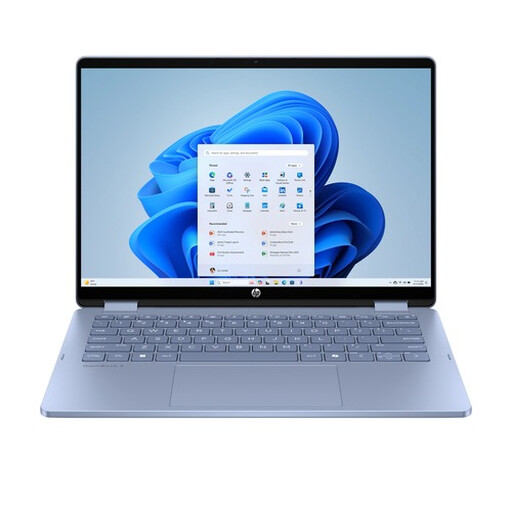
An option if your catalogue software works on Windows; check the connections and power supply your equipment needs.
14-inch touchscreen, Intel Core 5 120U, 8 GB RAM, 512 GB SSD and Windows 11 Home. The product details state that the USB-C charger isn’t included, so you’ll need a compatible charger.
 No image available
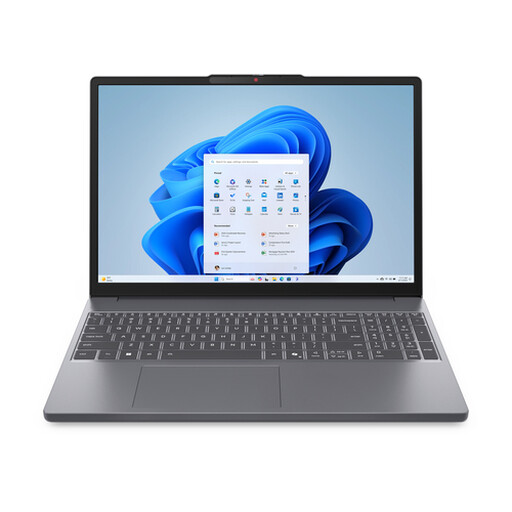
An option to compare if your catalogue software works on Windows and you’d like a larger screen for viewing your scans.
15.3-inch WUXGA screen, Ryzen 7 8840HS, 16 GB memory, 512 GB SSD, Windows 11 Home, two USB-A ports, USB-C and an SD card reader. The product details state that the charger must be purchased separately.
 No image available
An option if your catalogue software works on Windows and you’d like to view your catalogue and scans on a 16-inch screen.
Intel Core 7 240H, NVIDIA GeForce RTX 5070 8GB, 16 GB DDR5, 1 TB SSD and Windows 11 Home. The description lists a 1920 × 1200 screen with a 144 Hz refresh rate, two USB-A ports, USB-C and an included 150W adapter.
 No image available
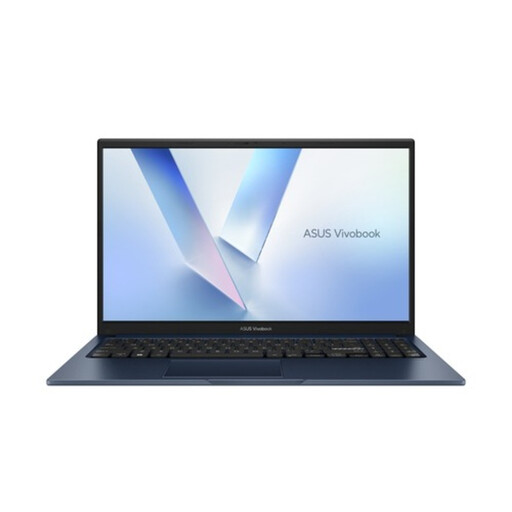
An option to compare if your catalogue software works on Windows and the listed storage capacity suits your files.
15.6-inch screen, Core 5 320, 8 GB RAM, 256 GB SSD and Windows 11 Home.
 No image available
An option if your catalogue software works on Windows and you’re looking for a more compact model with room for local files.
14-inch WUXGA IPS screen, Ryzen 7 8840HS, 16 GB memory, 1 TB PCIe SSD and Windows 11 Home. The product details also list an SD card reader and a weight of 1.39 kg.
Copy both the catalogue and the source files, then test a few links after the move. Microsoft Support explains that how file links are stored can determine whether they still work after files are moved, so test this with your own catalogue software.
Include the catalogue file and all linked source folders in a backup, then run a restore test to check that the files and links are recovered. VeiligInternetten lists an external drive or USB stick among the possible places to store a backup.
Not necessarily. Choose memory and storage to suit your catalogue, scans and the programmes you use at the same time. The Consumentenbond distinguishes between basic office programmes and more intensive use involving several programmes at once.
For your statutory consumer guarantee, contact the retailer. According to the Dutch government, the Netherlands has no fixed statutory guarantee period; an additional manufacturer’s or paid-for warranty doesn’t replace your statutory rights.
That depends on your catalogue app and files. Google explains that certain Drive files can be accessed offline and notes that some apps don’t work offline. So test your catalogue and linked files without an internet connection beforehand.