
Writer with irreplaceable interviews
You keep manuscript versions, interview notes or recordings and want to be able to recover them even if you lose your laptop.


Start with a laptop that lets you use your writing software and source files locally, then choose a separate backup method that you can set up and test. Windows lets you back up to an external drive or network location using File History; on a Mac, Time Machine may be suitable, although you might need an adapter for a USB-A drive. A Chromebook could work if you check in advance which files and apps are available offline.
You keep manuscript versions, interview notes or recordings and want to be able to recover them even if you lose your laptop.
You mainly work with text, notes and multiple windows. A comfortable keyboard, enough screen space and suitable memory are all worth considering.
You write while travelling or conducting interviews without a reliable internet connection, and want to check in advance that your documents, apps and backup drive will work.
A good fit if: you work with documents locally and want to set up File History to back up to an external drive or network location.
Keep in mind: Microsoft Support explains that you need to set up the backup and check that your project folders are included.
A good fit if: you want a compact laptop with Time Machine and a compatible external drive.
Keep in mind: Apple lists USB-C ports for the MacBook Air mentioned here, so you may need an adapter for a USB-A drive.
A good fit if: you can do your writing using the available offline apps and locally available files.
Keep in mind: Google says some apps do not work offline, and Drive files need to be made available offline and synced in advance.
| What to consider | What should you check? | Who should prioritise this? |
|---|---|---|
| Recovering manuscripts and interviews | Check that your chosen backup method includes your project folders, that the external drive connects and that you can restore a test file. Apple recommends a drive with at least twice the storage capacity of your Mac for Time Machine. | If I don’t want to lose interviews and manuscript versions, I want a recoverable copy as well as the one on my laptop. Around 33% of consumers give recovering source material their highest priority. |
| Comfortable writing | Compare the screen size and keyboard. If you use multiple windows, also check the memory in the exact configuration you’re considering. | For long writing sessions, I want to type comfortably and read sources alongside my text. Around 27% of consumers prioritise writing comfort. |
| Working offline | Open your project files without an internet connection in advance. On a Chromebook, check that files are available offline. If you use Microsoft 365, bear in mind that Microsoft says a connection is required every 30 days for the subscription check. | If I’m writing on location without a connection, I want to know for certain that my documents will open. Around 20% of consumers give working offline on the go their highest priority. |
| Room for source material | Check the storage in your chosen configuration and estimate how much space recordings, photos and archived files will take up. The Consumentenbond says 256 GB is enough for everyday office work, while 512 GB or more is advisable if you regularly use large photo and video files. | If my interviews, photos and research files take up a lot of space, I want to avoid filling the internal storage too quickly. Around 20% of consumers put space for source material at the top of their list. |
A file saved on your laptop or in an offline folder is not automatically a recoverable copy on another storage device.
Set up a separate backup and try restoring a manuscript version before relying on it.
Your backup method, the storage space you need and the external drive connection all affect whether you can save and recover your files. Apple recommends a drive with at least twice the storage capacity of your Mac for Time Machine.
Check the ports on the exact laptop you’re considering and choose a backup drive to suit your files and preferred way of working.
Configurations can vary in screen, memory, storage and ports. Some ranges don’t include certain screen options as standard.
Before buying, check the full model name, configuration, keyboard layout, ports and included charger.
The Dell 14 DC14250 is a compact Windows option for a writing setup.
The 13-inch MacBook Air M5 is a compact macOS option for anyone who wants to use Time Machine as part of their backup routine.
The 16-inch IdeaPad Slim 5a Gen 11 is worth considering if you want more screen space than a compact 13- or 14-inch laptop offers.
The HP OmniBook X 14-ka0625nd is a Windows option with a 14-inch screen and several built-in ports.
These Joybuy picks are laptops for writing, with configurations that offer internal storage for manuscripts and source files.
 No image available
An option if you value a 16-inch screen and local document storage while writing.
16-inch WUXGA OLED screen, Snapdragon X processor, 16 GB LPDDR5X memory, 512 GB SSD and Windows 11 Home.
 No image available
An option if you want to compare laptops with plenty of internal storage for manuscripts and source files.
i3 1000NG4 processor, 16 GB DDR4 memory and a 1 TB SSD.
 No image available
An option if you’re looking for a laptop with local storage for writing and source material.
16 GB DDR4 memory, 512 GB SSD and 3050E processor.
 No image available
An option if you want to include plenty of internal storage and a large screen in your comparison.
128 GB RAM, 2 TB SSD, 3K OLED touchscreen with 120 Hz and Windows 11 Pro. The title specifies a QWERTY keyboard.
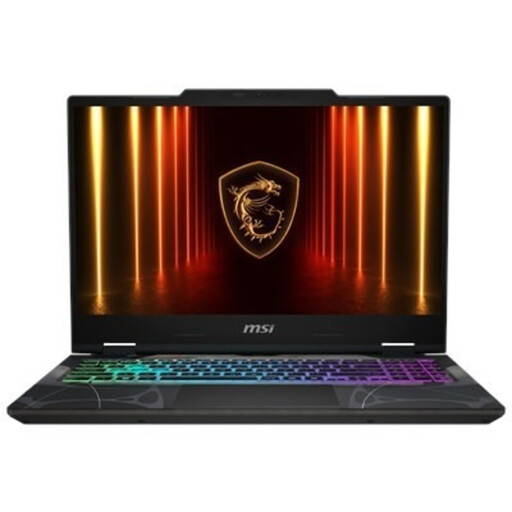 No image available
An option if you want to compare a 15.6-inch screen and local storage for writing.
15.6-inch Full HD screen with 144 Hz, AMD Ryzen 9 270 processor, 16 GB DDR5 memory, 512 GB SSD and Windows 11 Home.
Not if you want a separate copy that’s still available if your laptop or internal storage fails. Microsoft Support describes using File History with an external drive; Apple Support explains how to use Time Machine with a configured external drive. Check that your project folders are included and try restoring a file.
On Windows, use File History with an external drive or a configured network location, and check that it includes the right folders. On a Mac, Apple Support says to add a suitable drive through System Settings and Time Machine. Then check when the last backup completed and test restoring a file.
It depends on the software you use and how you prepare. Microsoft Support says you need to stay signed in to use a Microsoft 365 subscription offline and connect every 30 days for the subscription check. Google Chromebook Help says some Drive files can be made available offline, but some apps won’t work without an internet connection.
It mainly depends on the size of your recordings, photos and other large files. The Consumentenbond says 256 GB is enough for everyday office work, while 512 GB or more is advisable if you regularly use large photo and video files. Check how much space your existing files take up, and remember to allow for a separate backup.
You can’t decide that based on your laptop choice alone. The Dutch Data Protection Authority distinguishes between personal or household use and public publishing, and also discusses journalistic use. Consider the circumstances of the specific publication and protect source material in a way that’s appropriate for the data.