
Writer who works with two windows
You write on your laptop screen and want to refer to text, source material or screenshots at the same time. Microsoft Support explains how to snap windows side by side in Windows.


If you mainly work on your laptop’s built-in screen, first consider whether there’s enough room to use two windows side by side and read them comfortably. Then check that your writing and publishing software works with the operating system. A larger screen gives you more room to work on the laptop itself, while a more compact model paired with a suitable external monitor may be more practical if you often change workspaces. Windows, macOS and ChromeOS all offer ways to arrange windows side by side, but with ChromeOS, check that the web versions of your apps have all the features you need.
You write on your laptop screen and want to refer to text, source material or screenshots at the same time. Microsoft Support explains how to snap windows side by side in Windows.
You want to keep using your existing documentation or publishing programmes, so first check that the version you need works with your chosen operating system. Microsoft Support explains the limitations of the desktop versions of Microsoft 365 on a Chromebook.
You move between workspaces and weigh up a useful built-in screen against portability and the option of using an external monitor in a permanent workspace. Apple Support explains how to arrange windows side by side on a Mac.
A good fit if: your required programmes run on Windows and you want to arrange windows side by side using Snap, as described by Microsoft Support.
Keep in mind: screen size, aspect ratio, keyboard layout and monitor ports vary by configuration.
A good fit if: your required programmes are available for macOS and you want to use window tiling on a Mac.
Keep in mind: compare the screen space on the exact configuration and check which connections you need for an external monitor.
A good fit if: you can do your documentation work in the available web apps; Google Chromebook Help explains how to use split-screen mode.
Keep in mind: Microsoft Support says that you can’t install the Windows or Mac desktop versions of Microsoft 365 on a Chromebook.
On the built-in screen, try your usual text size and window layout. Also check that your apps, any plug-ins and the connection for an external monitor suit your workspace.
| Consideration | What should you check? | Who is this important to? |
|---|---|---|
| Room to read in two windows | Compare the screen size, resolution and aspect ratio of the exact configuration. Try using two windows with your usual text size. | If I want to write and read source material at the same time without constantly switching between windows, usable screen space comes first. Around 36% of consumers say screen space is their main purchase concern. |
| Software compatibility | Check that the required apps, plug-ins, file formats and features work with the chosen operating system and app versions. | If I need to keep using my existing writing or publishing software, I want to know first whether the features I need are available. Around 29% of consumers name software compatibility as their main purchase concern. |
| Portability and an external monitor | Check the weight of the exact configuration, the ports you need and compatibility with your monitor or dock. | If I often change workspaces, I weigh up a practical built-in screen against the extra room a monitor gives me in a permanent workspace. Around 21% of consumers say portability or a fixed workspace is their main purchase concern. |
| Total cost and what’s in the box | Check which items are included and whether you need a suitable adapter or another connection for your workspace. | If I need a complete workspace, I want to know in advance which items I already have and which I might still need. Around 14% of consumers say the total purchase and running costs are their main purchase concern. |
The diagonal measurement doesn’t tell you how much text you can read across two windows at your preferred zoom level. Resolution and aspect ratio matter too.
Compare the screen specifications for the exact configuration and try your usual window layout and text size.
Microsoft Support says that Microsoft 365 is available on a Chromebook via the web, but you can’t install the Windows and Mac desktop versions on it.
Before choosing an operating system, check that the available app version supports all the features and plug-ins you need.
The ASUS Vivobook 16 X1607CA configuration reviewed doesn’t include a power adapter; ASUS says that a 65 W adapter is required.
Check whether a suitable adapter is included for the exact model number and whether you already have one.
According to Lenovo Netherlands, the ThinkPad E16 Gen 3 AMD configuration 21STCTO1WWNL4 is a business Windows laptop with a 16-inch built-in screen.
According to Acer Netherlands, the Aspire Go 15 AG15-72P-58MP is a Windows configuration with a 15.6-inch screen.
According to Apple Netherlands, the MacBook Air M5 is available with a 13-inch or 15-inch screen for a macOS workflow.
According to HP Netherlands, the ProBook 4 G1i 16 A23QQEA#ABH is a Windows 11 Pro configuration with a 16-inch screen.
According to ASUS, the Vivobook 16 X1607CA configuration reviewed has a 16-inch Windows screen.
This selection includes laptops with large built-in screens for writing with two windows open, including Windows models and a MacBook.
 No image available
The built-in 16-inch screen with a 16:10 aspect ratio is well suited to using two windows side by side.
3K OLED touchscreen with 120 Hz; 128 GB RAM; 2 TB SSD; Windows 11 Pro. The title lists a QWERTY keyboard layout.
 No image available
The 16:10 screen aspect ratio is worth considering if you want to use two windows on the built-in screen.
WUXGA OLED screen; Snapdragon X processor; 16 GB LPDDR5X; 512 GB SSD; Windows 11 Home.
 No image available
The listed screen size and resolution are relevant if you want to work with two windows on your laptop screen.
16-inch IPS screen, 1920 × 1200; 16 GB DDR4 RAM; 1 TB SSD. The product name lists an i3 1000NG4 processor.
 No image available
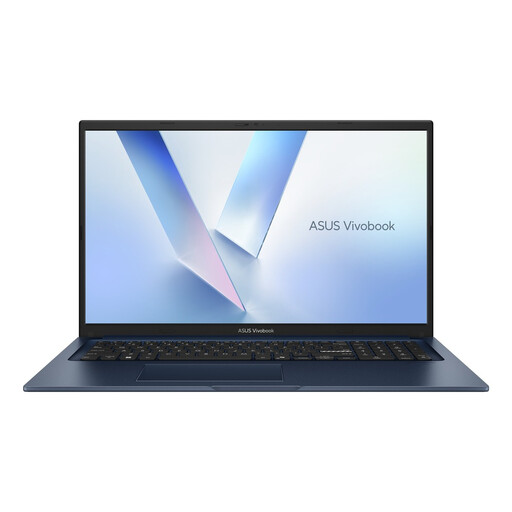
The 17.3-inch screen is worth considering if having room for windows on the built-in screen is important to you.
Core 5 320; 8 GB RAM; 256 GB SSD; Windows 11 Home. The title lists a QWERTY keyboard layout.
 No image available
This macOS configuration has a 15.3-inch built-in screen for writing with windows side by side.
Liquid Retina screen; 16 GB memory; 512 GB storage. The title lists a QWERTY keyboard layout.
Use Snap in Windows, window tiling on a Mac or split-screen mode on a Chromebook. Try your apps to check that the windows and text size are comfortable to use.
Connect the monitor using a suitable connection, then arrange the detected displays in Windows display settings. Microsoft Support explains how to do this; check in advance which connection your laptop and monitor require.
Microsoft Support explains how to access Microsoft 365 on a Chromebook via the web, but the Windows and Mac desktop versions can’t be installed on it. Check that the web features and your subscription meet your needs for working with documents.
According to the Dutch government, the retailer must provide a solution if there’s a problem with a consumer product. Consider what additional paid-for cover offers beyond your statutory rights.
No. The Dutch government describes the cooling-off period for distance purchases as usually 14 days. Check the terms that apply and any exceptions for your purchase.