What should you look for when buying?
First decide whether you’ll mainly work in a browser or develop locally too. Then compare how much desk space the laptop takes up, its ports and what you need to work comfortably.
13-inch MacBook
Ideal for: anyone who wants macOS and values a compact setup. Apple Netherlands lists the 13-inch MacBook Air with M5 as having a 13.6-inch screen, 16 GB of memory and two Thunderbolt 4 ports.
Consider: check that your software and peripherals are compatible. If you need more ports, you may also have to carry adapters.
14-inch Windows laptop
Ideal for: anyone who wants a 14-inch screen or ports directly on the laptop. ASUS lists USB-A, USB-C and HDMI among the ports on the Vivobook 14 M1407KA; Lenovo lists 16 GB of memory and a 512 GB SSD for the ThinkPad E14 Gen 7 21T9001TMH.
Consider: these specifications apply to the models listed. Check the ports, keyboard and other configuration details of the version on offer.
Chromebook for browser-based work
Ideal for: anyone who mainly uses browser-based services or has confirmed that their development tools work with Linux on their chosen Chromebook. Google for Developers explains web development with Linux on ChromeOS.
Consider: support varies by application and device. Check that your editor and other essential tools will work before you choose.
| What to consider |
What should you check? |
Who is this important for? |
| Desk space |
Compare the laptop’s dimensions with the desk space you have available. Leave room for a mouse, charger and, if needed, a separate keyboard. |
If my desk is small, I want to leave room for my other things and still work comfortably. Around 33% of consumers prioritise a compact workspace. |
| Development workflow |
Make a note of your editor, local server or CMS, and check the requirements for those tools. The Consumentenbond says 8 GB is enough for light use and recommends 16 GB where possible if you use several programmes at once. |
If I use an editor, browser and possibly a local testing environment side by side, I want to know whether my chosen configuration can handle them. Around 27% of consumers prioritise local development. |
| Ports and working position |
Check the video output, USB ports and charging port for each model. Arboportaal states that for employees who work with a screen for more than two hours a day, the screen and keyboard must not be attached to each other. |
I want to connect my screen and input devices and set up my workspace to suit me. Around 20% of consumers focus mainly on this. |
| What you need to spend |
Compare the configurations that work with your software, and factor in any essential adapters or workspace equipment. First work out which features you really need. |
I don’t want to pay for features I won’t use, but I also don’t want to find out later that my workflow requires extra equipment. Around 20% of consumers prioritise keeping costs down. |
Joybuy laptops for a compact workspace
These Joybuy laptop picks are suited to building a small website in a compact workspace. Compare the screen size, ports and support for your own development workflow for each version.
 No image available
HP OmniBook 7 AeroNGAI 13-bg1051nd NL Copilot+
The 13.3-inch version is a good fit if you’re looking for a compact laptop for a small desk.
16 GB of memory and a 512 GB SSD. The IPS screen has a resolution of 1920 × 1080; ports include USB-C, USB-A and HDMI. The stated weight is 1.46 kg.
Joybuy
 No image available
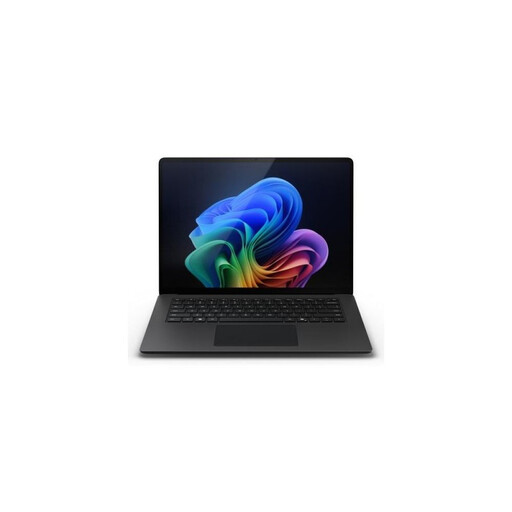
Microsoft Surface Laptop 7 13.8-inch Snapdragon X Elite, 16 GB, 512 GB
The 13.8-inch screen is an option worth comparing for a compact workspace.
16 GB of memory and a 512 GB SSD. The screen has a resolution of 2304 × 1536 and a 3:2 aspect ratio; the product information lists USB4. The stated weight is 1.34 kg.
Joybuy
 No image available
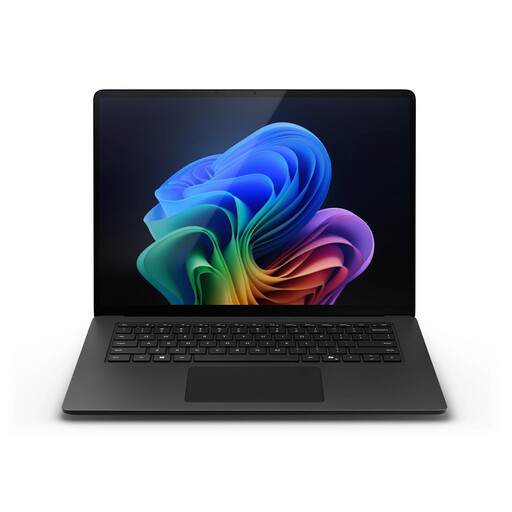
Microsoft Surface Laptop 7 13.8-inch Snapdragon X Plus, 16 GB, 512 GB
The 13.8-inch screen is an option worth comparing for a compact workspace.
16 GB of memory and a 512 GB SSD. The screen has a resolution of 2304 × 1536 and a 3:2 aspect ratio; the product information lists USB4. The stated weight is 1.34 kg.
Joybuy
 No image available
ASUS Zenbook A14 UX3407QA-QD479W, 14-inch, Snapdragon X, 16 GB, 512 GB, Dutch QWERTY
The 14-inch version is worth considering if you want to compare a larger screen for a compact desk.
16 GB of memory and a 512 GB SSD. The product information lists a 1920 × 1200 WUXGA OLED screen, two USB4 ports, USB-A and HDMI. A compatible 65W USB-C Power Delivery charger is required and isn’t included. Check that older or specialist Windows apps, drivers and peripherals are compatible with Windows on Snapdragon.
Joybuy
 No image available
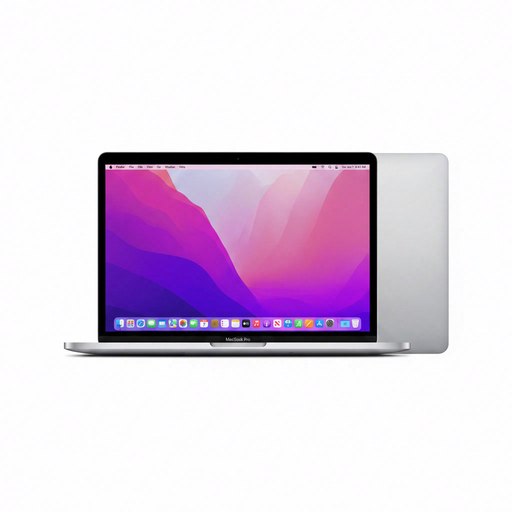
Apple MacBook Pro 13-inch M2, 24 GB, 256 GB, Space Gray, QWERTY
The 13.3-inch version is a compact macOS option to compare with other configurations.
The product name lists 24 GB of memory and 256 GB of storage. The product information gives a screen resolution of 2560 × 1600 and two Thunderbolt/USB 4 ports. The model is listed as 2022.
Joybuy
Frequently asked questions
Do I always need 16 GB of RAM for a small website?
No, not for every workflow. The Consumentenbond says 8 GB is enough for light use, such as browsing the internet, and recommends 16 GB where possible if you use several programmes at once. Think about how you use your browser, editor and testing tools.
Can I use a Chromebook for web development?
Yes, as long as the tools you need work on that particular Chromebook. Google for Developers describes using code editors in Linux on ChromeOS and accessing a locally running web server through Chrome. This doesn’t mean every application will work on every Chromebook, so check your software first.
Can I build a WordPress site locally without installing a full server?
It depends on your development workflow. WordPress Developer Resources describes several local development options. For the WordPress Playground VS Code extension, WordPress describes a workflow that doesn’t require you to install Apache or MySQL. Check that this approach is right for your project.
How can I set up a small desk for long periods of laptop work?
Leave room for a screen, keyboard and mouse, and check that your workspace can be adjusted to suit you. Arboportaal states that for employees who work with a screen for more than two hours a day, the screen and keyboard must not be attached to each other. This isn’t a general buying requirement for everyone purchasing a laptop for personal use.
Can I return a laptop after buying it online?
For distance purchases from a business, the Dutch government says you’ll often have a 14-day cooling-off period, but there are exceptions. Buying online from a private seller isn’t covered by the same rules. Check the retailer’s terms and conditions; your rights if a product is faulty are separate from changing your mind.


