
Creating slides with limited desk space
You create standard presentations and want to leave some room beside your laptop. Compare the laptop’s width and depth with the space available on your desk.


For a small desk, a laptop around 13 to 14 inches is a sensible starting point, but remember to measure the width and depth of the laptop too. A larger screen can be more comfortable if you often work with several windows side by side, as long as the laptop fits on your desk. If you present using a second screen, check the video connection on the exact configuration you’re considering.
You create standard presentations and want to leave some room beside your laptop. Compare the laptop’s width and depth with the space available on your desk.
You regularly have reference materials, images and other programmes open while creating slides. In that case, screen space and enough memory may matter more than choosing the smallest laptop possible.
You want to show your slides on a second screen while keeping your speaker notes on your laptop. Check that the laptop and its connections are compatible with the screen you use.
First, measure the available space on your desk and compare it with the dimensions of the exact laptop configuration. Then decide how much screen space and which connections you need for the way you work and present.
| What to consider | What should you check? | Who is this important for? |
|---|---|---|
| Desk space | Measure the available width and depth, then compare them with the dimensions of the exact configuration. The screen diagonal doesn’t tell you how much desk space will be left. | I want to leave room for other things on my small desk; around 36% of consumers put available desk space first. |
| Several windows | Decide whether you mainly do light office work or often use several programmes at once. The Consumentenbond’s buying checklist of 14 August 2026 considers 8 GB of RAM enough for light work; 16 GB is preferable if possible. | If I keep reference materials and other programmes open while creating slides, I want a clear overview and enough memory; around 29% of consumers prioritise working with several programmes at once. |
| External presentation screen | Compare the video output on the exact laptop configuration with the screen’s input. Also check whether your setup supports multiple screens and whether you’ll need a suitable cable or adapter. | I want to show my slides on a second screen and make sure the connections are compatible; around 21% of consumers prioritise connecting to an external presentation screen. |
| Software and workspace | Check that the presentation software available to you has the features you need and find out which accessories are included with the configuration. If you work for long periods, consider your workspace setup too. | If I work at my desk for long periods, I want to know which software and separate accessories I’ll need; around 14% of consumers prioritise their workspace setup and the items they need. |
A small screen doesn’t tell you how much desk space will be left beside the open laptop.
Measure your desk and compare it with the width and depth of the configuration you’re considering. Then weigh up how much screen space you need for slides and reference materials.
Connections can vary between models. For example, ASUS lists HDMI for the Vivobook 14 M1407KA and micro-HDMI for the M1407GA.
Check the full model number and compare its connection with the input on the screen you’ll be presenting on.
You may need a suitable cable or adapter, depending on the connections available.
Software, accessories and workspace setup can vary depending on how you use your laptop.
Check what’s included with the exact configuration, what your presentation software can do and, if you work at a laptop for long periods, what your workspace needs.
The Vivobook 14 M1407KA is a 14-inch Windows option to consider if you want a compact setup with an HDMI connection.
The IdeaPad Slim 3 14AHP10 series is worth considering if you’re looking for a compact Windows laptop with connections for peripherals.
The 13-inch MacBook Air with M5 is a compact alternative if you want to use macOS.
The OmniBook X Flip 14-kc0600ndx is a 14-inch 2-in-1 alternative if a touchscreen would be useful to you.
These Joybuy laptops are suited to creating presentations in a compact format. There are also configurations with larger screens for anyone who values extra screen space.
 Image unavailable
A compact Windows laptop for presentations and everyday office work.
AMD Ryzen 5 7520U, 8 GB of built-in memory and a 512 GB SSD. This configuration is listed with a 1920 × 1200 anti-glare IPS screen and HDMI 2.1; it measures 31.45 × 22.60 cm and weighs around 1.42 kg. According to the product description, the charger must be purchased separately and the memory can’t be upgraded.
 Image unavailable
A 14-inch configuration to consider if you create slides and want to connect an external screen.
Ryzen 7 8840HS, 16 GB of memory and a 1 TB SSD. According to the description, this configuration has a WUXGA screen, HDMI 1.4 and USB-C with DisplayPort; its listed weight is 1.39 kg.
 Image unavailable
A compact configuration for presentations and office work, with connections for an external screen.
Intel Core 7 150U 10-Core, 16 GB DDR4 and a 512 GB SSD. The description lists a Full HD anti-glare IPS-level screen, HDMI and USB-C with DisplayPort.
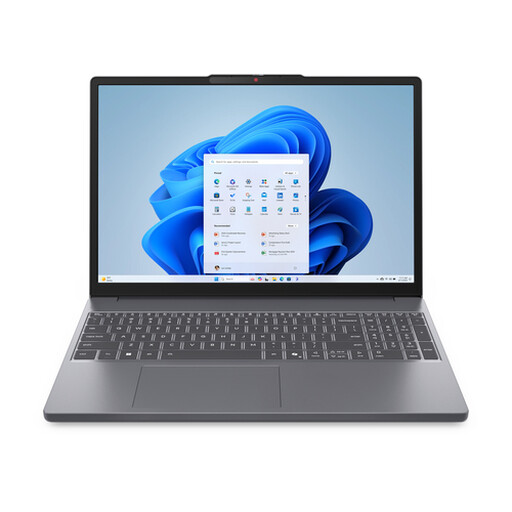 Image unavailable
A larger screen could be a good fit if you want more room for slides and documents and have enough desk space for the laptop.
Ryzen 7 8840HS, 16 GB DDR5 and a 512 GB SSD. The 15.3-inch WUXGA configuration has an anti-glare screen, HDMI and USB-C with DisplayPort; its listed weight is 1.59 kg. According to the product description, the charger must be purchased separately.
 Image unavailable
A 15.3-inch macOS configuration for anyone who wants more screen space and has room for a larger laptop on their desk.
This configuration has 16 GB of memory and a 512 GB SSD. The product description lists support for up to two external screens via Thunderbolt 4; the power adapter isn’t included.
No. 14 inches is a starting point, not a guarantee that the laptop will fit on your desk. Measure the available space and compare it with the width and depth of the exact configuration. Only choose a larger screen if you have room for it and need the extra viewing space.
Microsoft describes a presenter view that lets you see your notes on your own screen while the audience sees the slides on a second screen. You’ll need to connect a second screen, and your setup must support multiple displays.
Check that the software available to you has the features you need and that your laptop has the right connection for your external screen. Microsoft offers a web version of Microsoft 365; check whether it meets your needs. Also check which accessories are included with the exact laptop configuration.
According to ACM ConsuWijzer, for a standard online product purchase you generally have a statutory cooling-off period of up to 14 days after delivery, with some exceptions. The legal guarantee is separate from any manufacturer’s warranty. If a product doesn’t do what you could reasonably expect from it under normal use, contact the seller.
For employees who work with screens for more than 2 hours a day, Arboportaal describes a requirement for the screen and keyboard not to be attached to each other. With a laptop, it must therefore be possible to use a separate screen or keyboard. This is a conditional workplace requirement, not a requirement to choose a particular laptop model.