What should you look for?
First, measure the space available for the laptop and input devices. Then compare the screen, software and connections with the way you create and present slides. The Consumentenbond points out that a smaller screen lets you see less at once, while Arboportaal recommends separating the screen and input devices when working on a laptop.
| What to consider |
What should you check? |
Who is this important for? |
| Desk space and readability |
Compare the laptop’s external dimensions with the space available, and check that slides and notes are easy to read on screen. |
If I have limited desk space, I want room for my laptop and input devices without losing sight of my slides. Around 26% of consumers prioritise space and readability above all else. |
| Software and editing slides |
Check that your preferred version of PowerPoint is available for your operating system, and that it supports the features you use. |
When I edit slides while working with other files or apps, I want my chosen configuration to suit the way I work. Around 21% of consumers prioritise smooth slide editing. |
| Connecting and presenting |
Compare the laptop’s port with the input on your screen or projector, and check that your preferred presenter view is supported. |
If I want to show slides on a second screen, I want to know in advance that the connection to my projector or screen will work. Around 21% of consumers prioritise being able to present straight away. |
| Total purchase cost |
Check whether the required charger, video adapter and software are included. The HP OmniBook 5 model reviewed lists its charger as sold separately. |
If I want to keep my spending within a set budget, I consider the laptop as well as the accessories and software I need for the way I work. Around 16% of consumers prioritise the total cost. |
| Moving between workspaces |
Compare the weight and external dimensions with the cables and adapters you want to take with you. |
When I regularly move between workspaces, I want to take my laptop with me without the connections I need adding unnecessary weight to my bag. Around 16% of consumers prioritise portability. |
Brands and models to compare
These examples refer to specific product lines and models. Check the full configuration before applying any specifications to a laptop you’re considering.
HP
The Dutch HP store lists, among other options, a 14-inch OmniBook 5 model for a compact Windows workstation.
- For the 14-hh0600ndx reviewed, HP lists 16 GB RAM, a 512 GB SSD, USB-C, USB-A and HDMI.
- The charger is listed as sold separately for this model; this doesn’t necessarily apply to other HP laptops.
Lenovo
The ThinkPad X13 range is an option to consider if you’re looking for a small business laptop with built-in connections.
- For the ThinkPad X13 Gen 6 with Intel, Lenovo lists a 13.3-inch screen, two Thunderbolt 4 ports, USB-A and HDMI.
- Check the configuration you choose; the range page doesn’t describe one standard model.
Apple
The 13-inch MacBook Air M5 is a compact option running macOS.
- For the model reviewed, Apple lists a 13.6-inch screen and two Thunderbolt 4/USB-C ports.
- Apple’s list of connections doesn’t show a built-in HDMI port for this model. Check which connection your presentation screen needs.
ASUS
The Zenbook A14 is a 14-inch Windows range worth comparing if weight and connections matter to you.
- For the UX3407 family, ASUS lists USB-C with video output and HDMI.
- The family includes different processors and memory options. Check the full model details; weight and battery claims come from the manufacturer.
Joybuy laptops for presentations
These Joybuy products are compact laptops for creating slides on a small desk. Several models list an HDMI connection for presenting on an external screen.
 No image available
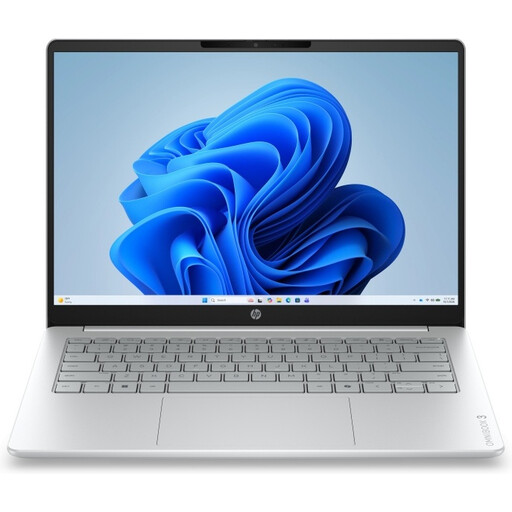
HP OmniBook 3 14-HY0005NDX
A compact Windows laptop for creating slides and presenting via HDMI.
14-inch IPS screen, 1920 × 1200, 12 GB RAM, 512 GB SSD and Windows 11 Home.
The listed HDMI connection may suit a screen with an HDMI input. According to the product information, the charger isn’t included.
Joybuy
 No image available
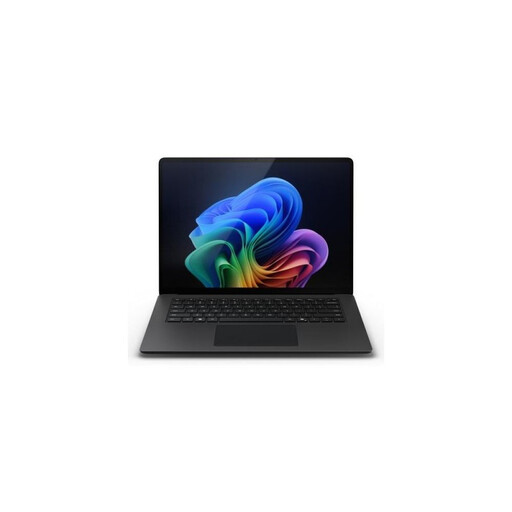
Microsoft Surface Laptop 7 13.8-inch Snapdragon X Elite
A compact laptop for editing slides on a 13.8-inch screen.
2304 × 1536 resolution, 16 GB RAM, 512 GB SSD and Windows 11 Pro.
The product information lists USB4 connectivity. Check that the connections suit your screen or projector.
Joybuy
 No image available
ASUS Zenbook A14 UX3407QA-QD479W
A 14-inch laptop for creating slides and moving between workspaces; the description lists a weight of around 0.98 kg.
WUXGA OLED screen, 16 GB RAM, 512 GB SSD and HDMI 2.1.
The charger isn’t included; the product information says a separate 65W USB-C Power Delivery charger is required. Compatibility with some older Windows programmes, drivers and specialist peripherals may vary on the Snapdragon platform.
Joybuy
 No image available
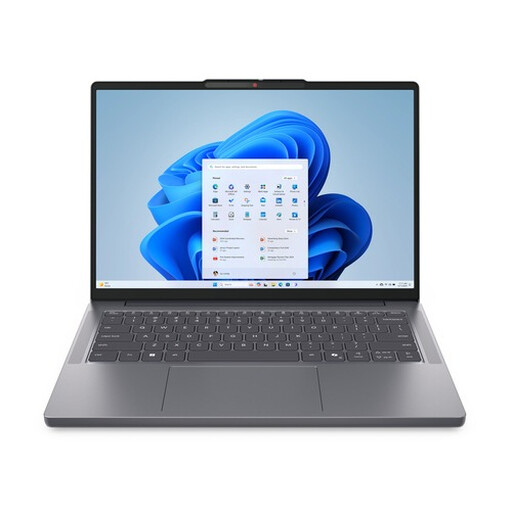
Lenovo IdeaPad Slim 3 14AHP10 R7
A 14-inch Windows laptop for creating slides, with an aspect ratio that gives you more vertical screen space.
WUXGA IPS screen with 1920 × 1200 resolution, 16 GB RAM and a 512 GB SSD.
The product information lists HDMI and USB-C with DisplayPort; check which connection your presentation screen uses.
Joybuy
 No image available
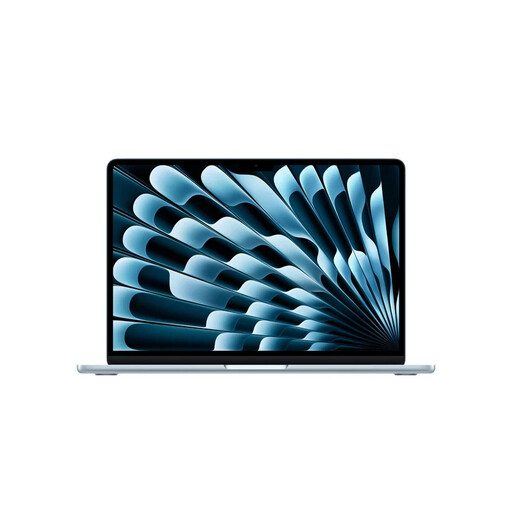
Apple MacBook Air 13-inch M5
A compact macOS laptop for editing presentations on a 13.6-inch screen.
16 GB memory, 512 GB SSD and two Thunderbolt 4/USB-C ports.
No built-in HDMI port is listed for this model; you may need a suitable adapter to connect an HDMI screen.
Joybuy
Frequently asked questions
Do I need a laptop for demanding creative work to make simple slides?
Not necessarily. The Consumentenbond distinguishes between basic office programmes and creative or demanding use. Choose specifications to suit your files and the programmes you use at the same time.
How can I show slides without displaying my speaker notes?
Microsoft Support explains how presenter view displays notes on one screen and slides on a second screen. Beforehand, check that your laptop and the connection you’re using work with your screen, then test your setup.
Can I rely on PowerPoint for the web without an internet connection?
Microsoft Support says you need an internet connection and a browser to play a slideshow in the web version. If you want to present offline, check the desktop app, the required licence and your saved file in advance.
What should I check besides the laptop itself?
Check whether the charger, any video adapter you need and your preferred software are included. For the HP OmniBook 5 model reviewed, HP lists the charger as sold separately; what’s included and which accessories are supplied can vary between models.
What are my rights if a laptop I bought online is faulty?
According to the Rijksoverheid, you’re entitled to a product that works properly, and the seller is your point of contact if there’s a fault. The Netherlands has no fixed statutory warranty period for all products. In many cases, when you buy from a business at a distance, you have a 14-day cooling-off period; check the relevant terms and exceptions.


