If you want to write by hand on papers, you’ll need a 2-in-1 whose pen support is confirmed for the exact configuration; a touchscreen alone isn’t enough to go on. For highlighting and typed notes, a compact traditional laptop may be sufficient, provided it runs the software you need. As well as screen size, compare the laptop’s dimensions, the workspace available and any extra essentials, such as a pen or keyboard.
Who is this buying guide for?
Anyone who annotates papers by hand
You want to write or sketch in the margins, as well as use a keyboard for longer notes. ASUS and Lenovo describe configurations with pen support or an optional pen; check the pen and what’s included with each model.
Anyone short on desk space
You want to keep papers readable without the laptop, keyboard or stand taking up the whole work surface. Compare the laptop’s dimensions with the space on your desk, and think about what you want to see on screen. The Consumers’ Association (Consumentenbond) points out that you can see less at once on a smaller screen.
Anyone who mainly types while researching
You work with PDFs, browsers and notes side by side, and want the software you need to be available for your chosen operating system. Google describes PDF annotation features for ChromeOS, but that doesn’t confirm whether individual research software will run on it.
What should you look for when buying?
First decide whether you want to write by hand or mainly highlight and type. Then measure the space on your desk and check that the apps and accessories you need are compatible with the exact configuration.
| What to consider |
What should you check? |
Who is this important for? |
| Handwritten notes |
Check pen support for the full model number, which pen is compatible and whether it’s included with the configuration. |
If I want to write in the margins of a PDF myself, the pen needs to work with my laptop. Around 31% of consumers say handwriting is their top buying priority. |
| Desk space available |
Compare the laptop’s width and depth with the available work surface, and leave room for typing too. |
If my desk is small, I want to leave enough room for other things without making the paper hard to read. Around 25% of consumers prioritise keeping desk space free. |
| Paper and notes side by side |
Try your usual PDF and notes window side by side at the zoom level you want. Check the memory in the exact configuration. |
If I want to read and type at the same time, it matters how much text I can see on screen. Around 25% of consumers prioritise reading and taking notes at the same time. |
| Software and essential accessories |
Check that your required app works with the operating system and that the pen, keyboard and charger are included with your configuration. |
If I need a particular research app, I want to know that it works and what else I’ll need. Around 19% of consumers say software compatibility and having all the essentials are their top priority. |
Common buying mistakes
-
Assuming a touchscreen supports a pen
A touchscreen alone doesn’t confirm that a particular pen will work with it. The configurations described vary in pen support and pen availability, depending on the model or configuration.
Check the full model number, the compatible pen and what’s included in the offer.
You may need to buy a compatible pen separately.
-
Looking only at the screen diagonal
The laptop and any input devices take up space too. What’s more, a smaller screen shows less text at once, which matters if you want to read a paper alongside your notes.
Measure the available work surface and compare it with the laptop’s width and depth. Also try viewing a paper at the zoom level you usually use.
-
Assuming every app works on every operating system
Google documents PDF highlighting and text annotations in the ChromeOS Gallery app; this doesn’t tell you whether another essential research app is available on ChromeOS, Windows or macOS.
Before choosing, check that your required software works with the operating system on the exact laptop you’re considering.
Brands to compare
ASUS
The Vivobook 14 Flip TP3407 is a 14-inch convertible worth comparing if you want to type and write with a pen.
- For the TP3407, ASUS lists a touchscreen with stylus support, a 360° design and dimensions of 31.26 × 22.09 cm.
- The specifications cover several configurations; check whether the pen and charger are included with the specific offer.
Lenovo
The Yoga 7i 2-in-1 Gen 10 is a 14-inch option for anyone who switches between typing and writing.
- For the configuration reviewed, Lenovo lists a 360° design and a 14-inch touchscreen.
- Lenovo describes the pen as optional in its general product information. Check whether one is included with the full configuration.
HP
The OmniBook 5 Flip 14-fp0600ndx is a 14-inch convertible with a standard keyboard.
- For this configuration, HP lists 16 GB RAM, a 512 GB SSD, a touchscreen and a 360° hinge.
- HP states that the charger is sold separately. Pen support or an included pen hasn’t been confirmed for this configuration.
Apple
The MacBook Neo 13-inch is a traditional laptop to compare if typed annotations are enough for you.
- Apple lists a 13.0-inch display, 8 GB of memory and configurations with 256 or 512 GB of storage.
- The listed specifications don’t mention touch or pen input. So don’t assume you can write directly on the screen.
Acer
The Chromebook Plus 514 CB514-6HT-32PZ is a ChromeOS option if its browser and PDF features suit the way you work.
- Acer lists ChromeOS for this model. Google documents PDF highlighting, text annotations and freehand drawing in the Gallery app.
- These PDF features don’t confirm that the individual research software you need is available on ChromeOS.
Joybuy products for typed notes
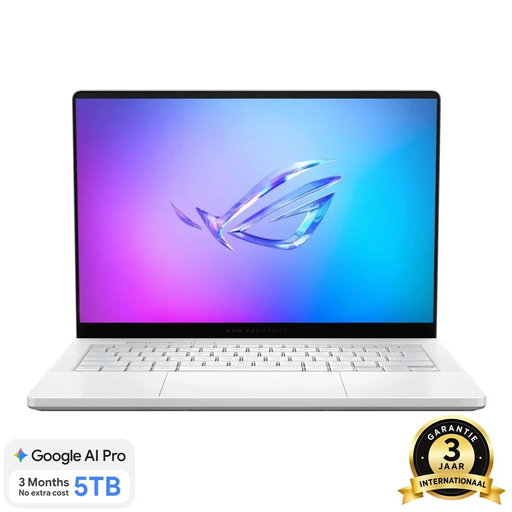
These laptops are aimed at reading papers and taking typed notes. Check for yourself that the software you need works with the operating system; according to the product information provided, the ASUS Zenbook A14 and ASUS ROG Zephyrus G14 aren’t suitable for writing directly on the screen.
 No image available
Lenovo IdeaPad Slim 3 14AHP10
A 14-inch laptop for reading papers and taking typed notes; the listed 16:10 screen ratio is one factor to consider when comparing the space available for documents.
Ryzen 7 8840HS, 16 GB memory, 1 TB PCIe SSD and QWERTY keyboard.
View at Joybuy
 No image available
MSI Modern 14 F1MG-867NL
A 14-inch laptop for typed comments and longer notes; check that your PDF and research software work with Windows 11.
Intel Core 7 150U, 16 GB DDR4, 512 GB SSD, Full HD screen and QWERTY keyboard.
View at Joybuy
 No image available
ASUS ROG Zephyrus G14 GA403UM-QS024W
This 14-inch laptop can be compared for reading papers and taking typed notes, but not for writing directly on the screen: according to the product information, the screen isn’t touch-sensitive.
Ryzen 9 270, RTX 5060, 16 GB memory, 1 TB SSD and QWERTY keyboard.
View at Joybuy
 No image available
ASUS Zenbook A14 UX3407QA-QD479W
A 14-inch laptop for reading and taking typed notes; the screen isn’t touch-sensitive, so writing directly on it isn’t an option with this configuration.
Snapdragon X, 16 GB RAM, 512 GB SSD, WUXGA OLED and Dutch QWERTY keyboard.
You’ll need a compatible 65 W USB-C Power Delivery charger; one isn’t included.
View at Joybuy
 No image available
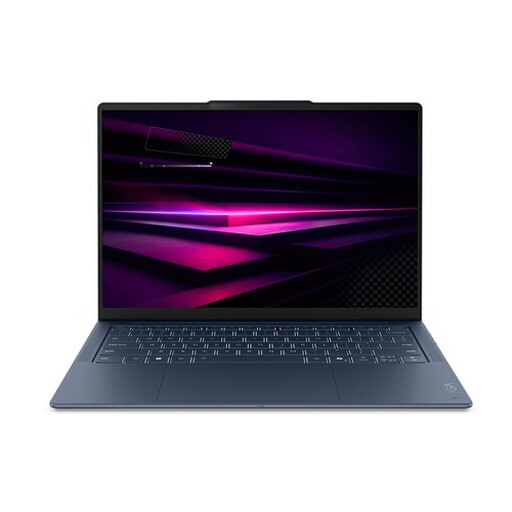
Lenovo Yoga Slim 7 14Q8Y11
A 14-inch laptop to compare for working with papers and typed notes. Check whether the 16:10 screen ratio suits the amount of text you want to see alongside your notes.
Snapdragon X2P-42-100, 16 GB memory, WUXGA screen with a 16:10 ratio and QWERTY keyboard.
View at Joybuy
Frequently asked questions
Do I always need a touchscreen to annotate PDFs?
No, not if highlighting and typed comments are enough. Google documents text annotations and highlighting in the ChromeOS Gallery app. If you want to write on the screen by hand, check pen support and which pen is compatible with the exact configuration.
How can I stop my PDF annotations from being lost?
Save your work after annotating, and try out your process with one of your own PDFs first. Google also describes an option in the Gallery app to save edits as a new file.
Does a 2-in-1 always include a keyboard, pen and charger?
No, don’t assume that it does. Microsoft sells the Surface Pro 12-inch keyboard separately; Lenovo describes the pen for the Yoga 7i as optional, and HP says the charger for the OmniBook 5 Flip configuration reviewed is sold separately. Check what’s included in the specific offer.
What are my rights when buying online in the Netherlands?
According to ACM ConsuWijzer, online consumer purchases generally come with a statutory 14-day cooling-off period after delivery, although there are exceptions. The seller is also responsible for the statutory guarantee if the product doesn’t meet what you could reasonably expect from it. Check the terms that apply to your purchase.


