
Writers with limited desk space
You write labels alongside notes or information about objects and want to leave room for your hands and materials. Compare the laptop’s actual dimensions, not just its screen diagonal.


A laptop is a good fit for a small desk if its actual dimensions leave room for your notes and other items you need to use. So compare the size of the laptop itself, not just its screen diagonal. Then consider the display, ports and compatibility with your museum’s software. According to Arboportaal, employees who work at a screen for more than two hours a day must also meet requirements for their workstation setup.
You write labels alongside notes or information about objects and want to leave room for your hands and materials. Compare the laptop’s actual dimensions, not just its screen diagonal.
You type and edit for extended periods and want to be able to position the screen and keyboard comfortably. According to Arboportaal, employees who work at a screen for more than two hours a day must meet workstation requirements.
You share documents or use prescribed apps. Check that macOS, Windows or ChromeOS suits the way you work, especially if you need to access files offline. Google sets out separate requirements for offline Drive files and Microsoft 365.
First measure the space available, then consider how you’ll use the screen, your typing setup and compatibility with the museum’s software.
| What to consider | What to look for | Who should prioritise this? |
|---|---|---|
| Desk space | Measure the available width and depth, then compare them with the dimensions of the exact laptop configuration. Leave room for your input device and reference materials, too. | If I need notes and reference materials beside my laptop, I don’t want its casing to take up the whole workspace. Around 33% of consumers say that whether a laptop fits on their desk is their top purchasing priority. |
| Typing for long periods | Try the keyboard if possible and check that you can position the screen and input device comfortably at your workstation. Arboportaal specifies setup requirements for employees who work at a screen for more than two hours a day. | During longer writing sessions, I want to position the screen and input device properly without extra equipment taking up the remaining workspace. Around 25% of consumers prioritise typing comfort and workstation setup. |
| Reading text and references | Compare the screen size, aspect ratio and finish of the exact configuration. Also consider whether you’ll be able to read the screen comfortably in your desk setup. | When I check label text and references, I want to view them comfortably on screen and take the lighting at my workstation into account. Around 25% of consumers give screen space and checking references top priority. |
| Files and apps | Ask which apps, file formats and storage locations the museum uses. Test a representative document and check whether you need to work offline. | If the museum requires specific software or a particular way of handling files, I want to know in advance whether my laptop will work with it. Around 17% of consumers prioritise file compatibility and offline working. |
A 14-inch screen doesn’t tell you how much room the laptop’s casing will take up alongside your reference materials and input device.
Measure the available space on your desk and compare it with the width and depth of the exact configuration.
The ASUS Zenbook 14 OLED we looked at did not include a power adapter. HP lists a recommended USB-C adapter for the Chromebook model 14a-nm0600ndx, available separately.
Check what’s included in the box and compare the ports on the configuration you’re considering with your existing equipment.
Google sets out separate requirements for Drive files you want to use offline and for editing files through Microsoft 365 on a Chromebook.
Test a representative document in the storage and editing environment approved by the museum.
The 13-inch MacBook Air M5 is a compact macOS option if the museum’s software and file-sharing processes work with it.
The Zenbook 14 OLED UX3405 configuration we looked at is a 14-inch Windows option with a generous built-in display and a range of ports.
The ThinkPad X1 Carbon Gen 14 is a business-focused 14-inch Windows option if its configuration and support suit your working environment.
The HP Chromebook 14a-nm0600ndx is a 14-inch ChromeOS option if the museum can use the web and document services it needs.
The Dell Pro 13 Premium PA13250 is a business-focused 13-inch Windows option for a compact laptop in a professional working environment.
This selection includes compact 13-inch models and 14-inch laptops for writing and checking museum labels. Compare each configuration with the space available on your desk and the museum’s software.
 No image available
A 14-inch Windows option to consider if you want to consult reference materials on screen; check the physical dimensions against your desk.
Ryzen 5 7520U, 8 GB RAM, 512 GB SSD and Windows 11 Home.
According to the product information, a power adapter is not included.
 No image available
A 14-inch laptop to consider if you’re looking for a Windows model for writing and editing; measure the space available on your desk first.
Ryzen 7 8840HS, 16 GB RAM, 1 TB PCIe SSD and QWERTY keyboard.
 No image available
A compact macOS option to consider if the museum’s software and file-sharing processes work with macOS; check the physical dimensions against your desk.
16 GB memory, 512 GB storage and QWERTY keyboard.
According to the product information, a power adapter is not included.
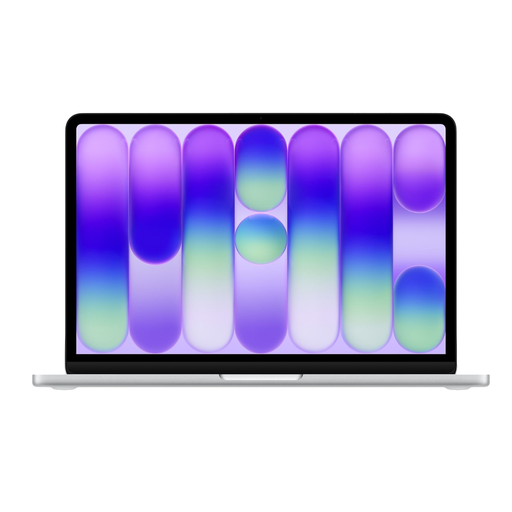 No image available
A compact 13-inch option to consider if you’re looking for a laptop for a small workspace; check that it’s compatible with the museum’s software and file-handling processes.
8 GB memory, 512 GB storage and QWERTY keyboard.
According to the product information, a power adapter is not included.
 No image available
A 14-inch Windows option to consider if you want a compact model with a larger screen; check compatibility with specialist software and peripherals first.
Snapdragon X, 16 GB RAM, 512 GB SSD, WUXGA OLED and Dutch QWERTY.
According to the product information, a power adapter is not included; you’ll need a compatible 65W USB-C Power Delivery charger. The product information notes that compatibility with older or specialist software and peripherals may vary with Windows on Snapdragon.
No. Compare its actual dimensions with the space available on your desk, and decide whether you want to see text and reference materials at the same time while editing. Apple lists a 13.6-inch screen diagonal for the MacBook Air M5; the diagonal alone doesn’t tell you how much desk space the laptop will take up.
Make sure you can position the screen and input device comfortably, and change your posture regularly, as Arboportaal advises. Employees who work at a screen for more than two hours a day must also meet requirements that include having a separate screen and keyboard.
Yes. According to Google, you can use certain Drive files offline if you make them available beforehand. Changes will sync when the Chromebook reconnects to the internet. For editing through Microsoft 365 on a Chromebook, Google describes a method using OneDrive; check which method the museum allows.
Not just to ensure you have statutory consumer rights: ACM ConsuWijzer states that the legal guarantee exists alongside the seller’s guarantee and has no fixed time limit. Check separately what paid additional cover includes. This applies to consumer purchases and does not necessarily apply to a purchase made on behalf of a museum.