Who is this laptop choice relevant to?

Editor who spends long hours at a desk

Edits for extended periods at a sit–stand desk and wants to position the screen and input devices appropriately. Specific workstation requirements apply to employees who work with display screens for more than 2 hours a day; they do not automatically apply to every reader.

Editor with lots of source material

Wants to compare book notes, quotes and the review side by side while writing. The choice may come down to having more space on the laptop screen or using an external monitor.

Editor who works in different locations

Regularly takes their laptop with them and weighs its size and battery life against screen space and how well it connects to their permanent workspace.

What should you look for in a laptop for editing?

What to consider What to look for when buying Who is this important for?
Working posture and ports Check the video output and USB ports. Consider whether you can position the screen and input devices comfortably in both the sitting and standing positions. If I’m working at my sit–stand desk for a long time, I want to position my screen and input devices appropriately. Around 33% of consumers prioritise their workstation setup.
Room to read text and sources Check the screen size and specification of the exact model. Also decide whether an external monitor will be part of your workspace. If I want to keep quotes and notes alongside my review, available screen space matters a lot. Around 27% of consumers give reading and comparing space top priority.
Portability and working without a plug socket Compare size and weight, and assess battery life based on the stated usage conditions. If I often edit in different locations, I don’t want to carry around more screen space than I need, and I pay attention to battery life on the go. Around 20% of consumers prioritise portability.
Software and keyboard Check the requirements for your word processor and other programmes, as well as the keyboard layout of the exact configuration. If my existing software or way of working is a deciding factor, I want to know in advance whether it works with the operating system I choose. Around 20% of consumers start with software compatibility.

Pitfalls to avoid when buying a laptop for your sit–stand desk

  • Assuming an adjustable desk will solve your laptop setup

    An adjustable desk doesn’t change the fact that a laptop’s screen and keyboard are attached to each other. Arboportaal states that, for employees who work with display screens for more than 2 hours a day, the screen and keyboard must not be attached to each other.

    Think about how long you work and in what conditions. Then check whether you can connect the laptop to a suitable external monitor and separate input devices, and use the setup at both desk heights.

    An external monitor, keyboard, mouse or suitable adapter may be needed for your chosen workspace.

  • Assuming the maximum battery life guarantees a full day of editing

    Apple lists separate maximum battery life figures for wireless web browsing and video streaming on the MacBook Air M5. These figures aren’t a measure of a day spent editing with your documents, browser and screen brightness.

    Only compare stated battery life when the test conditions are clear, and take your own working habits and charging options into account.

  • Assuming every model in a range has the same configuration

    Screen, memory, keyboard layout and ports can vary across a product range. So a model name alone doesn’t always tell you which configuration you’re looking at.

    Before buying, check the full model number, keyboard layout and ports of the configuration on offer. Bear in mind that you may need an adapter for a different configuration.

  • Confusing an additional warranty with your statutory rights

    The Dutch government distinguishes between statutory rights and a manufacturer’s or extended warranty: an additional warranty doesn’t replace your statutory rights.

    Compare the specific additional cover with your existing rights before deciding.

Brands to consider for this type of work

Apple

The MacBook Air M5 is a compact macOS option for anyone who wants to connect an external monitor and uses software that runs on macOS.

  • Apple lists a 13.6-inch display and two Thunderbolt 4/USB-C ports for the 13-inch configuration.
  • The stated maximums of 15 hours of wireless web browsing and 18 hours of video streaming aren’t a measure of editing work. Check what connection you need for an HDMI monitor.

Lenovo

The ThinkPad E14 Gen 7 is an example of a Windows work laptop for a desk with connected devices.

  • According to Lenovo, the Intel configuration reviewed, 21SXCTO1WWNL5, has a 14-inch anti-glare IPS screen. The range lists USB-A, USB-C, Thunderbolt 4 and HDMI.
  • The configuration reviewed has an English (EU) keyboard. The screen and keyboard may differ on other configurations.

ASUS

The Zenbook 14 OLED UX3405 is a Windows option for anyone comparing a 14-inch screen with ports for a permanent workspace.

  • For the variants described, ASUS lists two Thunderbolt 4 ports, USB-A and HDMI.
  • The specification page covers different screen and memory configurations. Check the full model number and whether the screen finish suits the lighting at your desk.

Acer

The Swift Go 14 OLED is a compact Windows option for anyone comparing HDMI connectivity.

  • The configuration reviewed, NX.KTSEH.00A, lists 16 GB memory, HDMI and two USB-C ports.
  • Acer describes this configuration’s OLED screen as glossy. Consider potential reflections in your intended desk setup.

Dell

The Dell 14 Plus DB14250 is a configurable Windows option for anyone who wants to choose their screen, storage and keyboard layout carefully.

  • The Dutch configuration page shows options including a 14-inch QHD+ screen, different storage capacities and keyboard layouts.
  • Dell warns that changing a configuration can also change other specifications. So check the chosen configuration as a whole.

Joybuy laptops for this type of work

These laptops may suit anyone editing a book review at a sit–stand desk and weighing up screen space, ports or an external workstation setup.

Auusda T161N laptop

Auusda T161N, 16 GB RAM, 1 TB SSD

A 16-inch screen may be useful if you want to compare your review and source notes on the laptop screen.

The product name lists an i3 1000NG4 processor, 16 GB DDR4 RAM and a 1 TB SSD. The product description mentions a 16-inch Full HD IPS screen and mini-HDMI.

View at Joybuy

Auusda T156A laptop

Auusda T156A, 16 GB RAM, 512 GB SSD

The built-in screen space may come in handy if you want to view your review and notes on one screen.

The product name lists 16 GB DDR4 RAM, a 512 GB SSD and a 3050E processor. The product description mentions a 15.6-inch Full HD IPS screen and a backlit keyboard.

View at Joybuy
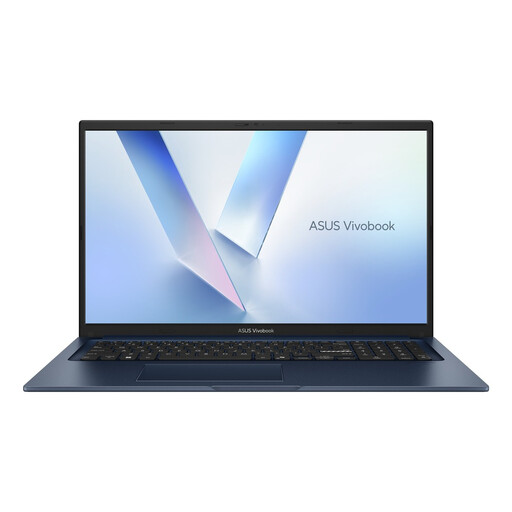
ASUS Vivobook 17 X1704MA-AU153W laptop

ASUS Vivobook 17 X1704MA-AU153W, 8 GB RAM, 256 GB SSD

The large screen suits anyone who values room for text and sources on the built-in display more than being able to carry the laptop around frequently.

The product name lists a Core 5 320 processor, 8 GB RAM, a 256 GB SSD and a QWERTY keyboard. The product description mentions a 17.3-inch Full HD anti-glare screen and a weight of 2,10 kg.

View at Joybuy

HP OmniBook 3 14-hy0058ndx laptop

HP OmniBook 3 14-hy0058ndx, 8 GB RAM, 512 GB SSD

This configuration may suit anyone looking for a 14-inch screen and ports for a permanent workspace.

The product name lists an AMD Ryzen 5 7520U processor, 8 GB RAM, a 512 GB SSD and Windows 11 Home. The product description mentions a 14-inch anti-glare screen with a 16:10 aspect ratio, HDMI, USB-A and USB-C, and a weight of around 1,42 kg. The laptop comes without a charger, which must be purchased separately.

View at Joybuy

MSI Modern 14 F1MG-867NL laptop

MSI Modern 14 F1MG-867NL, 16 GB RAM, 512 GB SSD

A 14-inch anti-glare screen and the listed ports may be useful for a desk setup with an external monitor and separate input devices.

The product name lists an Intel Core 7 150U processor, 16 GB DDR4 and a 512 GB SSD. The product description mentions HDMI, USB-A and USB-C with DisplayPort, a weight of 1,40 kg and a backlit keyboard.

View at Joybuy

Frequently asked questions

Do you need a separate monitor or keyboard for a sit–stand desk?

Arboportaal states that, for employees who work with display screens for more than 2 hours a day, the screen and keyboard must not be attached to each other. So check whether you can use the laptop with separate input devices and, where necessary, an external monitor. This requirement does not automatically apply to every buyer.

How should you set up your laptop when alternating between sitting and standing?

Check that you can position your screen and input devices appropriately in both positions. Arboportaal also offers advice on display screen work, including lighting and reflections, so tailor your setup to your workspace.

How can you protect a work document while editing?

For sensitive documents belonging to your employer, follow their storage guidelines. The Dutch Data Protection Authority advises storing such documents on the work server.

What warranty applies when you buy a laptop in the Netherlands?

When you buy as a consumer, you’re entitled to a product that meets reasonable expectations; there is no fixed statutory warranty period in the Netherlands. According to the Dutch government, a manufacturer’s warranty comes on top of your statutory rights. If a product is faulty, contact the seller.

Can you return a laptop bought online?

For distance purchases from a business, you usually have a 14-day cooling-off period. The Dutch government lists exceptions and distinguishes, among other things, between buying online from a business and buying from a private individual. So check the terms of your specific purchase.
