Who is this laptop guide for?

Archivist working with scans

You collect historical reviews as scans and want to find words within the documents. OCR converts images containing text into machine-readable text, but checking the recognised text remains part of the process. Adobe explains this OCR step.

Researcher with lots of sources

You link reviews to titles, creators, performance dates and notes, and want to search both text and metadata. Zotero explains how to search indexed attachment content and metadata.

Theatre editor working in different locations

You add reviews to your archive in different places and weigh up a compact screen against the space you need to view documents and data side by side.

What should you look for in a laptop for reviews and scans?

Compact Windows laptop

Choose this if: you update your archive in different locations and use Windows software.

Trade-off: a smaller screen gives you less room to view a scan and its metadata at the same time.

Larger Windows workstation

Choose this if: you usually work in one place and want more screen space for documents, search results and input fields.

Trade-off: a larger screen is less convenient to carry around, and screen space alone does not guarantee greater productivity.

MacBook Air with a document library

Choose this if: you want to use macOS and mostly read or take notes on the go.

Trade-off: check that your OCR software and peripherals work with macOS and the available ports. The stated battery life is not the same as battery life during OCR and indexing.

What to consider What should you check? Who should pay particular attention?
Making scans searchable Test a representative scan with the OCR and search software you plan to use. Also check your local storage capacity if you keep both originals and searchable copies. If you have lots of historical reviews as scans, you’ll want to know whether OCR recognises the text accurately enough to be useful. Around 33% of consumers rank making scans searchable as their top priority.
Archive and advanced search Try a search using your own reviews, for example by creator and content. Compare the SSD capacity with the space your library and attachments need. If you link lots of sources to titles, creators and notes, being able to find information in text and metadata matters. Around 27% of consumers rank archive and advanced search as their top priority.
Working on the go Compare the screen size, ports and keyboard of the exact model configuration. Assess the battery information in relation to how you’ll use it; a manufacturer’s figure for other activities does not necessarily predict how long OCR will take. If you add reviews in several locations, you’ll need to balance portability against having enough room to view documents alongside data. Around 20% of consumers give portability top priority.
Software and total cost Check that your existing search and OCR software, file formats and peripherals are compatible with the operating system. Factor in any software and storage requirements. If you want to keep using your existing software, you’ll want to know about compatibility and any additional requirements in advance. Around 20% of consumers prioritise cost and compatibility.

Common pitfalls when digitising reviews

  • Assuming a powerful laptop will automatically make scans searchable

    A scan is an image. Search software cannot find words in it automatically: OCR must first convert it into text that can be indexed.

    Before importing a large collection, test one typical historical review from scan to search result and check the recognised text.

    OCR may require extra software and time to check the recognised text.

  • Choosing based on the model name alone

    Configurations within the same model range can differ in areas such as memory, storage, screen and keyboard.

    Compare the exact configuration you plan to buy, line by line, against your needs.

  • Treating sync or a separate folder as a complete backup

    A library can include both data and attachments. Check that your backup contains the files you need to restore your archive.

    Make separate backups and regularly check that you can restore the library and the attachments you need.

    Depending on your setup, you may need separate storage space.

  • Sharing a private archive publicly without checking first

    Keeping a copy for your own use is not the same as having permission to make protected work publicly available. Publication may also raise questions about personal data.

    Keep private searching separate from making material publicly available. Before publishing, check the rights and applicable rules for the specific collection.

Brands to consider

Dell

The Dell 14 DC14255 is a compact Windows option for working with a local archive.

  • For the configuration reviewed, Dell Netherlands lists a Ryzen 5 220, 16 GB memory, 512 GB SSD and a 14-inch screen.
  • Dell notes that changing the configuration can affect other specifications, so check the exact model configuration.

HP

The ProBook configurations reviewed offer a choice between a more compact 14-inch screen and a larger 16-inch screen.

  • For the ProBook configurations reviewed, with product codes D4TM3EA#ABH and A23QQEA#ABH, HP lists 16 GB memory and a 512 GB SSD for each.
  • These specifications are not independent measurements of indexing performance. Check the product code of the exact configuration.

Apple

The 13-inch MacBook Air with M5 is a compact option for anyone who prefers macOS for reading and archiving.

  • Apple lists 16 GB memory and a 512 GB SSD for the base configuration.
  • The stated battery life for video and wireless internet is not a measurement taken during OCR. Check software and scanner compatibility separately.

Lenovo

The ThinkPad E14 Gen 7 is a business-focused 14-inch Windows range; configuration 21T9001TMH has specific listed specifications.

  • Lenovo lists 16 GB memory, a 512 GB SSD and a 14-inch screen for 21T9001TMH.
  • Other E14 configurations may have different components or keyboards. Compare the exact product code and configuration.

Joybuy products for archive work and reviews

This selection includes compact Windows laptops and larger models for working with documents locally; OCR and indexing still depend on the software you choose.

HP OmniBook 3 14-hy0058ndx laptop, 14-inch, 8 GB RAM and 512 GB SSD

HP OmniBook 3 14-hy0058ndx

A compact Windows laptop for working with documents locally; scans still need OCR and suitable indexing software.

14-inch; AMD Ryzen 5 7520U; 8 GB RAM; 512 GB SSD; Windows 11 Home.

Joybuy
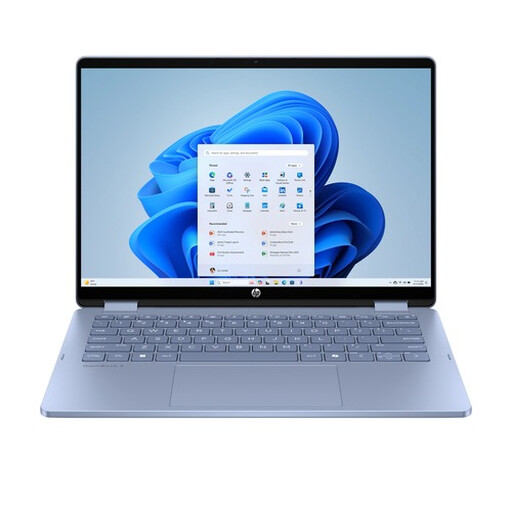
HP OmniBook 5 Flip 14-fp0251ndx 2-in-1 laptop, 8 GB RAM and 512 GB SSD

HP OmniBook 5 Flip 14-fp0251ndx 2-in-1

A compact Windows laptop for working with documents; check that the touchscreen and ports suit your workflow.

14-inch touchscreen; Intel Core 5 120U; 8 GB RAM; 512 GB SSD; Windows 11 Home.

The USB-C charger is not included and must be purchased separately.

Joybuy

ASUS Vivobook S16 S3607QA-SH109W, 16-inch WUXGA OLED, 16 GB RAM and 512 GB SSD

ASUS Vivobook S16 S3607QA-SH109W

A larger screen can suit a fixed workspace where you view documents and input fields side by side.

16-inch WUXGA OLED; Snapdragon X Processor; 16 GB LPDDR5X; 512 GB SSD; Windows 11 Home.

Joybuy

Auusda T156A laptop, 15.6-inch FHD IPS, 16 GB DDR4 and 512 GB SSD

Auusda T156A

The stated 15.6-inch screen suits a larger workspace; also check that the laptop works with the search and OCR software you plan to use.

15.6-inch FHD IPS; 16 GB DDR4 RAM; 512 GB SSD; 3050E processor.

Joybuy

HP OmniBook Ultra Next Gen AI 16-bk0001nd, 32 GB RAM and 1 TB SSD

HP OmniBook Ultra Next Gen AI 16-bk0001nd

A larger screen and local storage can suit a fixed workspace for documents and files; whether scans are searchable also depends on OCR and indexing software.

16-inch 3K OLED touchscreen; 32 GB RAM; 1 TB SSD; Windows 11 Pro.

Joybuy

Frequently asked questions about laptops and searchable reviews

Can I find a scanned review straight away using advanced search?

No, not from the image alone. First use OCR to convert the scan into searchable text, then check that your library indexes that text. Zotero explains how to search indexed attachment content; Adobe explains OCR for scans.

How do I set up search after transferring my files?

Check that the files you want to search are included in your chosen search solution. In Windows, you can adjust indexed locations; in Zotero, you can search supported attachments containing text using attachment content.

How can I prevent my review library from being lost if my laptop fails?

Make a separate backup of your library and the attachments you need. Zotero explains where its data directory is located; check whether your setup also includes locally stored attachments in the backup, and test that you can restore the files.

Do I need paid software for OCR, and what about the warranty?

That depends on the OCR software you choose: Adobe says Acrobat Pro can convert scans into searchable PDFs. For a consumer purchase in the Netherlands, statutory rights are separate from any manufacturer’s or commercial warranty offered. ACM ConsuWijzer explains that your entitlement depends on what you could reasonably expect from the product.

Can I make digitised theatre reviews available online?

Keeping a copy for your own use does not automatically give you permission to make protected texts publicly available. Publication may also involve rules about personal data. Check the rights and applicable rules for the specific collection before putting it online; this is not a general ban on a private, locally searchable archive.
