If you mainly work at one desk, start by assessing the screen, keyboard and how the laptop connects to the equipment already there. If you often move between workspaces, give more weight to portability and battery life. A fanless design avoids fan noise, but not necessarily typing noise, so also check the exact configuration, keyboard layout and software you need.
Who is this buying guide for?
Full-time scriptwriter at a fixed desk
Works for long periods and wants to set up the screen and input devices comfortably. According to Arboportaal, specific requirements apply to screen and keyboard use for employees who spend more than two hours a day working with display screens.
Writer who moves between workspaces
Regularly takes their laptop with them and weighs portability against screen space and the connections needed in different workspaces.
Writer using a shared office setup
Wants to connect their laptop to the screens and peripherals already available. Check the ports on the exact configuration, as they can vary between models.
What should you look for when choosing?
Start with how you write and work, then decide which screen, noise and connectivity features suit your needs.
| What to consider |
What to look for |
Who is this important for? |
| Writing for long periods |
Check the screen size and anti-glare finish, try out the keyboard layout and decide whether you can use an external keyboard or screen. |
If I work on scripts for long periods, I want comfortable input and a workspace I can adjust properly. Around 33% of consumers put typing comfort first. |
| Noise in the office |
Check whether the model has a fan and assess keyboard noise separately; don’t try to infer it from other specifications. |
I want to add as little noise as possible to the shared space while I write. Around 27% of consumers put device noise first. |
| Moving between workspaces |
Compare the size and weight of the exact configuration. When checking battery figures, look at the type of use specified by the manufacturer. |
If I often move around, a handy size matters more to me than a larger built-in screen. Around 20% of consumers put portability first. |
| Connecting to office equipment |
Check the software, screen cables, dock and keyboard you need, as well as the ports on the configuration you’ve chosen. |
I want to use my scriptwriting software, the available screens and peripherals without any connectivity surprises. Around 20% of consumers prioritise compatibility with their workspace. |
The percentages shown represent the split between these four purchasing priorities within this buying guide. They are not Dutch market statistics.
Things to consider before buying
-
Relying only on the built-in screen and keyboard
According to Arboportaal, the screen and keyboard must not be attached to each other for employees who spend more than two hours a day working with display screens.
Discuss your workspace setup and the equipment available with your employer before choosing a laptop configuration.
If the required charging equipment isn’t available, you may need to arrange a suitable charger.
-
Confusing an extended warranty with your statutory rights
The Dutch government explains that a manufacturer’s warranty or an additional warranty is on top of your statutory rights and does not replace them.
Check what additional cover is offered and keep your proof of purchase in case you need to contact the seller.
Brands to compare
Apple
According to Apple, the MacBook Air with M5 is available in 13-inch and 15-inch versions, giving you a choice of screen size and portability.
- Apple describes the range as fanless. For the 13-inch version reviewed, Apple lists two Thunderbolt 4 ports.
- Fanless doesn’t mean the keyboard is quiet. Also check that the software you need works on macOS and which adapters or dock connections you’ll need. Apple’s battery figures apply to specific activities.
ASUS
The ExpertBook B1 B1403CVA is a business Windows laptop with a 14-inch anti-glare screen and a range of connection types.
- The Dutch specifications list two USB-A ports, two USB-C ports, HDMI and Ethernet.
- The listed connections don’t tell you how noticeable the fan or keyboard will be in a shared office.
Lenovo
The ThinkPad E14 Gen 7 configuration reviewed, model number 21SXCTO1WWNL5, is a business Windows laptop with a 14-inch anti-glare screen.
- Lenovo lists 16 GB of memory for this configuration.
- The keyboard layout is English (EU). Check whether it suits writing scripts in Dutch; specifications may vary between E14 configurations.
Dell
The Dell Pro 14 PC14250 is a business Windows laptop. The Dutch configuration described has a 14-inch anti-glare screen.
- The configuration shown is listed with 16 GB of memory and a 512 GB SSD.
- This configuration is listed as not including a charger. Check again for the version you’re considering.
Joybuy laptops for writing
These Joybuy laptop picks are suited to desk-based writing, with a focus on screen space and connecting peripherals. Check that the connections, software and accessories included with the exact configuration are right for your office.
 No image available
HP OmniBook 3 16-by0058ndx
The 16-inch version could suit you if you’d like extra screen space while writing and connect equipment at a desk.
16-inch IPS screen, 1920 × 1200, anti-glare; USB-A, USB-C with DisplayPort and HDMI; AMD Ryzen 5 7520U, 8 GB RAM, 512 GB SSD and Windows 11 Home.
The product description states that a charger is not included.
View at Joybuy
 No image available
HP OmniBook 5 Flip 14-fp0250ndx 2-in-1
This 14-inch 2-in-1 could suit you if you want a touchscreen for writing and the flexibility to use your laptop in different modes.
1920 × 1200 IPS touchscreen; Intel Core 5 120U, 8 GB RAM, 512 GB SSD and Windows 11 Home. The product description lists a QWERTY keyboard and USB-A, USB-C and HDMI connections.
The product description states that a compatible USB-C charger is not included.
View at Joybuy
 No image available
HP OmniBook 3 14-hy0058ndx
The 14-inch version is worth comparing if you’re looking for a smaller screen for moving between workspaces.
1920 × 1200 IPS screen with a 16:10 aspect ratio and anti-glare finish; approx. 1.42 kg; USB-A, USB-C and HDMI. AMD Ryzen 5 7520U, 8 GB RAM, 512 GB SSD and Windows 11 Home.
The product description states that the charger must be purchased separately.
View at Joybuy
 No image available
ASUS Vivobook S16 S3607QA-SH109W
This configuration could suit you if you’d like a larger built-in screen for writing and office applications.
16-inch WUXGA OLED screen with a 16:10 aspect ratio; Snapdragon X processor, 16 GB LPDDR5X, 512 GB SSD and Windows 11 Home.
View at Joybuy
 No image available
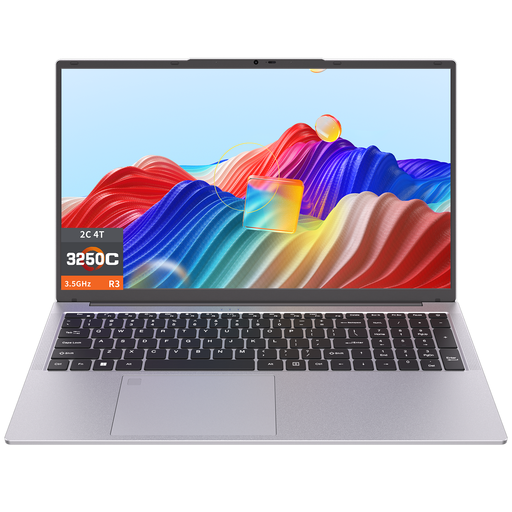
Auusda T173A
The 17.3-inch screen could suit you if a large built-in display is important when you write.
17.3-inch screen; 3250C processor, 8 GB DDR4 RAM and 512 GB SSD. The product description also mentions a backlit keyboard and connections for peripherals.
View at Joybuy
Frequently asked questions
Do you need to be able to use a separate keyboard or screen when working on a laptop for long periods?
According to Arboportaal, the screen and keyboard must not be attached to each other for employees who spend more than two hours a day working with display screens. When using a laptop, employees must be able to use a separate screen or keyboard. This is a conditional workplace requirement, not a requirement for everyone buying a laptop.
How do you adjust a shared workspace?
Arboportaal advises adjusting your workspace again when you sit down in a new place. Check that the screen, keyboard and furniture can be set up appropriately; a different laptop won’t automatically fix an unsuitable workspace.
Are you always entitled to exactly two years’ statutory warranty on a laptop in the Netherlands?
No. According to the Dutch government, the Netherlands has no fixed statutory warranty period; you’re entitled to a product that does what you can reasonably expect it to do. If a consumer product is faulty, contact the seller. A manufacturer’s warranty or an additional warranty does not replace your statutory rights.
Does a quoted battery life mean you can write scripts for just as long?
No. For example, Apple gives separate battery life figures for video streaming and wireless internet use for the MacBook Air M5 reviewed. When you see a figure like this, check which activity was tested and bear in mind your own screen settings and applications.


