What should you look for?
Business laptop with an anti-glare screen
A good fit if: window reflections are your main concern and you can check the screen specification for the exact configuration.
Bear in mind: a matte finish is no substitute for a good setup or window blinds; screen specifications can vary within the same product range.
Compact MacBook Air
A good fit if: you often move between writing spots and macOS works with your documents and any production workflow.
Bear in mind: Apple states that the 13-inch MacBook Air with M5 offers up to 15 hours of wireless internet use under its own test conditions; this is no guarantee of how it will perform for you or in your workspace.
14-inch OLED laptop
A good fit if: you’re considering a compact Windows laptop with OLED and specific ports, and can manage the light coming through your window.
Bear in mind: ASUS lists several screen options for the UX3405CA; check the exact variant and coating, not just the OLED label.
First compare the screen coating and standard brightness of the exact configuration. Then consider typing comfort, the ports you need and how often you’ll take the laptop with you.
| Consideration |
What should you check? |
Who should prioritise this? |
| Readability by the window |
Check the coating and standard brightness of the exact configuration. Also see whether you can position your desk parallel to the window or use blinds. |
If reflections distract you while writing, you’ll want to know how the screen and your surroundings work together. Around 36% of consumers say readability beside a window is their main concern. |
| Typing for long periods |
Try the keyboard layout and key feel. For a permanent workspace, check whether you can connect a separate keyboard or screen. |
If you write scripts for long sessions, you’ll want a keyboard and screen setup that suits your workspace. Around 29% of consumers prioritise typing comfort. |
| Portability and battery use |
Compare the size and weight of the exact configuration. For battery-life claims, check what activity was tested and whether a charger is included. |
If you often write somewhere else, size and working away from a power socket may be important. Around 21% of consumers say portability is their main consideration. |
| Software and documents |
Check that your scriptwriting, collaboration and any audio software will work with the chosen operating system and exact configuration. |
If you need to keep using existing software and documents, you’ll want to know in advance whether they’re compatible with the laptop. Around 14% of consumers prioritise compatibility with their existing workflow. |
Laptop examples for this scenario
This curated scenario-based comparison looks at three technical approaches to writing beside a bright window; it isn’t an independent quality test. The order reflects the supporting information provided, not an overall ranking of quality.
| Place |
Product |
Key specifications |
Why compare it? |
Platform |
| 1 |
Lenovo ThinkPad E14 Gen 8, 21Y8CTO1WWNL3 |
14-inch anti-glare IPS screen; 400 nits. |
This configuration comes first because Lenovo Netherlands specifies an anti-glare screen and stated brightness for this exact model. These remain manufacturer specifications, not measurements taken in your workspace. |
Lenovo Netherlands |
| 2 |
Apple MacBook Air 13-inch with M5, 16 GB, 512 GB |
13-inch; 500 nits; up to 15 hours of wireless internet use under Apple’s test conditions. |
A compact option with stated brightness and specified battery testing, but no established performance data for reflections where you write. Whether macOS is right for you depends on your software and workflow; specifications from Apple. |
Apple Netherlands |
| 3 |
ASUS Zenbook 14 OLED UX3405CA-QL535W |
14-inch OLED configuration; the version reviewed is listed as glossy. |
This version illustrates the OLED option, but its glossy finish is worth considering if window reflections bother you. This doesn’t mean all Zenbook versions have the same screen; information from ASUS and the product listing for this version. |
Joybuy |
Joybuy laptops for writing
This Joybuy selection includes laptops for script and document work, with different screen sizes and some configurations described as having an anti-reflective finish. Check the exact screen variant and included accessories for each model.
 No image available
HP OmniBook X Flip NG AI PC 16-as0050nd D75LQEA#ABH
The 16-inch screen with a 16:10 aspect ratio offers more room for scripts and notes.
The product description lists 400 nits, a 360-degree hinge, a backlit keyboard and Windows 11 Home.
Joybuy
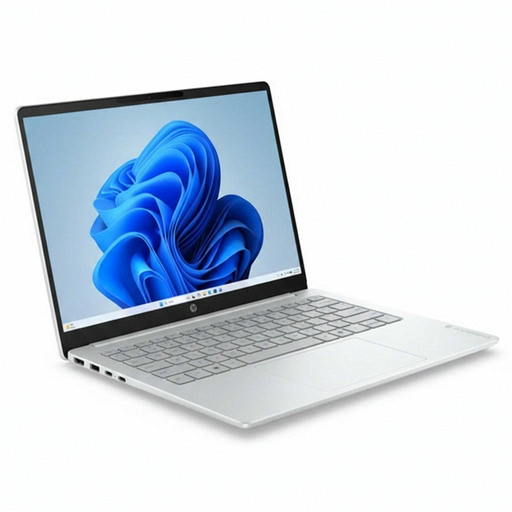 No image available
HP OmniBook 3 AI PC 14-ht0013nd
A 14-inch IPS screen with a 16:10 aspect ratio and a full-size QWERTY keyboard suits anyone looking for a more compact layout designed around documents.
The product description lists 1920 × 1200 pixels, 300 nits, Intel Core 3 304, 8 GB RAM, a 512 GB SSD and Windows 11 Home.
Joybuy
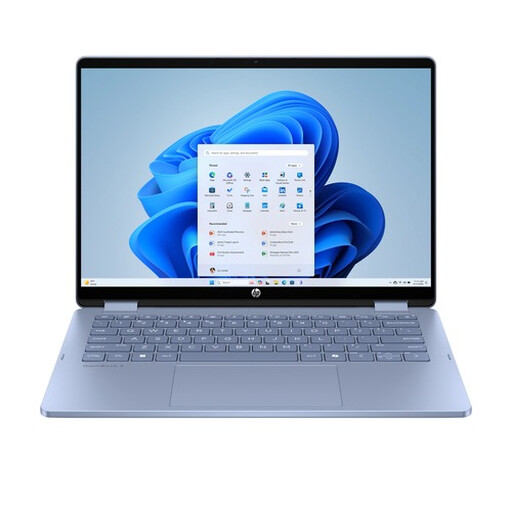 No image available
HP OmniBook 5 Flip 14-fp0251ndx 2-in-1
The 14-inch touchscreen can be used in laptop, tablet, tent and stand modes; the product description lists these options for different setups.
The description lists an IPS screen with 1920 × 1200 pixels, a 16:10 aspect ratio, 300 nits, Intel Core 5 120U, 8 GB RAM, a 512 GB SSD and Windows 11 Home. A USB-C charger and stylus are not included; a compatible 45–100 W USB-C Power Delivery charger is required.
Joybuy
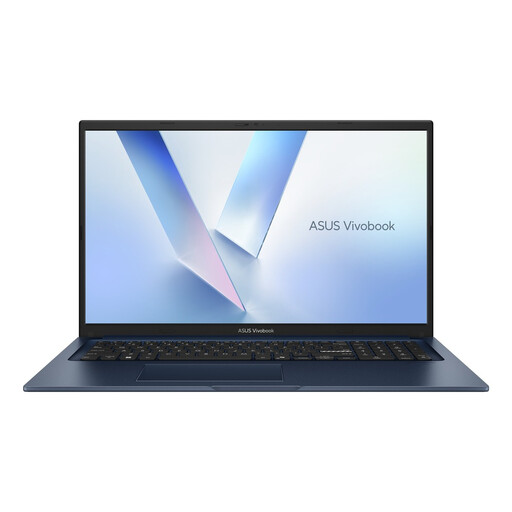 No image available
ASUS Vivobook 17 X1704MA-AU153W
The product description lists a 17.3-inch Full HD screen with an anti-glare finish and a full-size keyboard with a number pad, making it worth comparing if you want a larger screen.
The title lists Intel Core 5 320, 8 GB RAM, a 256 GB SSD and a QWERTY keyboard.
Joybuy
 No image available
ASUS Vivobook S16 S3607QA-SH109W
The 16-inch 16:10 configuration offers more room for documents; the product description lists an anti-reflective finish.
The product name and description list WUXGA OLED, a Snapdragon X processor, 16 GB LPDDR5X, a 512 GB SSD and Windows 11 Home.
Joybuy
Frequently asked questions
Does higher brightness always help with reflections beside a window?
No. Higher brightness doesn’t automatically prevent reflections. Check the screen coating too, and try positioning your desk parallel to the window or using blinds if daylight makes the screen hard to see. A brightness specification in nits doesn’t tell you how reflections will affect your workspace.
How should you set up a permanent space for long scriptwriting sessions?
Where possible, position your workspace so that your line of sight is parallel to the window; Arboportaal recommends this setup to reduce problems caused by light. For employees who spend more than 2 hours a day working with screens, Arboportaal also sets out requirements that mean you must be able to use a separate screen or keyboard with a laptop. So assess the whole workspace, not just the laptop.
Should you allow for a separate charger or workspace accessories?
Check what’s included with each configuration. For ProBook configuration C5BW5AT#ABH, HP lists an included charger; for one listed MacBook Air configuration, no charger is included. A separate workspace setup may also call for an external keyboard, screen or stand.
What warranty and cancellation rights apply when buying online in the Netherlands?
According to the Dutch government, when you buy as a consumer you have the right to a product that meets legal requirements. The Netherlands has no fixed statutory warranty period, and the seller is your point of contact if there’s a problem. When buying remotely from a business, you generally have a 14-day cooling-off period. Check the terms and any exceptions that apply to your purchase.


