Which buying priorities matter?
When choosing a laptop for screenwriting with two screens, the setup you have in mind, your software and where you write are the main things to consider.
Windows laptop
A good fit if: your screenwriting software requires Windows or you want to connect a permanent monitor setup.
Bear in mind: an HDMI or USB-C port alone doesn’t confirm how many external screens the exact configuration can support at the same time.
MacBook
A good fit if: your software supports macOS and you want to connect the laptop to one or more monitors at your desk.
Bear in mind: a monitor with HDMI only may need a suitable cable or adapter; check the capacity of the exact model.
Other software or operating systems
A good fit if: you’re not tied to one screenwriting programme and want your software choice to influence your laptop choice.
Bear in mind: check the system requirements and the file format you need for collaboration before you buy.
| What to consider |
What should you check? |
Which consumers? |
| Screen connections |
Decide whether you mean one or two external monitors. Then check that the exact configuration supports the screens simultaneously, and compare the video outputs with the inputs. |
If I want to spread my script and reference material across several screens, I need to know that the laptop and monitors will work together. Consumers who put their screen setup first make up around 33% of the group. |
| Screenwriting software |
Make a note of the software, version, operating system and file-sharing options you need before choosing a configuration. |
If I use a particular programme or have existing projects, I need to know first whether I can use them on my laptop. This matters most to around 27% of consumers when it comes to software compatibility. |
| Reading and writing comfort |
Compare the screen size and resolution of the exact configuration; if you use multiple screens, check the scaling settings too. |
If I write at my desk for long periods, I want text to be easy to read on both the built-in screen and the monitor. Around 20% of consumers put screen and writing comfort first. |
| Writing on the go |
Compare the size and available screen space. Treat stated battery life as information about the usage scenario given, not as a guaranteed writing time. |
If I also write away from my usual workspace, I want to use my laptop on its own without relying on an external monitor. This is the main priority for around 20% of consumers. |
Joybuy laptops for screenwriting with an external screen
These Joybuy product picks are suited to screenwriting with a built-in screen and an external monitor. Check that each configuration supports your software and the screen setup you want.
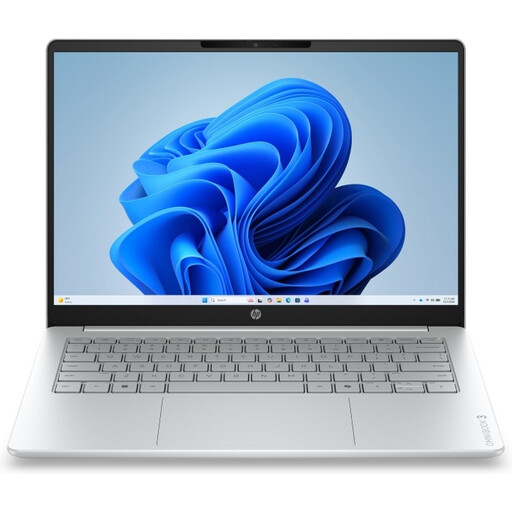 No image available
HP OmniBook 3 17-dp0050ndx, 17.3-inch, Ryzen 5, 8 GB/512 GB, Windows 11 Home
The 17.3-inch built-in screen may suit a permanent workspace where you want to view your script on your laptop.
The product description lists a Full HD IPS anti-glare screen, HDMI and USB-C with DisplayPort Alt Mode. The AC adapter isn’t included; check that this configuration supports your monitor setup.
View at Joybuy
 No image available
ASUS Vivobook 18 M1807HA-S16512W, 18.4-inch, Ryzen 7 260, 16 GB/512 GB, blue, QWERTY
The 18.4-inch built-in screen may suit writing at a permanent workspace, with plenty of room on the laptop.
The product description lists a WUXGA IPS anti-glare screen, HDMI video output and USB-C DisplayPort Alternate Mode. The AC adapter isn’t included; the description recommends a compatible 45–65 W USB-C PD charger.
View at Joybuy
 No image available
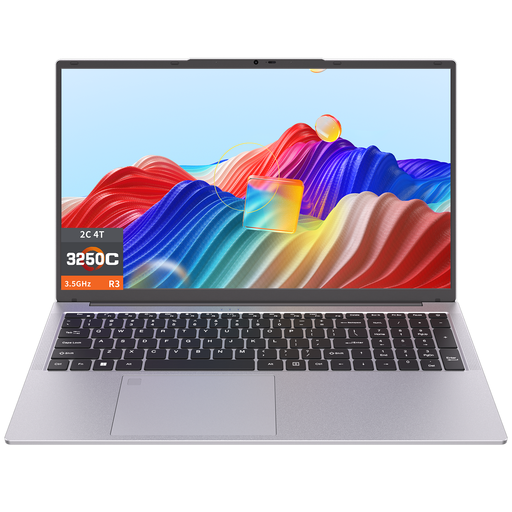
Auusda T173A, 17.3-inch, 3250C processor, 8 GB DDR4, 512 GB SSD
The product name lists a 17.3-inch screen, which may be worth considering if you do a lot of writing on the built-in display.
The product description lists a 3250C processor, 8 GB DDR4 memory and a 512 GB SSD. Before buying, check that the exact configuration supports your screenwriting software and monitor setup.
View at Joybuy
 No image available
Apple MacBook Air 15-inch M5, 16 GB/512 GB, Starlight, QWERTY
This configuration may suit you if you want a 15.3-inch built-in screen for writing at a desk and on the go.
The product description lists a Liquid Retina screen, two Thunderbolt 4 ports and support for up to two external displays. Check whether your setup needs a cable or adapter and if it’s included; according to the description, a USB-C power adapter isn’t included.
View at Joybuy
 No image available
Apple MacBook Pro 14-inch M5 Pro, 24 GB/1 TB, Space Black, QWERTY
This configuration may suit you if you’re looking for a macOS laptop with connections for an external monitor.
The product description lists a 14.2-inch Liquid Retina XDR screen, Thunderbolt 4, HDMI and support for up to two external displays. Check that the stated screen support suits your exact workspace setup.
View at Joybuy
Frequently asked questions
Do I need one or two external monitors for two screens?
If you’re using your laptop screen, one external monitor gives you a second screen. If you want to use the laptop screen and two separate monitors at the same time, check specifically whether the exact laptop configuration supports two external displays.
How do I position a connected monitor next to my script window?
In Windows, choose the extended display option and arrange your screens in Display settings. Adjust the scaling for each screen if needed; mirroring doesn’t give you the same extra workspace.
Can I use Final Draft 13 on a Chromebook?
Not as a locally supported installation of Final Draft 13: Final Draft says the programme isn’t available on Chromebook. For another screenwriting service, check its system requirements separately.
Which version of Windows do I need for Final Draft 13?
Check the system requirements for the version you want to use: Final Draft’s product page lists Windows 11 or later, while Final Draft Support lists Windows 10 or later. Microsoft Support says that support for Windows 10 ended on 14 October 2025.
What rights do I have when buying a laptop online in the Netherlands?
According to ACM ConsuWijzer, online consumer purchases generally come with a statutory 14-day cooling-off period after delivery; check the exceptions listed. The statutory guarantee and a manufacturer’s warranty are not the same: if a product is faulty, the seller is your point of contact for the statutory guarantee.


