
NVDA or JAWS users
You want to code on Windows and use your neighbourhood forum with the screen reader you already know. NVDA is designed for Windows PCs; Freedom Scientific recommends 16 GB of memory or more for JAWS.


Start with the screen reader and development environment you actually want to use: NVDA and JAWS are for Windows, while VoiceOver is for macOS; ChromeOS has ChromeVox. Then check that the editor, keyboard and ports you need suit your workflow. Having a screen reader on your laptop won’t automatically make the neighbourhood forum you build accessible.
You want to code on Windows and use your neighbourhood forum with the screen reader you already know. NVDA is designed for Windows PCs; Freedom Scientific recommends 16 GB of memory or more for JAWS.
You prefer working in macOS and want to keep using VoiceOver while building and testing. Make sure the development tools you need for your forum are compatible with the way you work.
You want to write code, navigate and connect assistive devices without relying on a mouse. That makes the keyboard layout and ports on the exact laptop worth checking carefully.
A good fit if: you use NVDA or JAWS, or want to test your forum with one of these screen readers. NVDA is designed for Windows PCs.
Bear in mind: Freedom Scientific recommends 16 GB of memory or more for JAWS; this isn’t a general minimum requirement for every screen reader.
A good fit if: VoiceOver is your familiar screen reader and the development tools for your forum work on macOS.
Bear in mind: the MacBook Air M5 we looked at has two Thunderbolt 4/USB-C ports; check that your assistive devices can connect to them.
A good fit if: ChromeVox suits you and your Chromebook supports the development environment and assistive devices you need.
Bear in mind: Google describes Linux development tools for Chromebooks, but support varies by device and may be limited on managed devices.
| What to consider | What to look for | Who should pay particular attention? |
|---|---|---|
| Screen reader and operating system | Check which screen reader you use, which system versions it supports and whether your braille display, if you use one, works with it. | If I want to keep using the screen reader I know, I start with the system it works with. Around 33% of consumers prioritise compatibility with their own screen reader. |
| Development environment and memory | Try your editor and terminal with your screen reader. Compare the memory in the exact configuration with the recommendations for your software. | I want my editor, browser and any local development tools to work well together before I start building. Around 27% of consumers give their coding workflow top priority. |
| Keyboard and ports | Check the keyboard layout and try your shortcuts. Make sure the ports also suit your assistive devices. | When I mainly use keyboard shortcuts, I want to be able to find the keys and connect my assistive devices without awkward workarounds. Around 20% of consumers prioritise physical controls and ports. |
| Portability and accessories you need | Compare the weight of the exact configuration and check which charger and adapters are included. | If I take my laptop to neighbourhood venues, I weigh up portability against what I need for my work. Around 20% of consumers prioritise portability and the overall cost of what they need to buy. |
NVDA and JAWS are screen readers for Windows, VoiceOver is for macOS and ChromeVox is for ChromeOS. So, having a screen reader available doesn’t automatically mean it will work with the software and assistive devices you’re used to.
First choose the screen reader setup you want, then check that your development tools and assistive devices work with the laptop in question.
Freedom Scientific recommends 16 GB of memory or more for JAWS. That recommendation doesn’t automatically apply as a minimum requirement for all screen readers or tasks.
Compare the memory in the exact configuration with the recommendations and requirements for the software you plan to use.
The MacBook Air M5 we looked at is listed with two USB-C ports. A MacBook Air listing on Joybuy that we looked at doesn’t mention a charger, so check what’s included with the specific configuration.
Before you buy, check which accessories are included and whether your existing equipment will connect without an extra adapter.
A missing charger or necessary adapter could mean an additional purchase.
The ProBook 4 G1i configuration B9YJ3ET#ABH is one example of a Windows setup with 16 GB of memory.
The MacBook Air with M5 is worth considering if you want to use VoiceOver in macOS.
The Aspire Lite AL15-49P-R6HL, part number NX.DRZEH.002, is one example of a Windows setup with 8 GB of standard memory.
The ThinkPad E14 Gen 7 (Intel) is a product range to explore if ports for your existing assistive devices are important.
These Joybuy laptops are Windows models to consider for coding with a screen reader; check that the keyboard layout and ports on each model suit your workflow.
 No image available
A Windows 11 Home configuration to consider if you use NVDA or JAWS; test your development tools and keyboard controls with your own workflow.
13.3-inch IPS display; 16 GB RAM; backlit keyboard; weighs 1.46 kg; USB-A, USB-C and HDMI ports. Freedom Scientific recommends 16 GB of memory or more for JAWS.
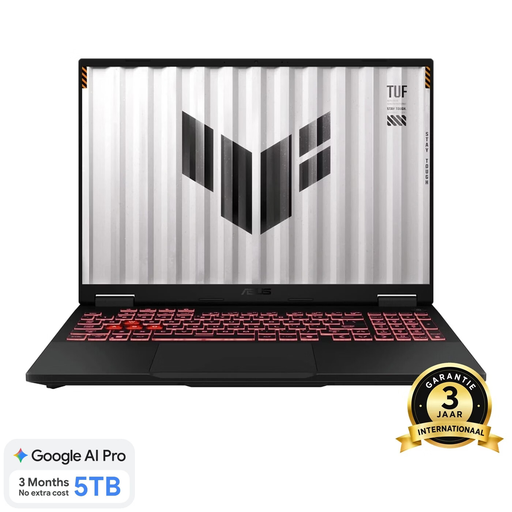 No image available
A Windows 11 Home model with several listed ports; check whether the 18-inch size suits where you work.
18-inch display; 16 GB DDR5; 1 TB SSD; USB4, USB-C, USB-A, HDMI and ethernet; numeric keypad; 90Wh battery. Includes a 240W adapter. Freedom Scientific recommends 16 GB of memory or more for JAWS.
 No image available
A Windows 11 Home configuration to assess with your own screen reader and development tools; bear the 18-inch display size in mind.
16 GB DDR5; 1 TB SSD; USB4, USB-C, USB-A, HDMI and ethernet; Full HD infrared camera; backlit keyboard and numeric keypad. The power adapter must be purchased separately.
 No image available
This Windows 11 Home configuration has a Dutch QWERTY keyboard; try the layout with your own shortcuts before deciding.
16 GB DDR5; 1 TB SSD; WUXGA 144Hz display; Dutch QWERTY keyboard with numeric keypad; two USB-A ports, USB-C, HDMI and a combined audio port; approx. 1.95 kg. Includes a 150W adapter.
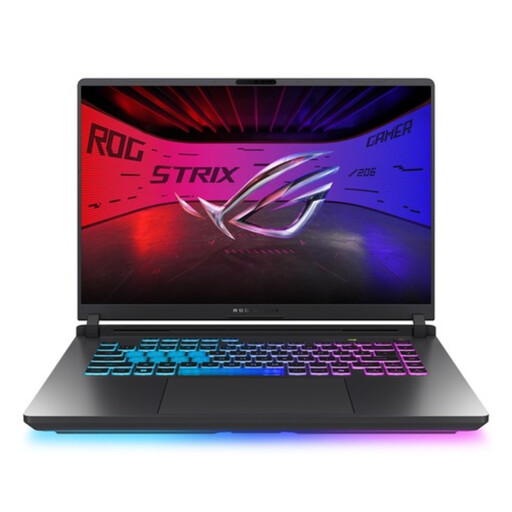 No image available
A Windows 11 Home configuration with 32 GB of memory, which you can compare with the requirements of your own development software and screen reader.
16-inch WQXGA display; 32 GB DDR5; 1 TB storage. The product description lists a power adapter and mains cable as included. Freedom Scientific recommends 16 GB of memory or more for JAWS.
Microsoft documents keyboard controls and screen reader optimisation for VS Code. Also try the specific extensions, terminal and other tools for your forum project with your screen reader.
No. Testing with a screen reader alone won’t reveal every accessibility issue. W3C points out that tools can’t automatically check every aspect of accessibility and that human judgement is still needed; also test the tasks neighbourhood residents will need to carry out on the forum.
For consumer purchases in the Netherlands, you’re entitled to a legal guarantee, and the seller must provide a solution if something goes wrong, according to the Dutch government. For distance purchases, you’ll also have a 14-day cooling-off period in many cases, although exceptions apply.
No, that doesn’t automatically follow from the plan to build a neighbourhood forum. When processing or publishing personal data, assess whether the GDPR applies and whether the exception for purely personal or household use is relevant. Dutch accessibility requirements for certain products and services have applied since 28 June 2025, but simply planning to build a neighbourhood forum doesn’t determine whether a particular service falls under those rules.