Start with the operating system that supports the screen reader and writing tools you’re familiar with: NVDA and Narrator are for Windows, VoiceOver is for macOS, and ChromeVox is for ChromeOS. Google Maps Help lists specific browser and screen reader combinations, but that doesn’t guarantee that every feature for creating your own route is accessible. So test your route-planning and writing tasks using a keyboard and screen reader, then check the ports, size and included power supply.
Who is this laptop guide for?
Screen reader users with software they know
If you already use NVDA, VoiceOver, Narrator or ChromeVox, start with the operating system and test your word processor and any braille display you use too. NV Access, Microsoft Support, Apple Support and Google Chromebook Help describe the screen readers available in their respective environments.
Accessible walking route guide creators
If you want to research locations and turn directions into a text guide, try the map and route-planning tool you intend to use. Google Maps Help describes certain browser and screen reader combinations; Royal Dutch Visio recommends checking the accessibility of the app and process you plan to use.
Route editors who work on the go
If you also work on notes and route descriptions away from home, consider the laptop’s size, power supply and connections for your assistive technology. The specifications for the exact model determine which ports and accessories you’ll actually get.
What should you look for when choosing?
Windows laptop
Choose this if: you want to use NVDA or Narrator, or rely on Windows software. Google Maps Help lists Firefox with NVDA or JAWS for using Maps on a computer.
Bear in mind: the keyboard, ports and included power supply can vary between models. A working screen reader doesn’t prove that your route editor is fully accessible.
MacBook
Choose this if: you want to use VoiceOver and the apps you need are available for macOS. Google Maps Help lists Safari with VoiceOver for using Maps on a Mac.
Bear in mind: the MacBook Air reviewed has two Thunderbolt 4 ports with USB-C; check whether your assistive technology needs an adapter.
Chromebook
Choose this if: you mainly use compatible browser and web apps, and find ChromeVox comfortable to use. Google Maps Help lists Chrome with ChromeVox for using Maps on a Chromebook.
Bear in mind: test your full writing and route-planning workflow in the web apps you’ve chosen. Don’t assume that Windows software such as NVDA runs on ChromeOS.
| Consideration |
What to look for |
Who is this important for? |
| Screen reader and operating system |
Check that your familiar screen reader and writing tools work in the environment you choose. |
If I want to keep using the screen reader I know, I start with the operating system; around 36% of consumers make compatibility their top priority. |
| Map and route controls |
Try the route-planning tasks you need to complete in your chosen tool using a keyboard and screen reader. |
To create a guide, I need to be able to find locations and work with directions; around 29% of consumers make the controls in their route-planning tool their top priority. |
| Portability and connections |
Compare the size, weight and ports with your assistive technology, and check which power supply is included. |
If I work on the go, I want to be able to carry my laptop and connect my assistive technology; around 21% of consumers prioritise working on the move. |
| Power supply and aftercare |
Check whether the box includes a charger and read the warranty terms for the exact model. |
If I want to know in advance what I’ll need and what aftercare comes with my purchase, I check the packaging and warranty; around 14% of consumers make this their top priority. |
Common mistakes
-
Assuming an accessible map page means route editing is accessible too
Google describes screen reader combinations for Maps on a computer, but that doesn’t show that you can complete the full process of creating your own route.
Before choosing, test the tasks you need to do for your guide, such as searching for locations, reading route information and noting down directions.
Brands to compare
HP
HP’s Dutch website describes the ProBook 4 G1ah 14-inch D4TN0EA#ABH as a Windows 11 Pro model with 16 GB RAM and a 512 GB SSD.
- HP lists three years of on-site support for this model.
- According to HP, the charger is sold separately; this applies to this model and not necessarily to all HP laptops.
Apple
The MacBook Air is worth considering if you want to use macOS with VoiceOver. For the 13-inch M5 model reviewed, Apple lists 16 GB memory, 512 GB storage and two Thunderbolt 4 ports with USB-C.
- Apple Support describes VoiceOver as the screen reader for Mac.
- The stated battery life is based on Apple’s test conditions, not on route-planning with VoiceOver. Check the connections and power supply for the model you’re considering.
Lenovo
The ThinkPad T14 Gen 6 (Intel) is an example of the connections you might find in a business-focused Windows range.
- For this model range, Lenovo lists USB-A, USB-C, HDMI and a headphone socket, among other connections.
- Lenovo warns that configurations and availability vary by model and region. Check the full specifications for the exact model; the range specifications don’t confirm the features of a specific retail SKU.
Laptops at Joybuy
This selection includes Windows laptops for those who want to use Windows screen readers, and a MacBook for those who want to use VoiceOver on macOS. You’ll need to test the accessibility of your own route-planning and writing workflow separately.
 No image available
HP OmniBook 3 16-by0058ndx, 16-inch
A Windows laptop for those who want to use Windows screen readers; test your route-planning workflow in the apps you’ve chosen.
Windows 11 Home, AMD Ryzen 5 7520U, 8 GB RAM, 512 GB SSD and a 2K IPS display. The description lists two USB-A ports, two USB-C ports, HDMI and a headphone/microphone socket; it weighs around 1.64 kg. The power adapter is not included.
View at Joybuy
 No image available
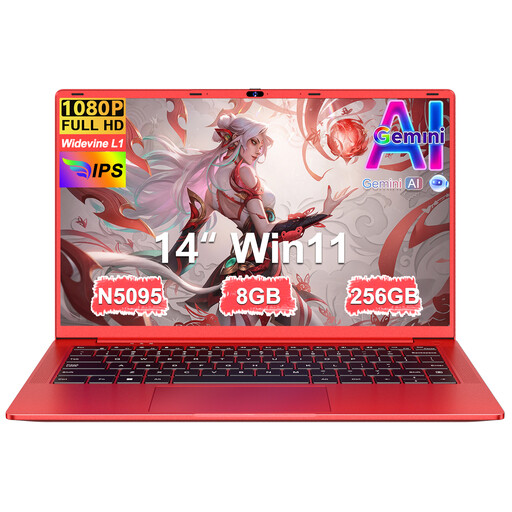
Ruzava 14-inch laptop, N5095, 8 GB RAM, 256 GB SSD
A 14-inch option for those who want to take their route notes with them; check that the software you use is compatible with this model.
The title lists an N5095 processor, 8 GB RAM and a 256 GB SSD. The description mentions USB 3.0, Type-C, Mini-HDMI and a weight of 1.39 kg.
View at Joybuy
 No image available
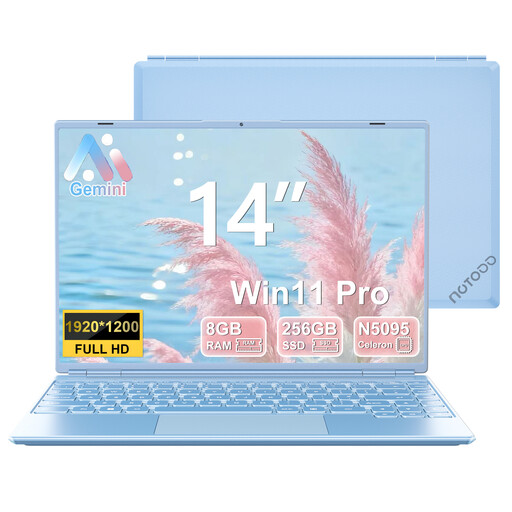
NOTODD 14-inch laptop, Celeron N5095, 8 GB RAM, 256 GB SSD
A Windows laptop for those who want to use Windows screen readers; try your own route-planning and writing tasks on this model too.
The title lists Win11, 8 GB RAM, a 256 GB SSD and a screen resolution of 1920 × 1200. TF card expansion is also listed.
View at Joybuy
 No image available
Apple MacBook Air 15-inch M5, 16 GB, 512 GB, Starlight (2026)
A MacBook for those who want to use VoiceOver on macOS; test your chosen route app with your own workflow.
The product information lists 16 GB memory, 512 GB storage, macOS, two Thunderbolt 4 ports and MagSafe charging. The power adapter is not included.
View at Joybuy
 No image available
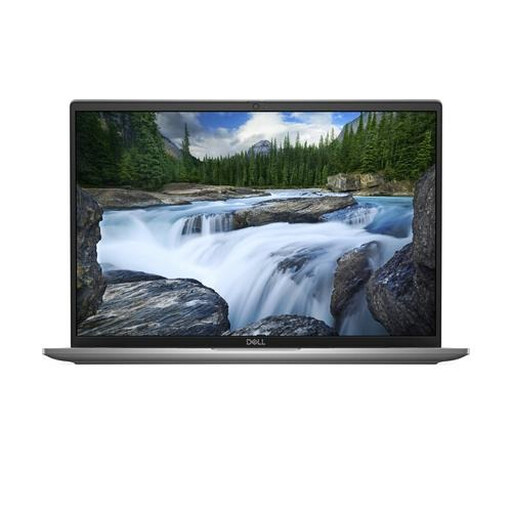
Dell Latitude 7650, Intel Core Ultra 7 155U, 16-inch
A Windows laptop for those who want to use NVDA or Narrator; check separately how accessible your own route editor is.
Windows 11 Pro, 16 GB LPDDR5x memory and a 512 GB SSD. The description lists USB-A, two Thunderbolt 4 ports, HDMI and a 3.5 mm socket; it weighs 1.835 kg. The mains adapter must be purchased separately.
View at Joybuy
Frequently asked questions
How can I test a laptop and route-planning tool before choosing?
Using the screen reader you intend to use, search for a location, read route information and add directions to your guide. Google Maps Help documents certain browser and screen reader combinations, but that doesn’t guarantee that every feature for creating your own route is accessible.
Do I need to install a screen reader separately?
That depends on the laptop and the screen reader you want to use. Microsoft describes Narrator for Windows, Apple describes VoiceOver as the screen reader in macOS, and Google Chromebook Help describes ChromeVox as the built-in screen reader for Chromebooks. NVDA is designed for Windows.
Do I need a powerful graphics card to write a route guide?
The screen reader and map resources mentioned don’t specify a separate, powerful graphics card as a requirement for these writing and mapping tasks. First check that the apps you use are accessible for the way you work.
Am I always entitled to just a two-year laptop warranty in the Netherlands?
No. According to ACM ConsuWijzer, the legal guarantee is separate from any guarantee offered by the seller or manufacturer: when used normally, a purchase must meet what you could reasonably expect from it. The assessment depends on the product and circumstances; a stated commercial warranty period does not automatically set the limit of your legal rights.


