
Diagram creator with limited desk space
You create digital diagrams and want to keep room on your desk for paper or input devices, too. So consider more than just the screen size: think about how much space the laptop takes up when in use.


Start by considering how you draw and which software you actually use. A compact standard laptop suits work with a mouse or touchpad, while a 14-inch 2-in-1 is an option if you want to sketch directly on the screen. Then compare screen space, connections and room for a practical set-up. A touchscreen doesn’t automatically mean a suitable pen is included.
You create digital diagrams and want to keep room on your desk for paper or input devices, too. So consider more than just the screen size: think about how much space the laptop takes up when in use.
You want to sketch shapes or notes on the screen. Check that the exact 2-in-1 configuration supports the pen you want to use; a touchscreen alone doesn’t confirm this.
Start by checking the operating system and the requirements of your drawing software. Inkscape lists Linux, macOS and Windows as supported desktop platforms. Check requirements for other programmes directly with their developers.
Start with the software you need and how you create diagrams. Then weigh up the size, screen and input method against the space you have on your desk.
| What to consider | What should you look for? | Who is this important for? |
|---|---|---|
| Size and workspace | Measure the available desk space and check the dimensions of the configuration you’re considering. Leave room for your input device or a stand, if needed. | If you work at a small desk, you’ll want to leave enough room to use your devices and create a comfortable workspace. Around 31% of consumers prioritise the desk space they need. |
| Viewing your diagrams | Compare the screen size and resolution of the exact configuration. Consider whether you can read diagram details and software panels clearly at the same time. Apple Netherlands lists a 13.6-inch screen with 2560 × 1664 pixels for the 13-inch MacBook Air M5; HP Netherlands lists a 14-inch screen with 1920 × 1200 pixels for the OmniBook 5 Flip 14-fp0605ndx. For the selected DB14250 configuration, Dell Netherlands lists a 14-inch QHD+ screen with 2560 × 1600 pixels and no touchscreen. | If you want to view your diagram and tool panels side by side, both need to fit on screen without the laptop taking up too much of your workspace. Around 25% of consumers prioritise having a clear view of their diagrams. |
| Sketching directly on screen | Check which active pen the exact configuration supports and whether it’s included. A touchscreen and 360° hinge don’t, on their own, confirm pen support or that a pen is supplied. | If you want to sketch shapes by hand on the screen, you’ll need more than touch controls alone. Around 19% of consumers prioritise sketching directly with a pen. |
| Software compatibility | Make a note of the names and versions of the programmes you need, then check their operating system requirements and compatibility with your chosen laptop configuration. Inkscape’s developer lists Linux, macOS and Windows as desktop platforms; this doesn’t tell you anything about other programmes. | If your course or job requires specific software, you’ll want to know first whether it works on your chosen system. Around 25% of consumers prioritise compatibility with the software they need. |
A touchscreen doesn’t automatically mean that an active pen is supported or included. The configuration you choose may not suit the way you draw.
Before ordering, check the pen protocol, compatibility with the exact model and what’s included in the box.
If you want to draw directly on screen, you may need to buy a suitable pen separately.
The diagonal measurement doesn’t tell you how many diagram details and tool panels will be visible at once, or how much space the open laptop will take up on your desk.
Compare the resolution and dimensions of the exact configuration, and measure where you’ll put your laptop and input device.
What’s in the box can vary between configurations. HP states that the charger for the OmniBook 5 Flip 14-fp0605ndx is sold separately.
Check the box contents for the exact configuration, including whether a pen or charger you need is included.
If a charger or pen is sold separately, you’ll need to arrange to buy that accessory separately.
The 13-inch MacBook Air M5 is a compact macOS option if you don’t need to draw directly on the laptop screen with a pen.
The OmniBook 5 Flip 14-fp0605ndx is a compact Windows 2-in-1 with a touchscreen and a 360° hinge.
The Dell 14 Plus DB14250 is a traditional Windows laptop option. Dell also offers a separate 2-in-1 model, the DB04250.
This selection includes compact traditional laptops and a Windows 2-in-1 for diagram work in a limited workspace.
 No image available
A Windows 2-in-1 for viewing diagrams on screen and working in different screen positions.
14-inch touchscreen with 1920 × 1200 pixels, 360° hinge, Intel Core 5 120U, 8 GB RAM and 512 GB SSD.
The stylus and USB-C charger aren’t included. Check pen compatibility for your needs.
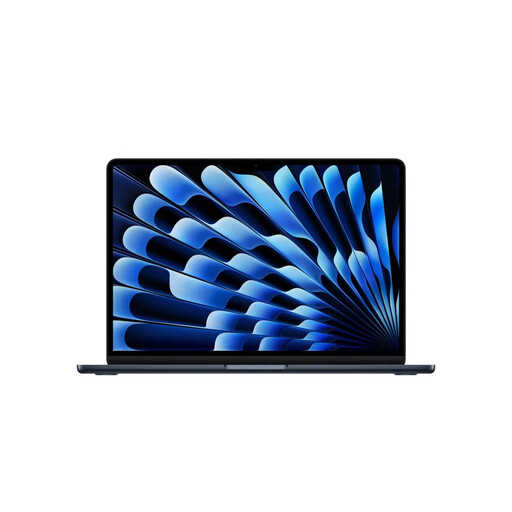 No image available
A compact traditional laptop option for creating diagrams with a mouse or touchpad, if macOS is compatible with your software.
13.6-inch screen with 2560 × 1664 pixels, 24 GB memory and 1 TB storage.
 No image available
A compact traditional laptop for diagram work with a mouse or touchpad, if your required software works on macOS.
13.6-inch screen with 2560 × 1664 pixels, 16 GB memory, 512 GB storage and two Thunderbolt 4 ports.
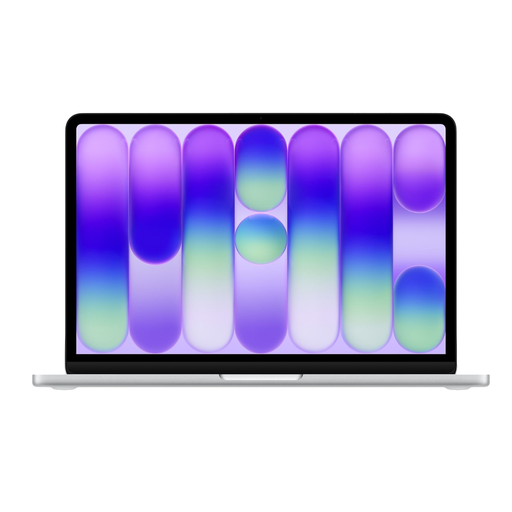 No image available
A compact traditional laptop for diagram work with a mouse or touchpad. Check that the programmes you need work on macOS before buying.
13-inch screen with a resolution of 2408 × 1506 pixels, 8 GB memory and 512 GB storage.
A USB-C power adapter of at least 20 W is required and sold separately.
 No image available
A 14-inch Windows laptop option for diagram work if you don’t need a touchscreen.
Snapdragon X, 16 GB RAM, 512 GB SSD and a 14-inch WUXGA OLED screen with 1920 × 1200 pixels.
The screen isn’t touch-sensitive. A compatible 65 W USB-C Power Delivery charger is required and isn’t included.
No, not if you use a mouse, touchpad or vector software. If you want to sketch directly on the screen, check that the exact 2-in-1 supports a suitable active pen and whether one is included. A touchscreen listing doesn’t answer either question.
Leave space beside the laptop for your input device and position the screen so you can look at it comfortably. For employees who use a screen for more than two hours a day, Arboportaal lists specific workplace requirements and the option of using a separate screen or keyboard with a laptop. These aren’t general purchasing rules for every home user.
Check what’s included with the exact configuration and which accessories you’ll need. HP states that the charger for the OmniBook 5 Flip 14-fp0605ndx is sold separately. Also check whether a suitable pen is included if you want to draw directly on the screen.
According to the Dutch government, when you buy from a business at a distance, you generally have 14 days to change your mind; check the applicable terms and conditions. If a product is faulty, you have legal protection, but there’s no fixed statutory warranty period in the Netherlands. The seller must resolve an issue under the legal guarantee; a commercial warranty doesn’t replace these rights.