First, choose a laptop that runs the school software and lesson files you need. Windows is the right choice if you need specific Windows programmes; a Chromebook may suit you if you work with compatible web apps, provided you make your files available offline in advance. Then compare the weight, practical battery life, screen and ports of the exact model: a quoted maximum battery life doesn’t guarantee a full day of work on a school trip.
Who is this choice relevant to?
Teacher who uses school software
You prepare lesson plans on the go and want to check in advance that the required programmes and files work with your chosen operating system, even without an internet connection. Liemers College, for example, describes support software that only works on Windows; Microsoft Support explains how to make synced files available offline.
Teacher without a fixed workspace
You carry your laptop and teaching materials between trip locations, so you’ll need to weigh up the laptop’s weight, battery life and screen size. Apple and ASUS publish specifications for specific laptop configurations; compare the details for the model you’re considering.
Teacher handling pupil data
You want to follow your school’s security requirements while working on the go, especially when processing personal data. The Dutch Data Protection Authority explains schools’ accountability for protecting personal data.
What should you look for?
Windows laptop
Choose this option: if your school requires specific Windows software, or you work locally with Office files, synced folders and presentations.
Bear in mind: configurations vary in weight, screen and ports. Check which files are available offline and which video connection you’ll need.
Chromebook
Choose this option: if you create teaching materials using compatible web apps and set up your account and files for offline use in advance.
Bear in mind: Microsoft Support confirms that the Windows and Mac desktop versions of Microsoft 365 can’t be installed on a Chromebook; you can access the apps through a browser.
MacBook
Choose this option: if your school applications work on macOS and you can access your teaching materials locally.
Bear in mind: check which adapter you’ll need for presentation equipment; Apple lists two Thunderbolt 4 ports on the 13-inch MacBook Air with M5.
| What to consider |
What should you check? |
Who is this important for? |
| Software and offline files |
Ask which school apps are required and test in advance whether your own teaching files open without a connection. |
I want to keep working on location with the school programmes and files I need. Around 36% of consumers prioritise software and offline access. |
| Weight and battery life |
Compare the weight of the exact configuration and check the test conditions used to quote battery life. |
When travelling between locations, I want to keep the weight I carry down and know when I might need to recharge. Around 29% of consumers give portability and working time top priority. |
| Screen and ports |
Compare the screen size and check whether the laptop can connect directly to the presentation equipment. |
When writing lesson plans and showing materials, I want enough workspace and the right connection. Around 21% of consumers prioritise writing tasks and ports. |
| Security and support |
Ask which security settings and storage locations your school permits, and check the service terms for the exact configuration. |
When handling pupil data or dealing with a device failure that could disrupt my work, I want to know which school measures and support apply. Around 14% of consumers give data protection and support top priority. |
Buying pitfalls
-
Assuming every laptop runs your school’s programmes
Your school may use support software that only works on Windows. Microsoft also says that the Windows and Mac desktop versions of Microsoft 365 can’t be installed on a Chromebook.
Before choosing an operating system, ask your school which programmes and device settings you’ll need.
If a programme doesn’t work, you may need another device or a different way of working.
-
Confusing cloud files with files that are ready to use offline
A synced file isn’t automatically available offline; you may need to set up offline access first.
Google and Microsoft explain how to set up offline access. Make the files you need available in advance, then test them without an internet connection.
-
Treating maximum battery life as guaranteed working time
Apple quotes separate maximum battery life figures for video streaming and wireless internet use on the 13-inch MacBook Air with M5. These test results don’t reflect how long the battery will last while preparing lessons on the go.
Compare the test description with how you’ll use the laptop, and check in advance how you can charge it during the trip.
Depending on your itinerary, you may need a suitable charger or a chance to recharge.
-
Assuming there’s a fixed legal warranty period
According to the Dutch government, the Netherlands doesn’t have a fixed statutory warranty period. Your legal rights to a product that works properly and any manufacturer’s warranty are not the same thing.
Keep your proof of purchase and check exactly which rights or additional terms an offered warranty covers.
Brands to consider
ASUS
The Zenbook 14 OLED UX3405 configuration reviewed is a compact Windows option with a 14-inch screen and HDMI.
- For the configuration reviewed, with Core Ultra 7 255H, 32 GB and 1 TB, ASUS lists a weight of 1,22 kg.
- The screen is glossy; the quoted weight and screen specification don’t apply to every Zenbook. Bear in mind that reflections could be an issue in your workspace.
Apple
The 13-inch MacBook Air with M5 offers a macOS option if the school apps you need work on it.
- Apple lists a 13,6-inch screen, 16 GB of base memory and two Thunderbolt 4 ports for this model.
- Check whether your presentation equipment needs an adapter. Apple’s quoted battery life is based on its own usage test and doesn’t guarantee a full day on a school trip.
Acer
The Chromebook Spin 514 CP514-1H-R5A4 is a ChromeOS option for compatible web apps and documents set up for offline use in advance.
- For this configuration, Acer lists a 14-inch touchscreen, 8 GB of memory and 128 GB of eMMC storage.
- The quoted weight is approximately 1,65 kg. Microsoft 365 desktop apps can’t be installed on a Chromebook; check the update end date for the specific device too.
Lenovo
The ThinkPad X1 Carbon Gen 13 Aura Edition configuration reviewed is a business Windows option with a 14-inch anti-glare screen.
- For configuration 21NSCTO1WWNL1, Lenovo lists Windows 11 Home, 16 GB of memory and an anti-glare screen, among other features.
- The sub-kilogram weight claim applies to the series; check the weight of the configuration you actually choose.
HP
The EliteBook 8 G1i 14 configuration reviewed is a business Windows option for anyone who needs specific support.
- For configuration A26ZMEA#ABH, HP lists Windows 11 Pro, 32 GB of memory and three years of on-site support.
- These features and service terms don’t automatically apply to other EliteBook configurations; check the exact specification and terms.
Joybuy laptops for preparing lessons on the go
These Joybuy laptops are suited to Windows and macOS workflows for preparing lessons on the go. Compare software compatibility, screen size and ports for each configuration.
 No image available
HP OmniBook 7 Aero 13-bg1051nd NL Copilot+
A Windows configuration for preparing lessons, with an HDMI connection when you need one.
The product description lists Windows 11 Home, 16 GB RAM, a 512 GB SSD and a 13,3-inch IPS screen with a 16:10 aspect ratio. The quoted weight is 1,46 kg, and HDMI is listed.
View at Joybuy
 No image available
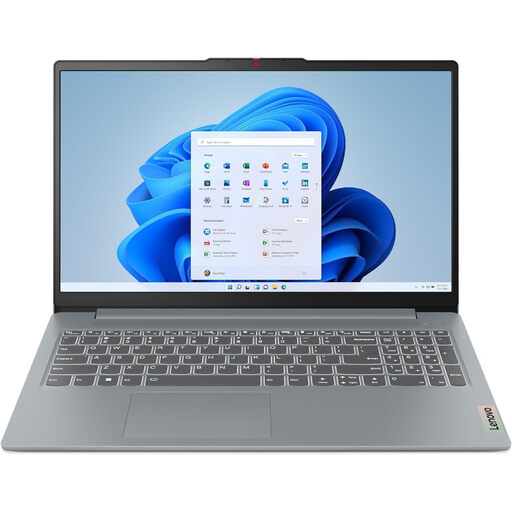
Lenovo IdeaPad Slim 3 15AHP10, 16 GB/512 GB, Luna Grey, QWERTY
A Windows option for lesson planning, with a larger screen and HDMI connection that could come in handy.
The title lists Windows 11 Home, Ryzen 5 8640HS, 16 GB DDR5 and a 512 GB PCIe 4.0 SSD. The product description mentions an anti-glare 15,3-inch WUXGA screen and HDMI.
View at Joybuy
 No image available
Apple MacBook Neo 13-inch A18 Pro, 8 GB/512 GB, Silver, QWERTY
A macOS option if your school apps work with it and your teaching materials are available on the laptop.
The product description lists macOS, 8 GB of memory, a 13-inch Liquid Retina screen with a resolution of 2408 × 1506 pixels and FileVault encryption. The quoted maximum battery life is 16 hours, but this doesn’t guarantee that it will last for a school trip. A USB-C power adapter isn’t included; according to the description, you’ll need an adapter rated at least 20 W.
View at Joybuy
 No image available
ASUS Zenbook A14 UX3407QA-QD479W, 16 GB/512 GB
A Windows laptop for frequent travel between school trip locations, with a 14-inch screen and HDMI.
The product description lists Windows 11 Home, Snapdragon X, 16 GB of memory, a 512 GB SSD and a 14-inch WUXGA OLED screen. The quoted weight is approximately 0,98 kg and the battery capacity is 70 Wh. The adapter isn’t included; according to the description, you’ll need a compatible 65 W USB-C Power Delivery charger. Compatibility with older software, drivers and specialist peripherals may vary.
View at Joybuy
 No image available
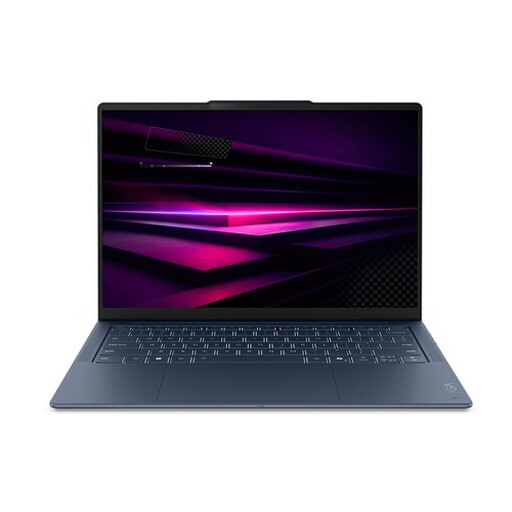
Lenovo Yoga Slim 7 14Q8Y11 Copilot+, 16 GB/512 GB
A Windows option for lesson preparation, with a 14-inch screen and USB4 ports to compare.
The product description lists Windows 11 Home on ARM, Snapdragon X2P-42-100, 16 GB of memory and a 512 GB SSD. The 14-inch WUXGA OLED screen has a 16:10 aspect ratio; the three USB4 ports, quoted weight of 1,17 kg and battery capacity of 70 Wh are also listed.
View at Joybuy
Frequently asked questions
Can I work on my lesson plan during a school trip without internet access?
Yes, if the app supports offline working and you’ve made the files you need available in advance. Google explains how to set up offline access for Docs, Sheets and Slides; Microsoft explains how to change the offline status of synced files. Test your own lesson files before you set off.
Can I install the desktop version of Microsoft 365 on a Chromebook?
No. According to Microsoft, the Windows and Mac desktop versions can’t be installed on a Chromebook; you can access the Microsoft 365 apps mentioned through a browser.
What should I bear in mind if my laptop contains pupil data?
When processing pupils’ personal data, follow your school’s technical and organisational security measures and incident-reporting procedure. The Dutch Data Protection Authority says schools must be able to show what measures they take; it doesn’t specify one mandatory laptop model.
What are the rules on cooling-off periods and warranties for a laptop bought online in the Netherlands?
For distance purchases, a 14-day cooling-off period applies in many cases; check the terms for your purchase. According to the Dutch government, there’s no fixed statutory warranty period in the Netherlands: you’re entitled to a product that works properly, and the seller is your point of contact if there’s a problem. A manufacturer’s warranty doesn’t replace this right.


