
Precision scan retoucher
You want to remove individual specks of dust without losing sight of lines or texture. Adobe describes retouching tools for small unwanted details, so a suitable screen and careful checks while editing remain important.


Choose based on how many scans you process and the details you need to assess while retouching. Then check that your scanner and software work with the exact laptop configuration. For detailed work, compare usable screen space and memory; if you handle lots of files, available storage matters too. A portable laptop can be useful if you move between workstations, but remember to check the ports and adapters you need, and whether it can connect to an external monitor.
You want to remove individual specks of dust without losing sight of lines or texture. Adobe describes retouching tools for small unwanted details, so a suitable screen and careful checks while editing remain important.
You regularly open or process several files and pay attention to memory, available storage and a manageable file workflow. Adobe also describes batch processing for repeated edits.
You share equipment or a workspace with colleagues, so you need to consider the scanner, an external monitor and how file access is managed. Epson Netherlands offers support by scanner model; the Dutch Data Protection Authority stresses the importance of appropriate security when scans contain personal data.
A good fit if: your office uses Windows, or connecting to existing equipment and following established management arrangements are priorities.
Bear in mind: the screen, ports and service options vary by configuration, so check the exact model you choose.
A good fit if: your existing scanner and software work with macOS, and portability or a larger built-in screen matters to you.
Bear in mind: check that your scanner and screen can connect to the configuration you choose; you may need adapters.
| Factor | What to look for | Who is it most important for? |
|---|---|---|
| Assessing details | Compare screen size and resolution, and check whether you can connect an external monitor. | When I retouch individual specks of dust, I want to assess fine lines and texture clearly. Around 33% of consumers prioritise checking fine details. |
| Processing lots of scans | Check the memory and available SSD space for your chosen software and files. | When I open and repeatedly edit lots of scans, or large ones, I look at memory and space for working files. Around 27% of consumers prioritise processing power. |
| Connecting to your workspace | Check support for your exact scanner model, the necessary drivers and the available ports. | When several colleagues share the same scanner and workspace, I want the equipment to work with our systems and arrangements. Around 20% of consumers prioritise workspace compatibility. |
| Moving between workstations | Compare the built-in screen and ports, and decide whether you use an external monitor on site. | When I move my laptop between desks, I weigh up portability against having enough screen space for the scan and tools. Around 20% of consumers prioritise mobility. |
Drivers depend on the scanner model, and available connections vary between laptops.
Look up support for the intended operating system for your exact scanner model, then check that its connection is compatible with the laptop or dock.
Adobe describes both a dust and scratches filter and tools for local retouching. The right approach depends on the scan and the details you need to preserve.
Check the results on representative scans and inspect lines and texture before processing a batch of files.
Even with batch processing, important image details still need to be checked.
For Photoshop desktop version 27.x, Adobe lists a minimum of 8 GB RAM and recommends 16 GB or more. These are requirements for that software version, not for every scanning tool.
Compare the requirements of the software you actually use with the configuration you choose and the size of your scan files.
The ThinkPad T14 Gen 6 range is a Windows business option worth comparing for shared use and compatibility with existing equipment.
The Dell Pro 14 Plus PB14250 is available as a laptop or 2-in-1; the right choice depends on the configuration you want.
The MacBook Air with M5 is a macOS option if your existing scanner and software work with that system.
The EliteBook Ultra G1i range is worth comparing if screen options and service plans are part of your decision.
These Joybuy products include Windows laptops and MacBook Air configurations for retouching scans in a shared workspace. Check that each model works with your scanner and software.
 Image unavailable
The listed screen configuration may suit scan retouching if you want plenty of screen space. Screen specifications alone don’t guarantee accurate image assessment.
16-inch 3K OLED touchscreen (2880 × 1800); 64 GB RAM; 2 TB SSD; Windows 11 Pro; QWERTY keyboard.
The memory is soldered and cannot be upgraded.
 Image unavailable
The listed screen configuration may suit scan retouching if you want plenty of screen space. Remember to check the requirements of your software and scanner too.
16-inch 3K OLED touchscreen (2880 × 1800); 32 GB RAM; 1 TB SSD; Windows 11 Pro; QWERTY keyboard.
The memory is soldered and cannot be upgraded.
Image unavailable
The listed screen configuration may suit scan retouching if you want plenty of screen space. Assess the configuration against the software and files you use.
16-inch 3K OLED touchscreen (2880 × 1800); 128 GB RAM; 2 TB SSD; Windows 11 Pro; QWERTY keyboard.
The memory is soldered and cannot be upgraded.
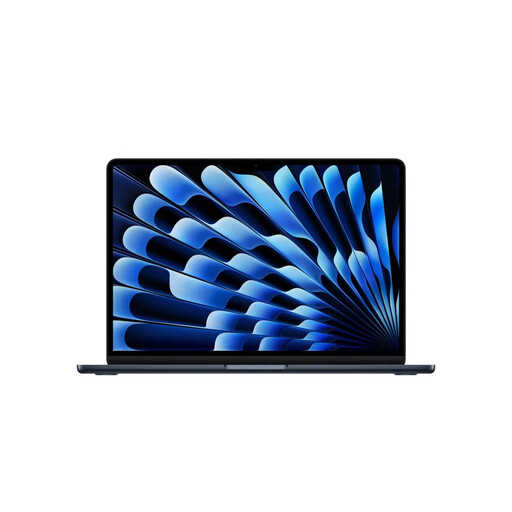 Image unavailable
This configuration may suit you if you’re looking for a compact macOS laptop. Check beforehand that your scanner and software are compatible.
13-inch; 24 GB memory; 1 TB storage; QWERTY keyboard.
The memory cannot be upgraded.
 Image unavailable
The larger built-in screen may suit you if you want more workspace. Check how your scanner and any external monitor will connect.
15-inch; 16 GB memory; 512 GB storage; QWERTY keyboard.
The memory cannot be upgraded.
That doesn’t follow from the task alone; check the requirements of the software you choose. Adobe lists GPU requirements for Photoshop desktop version 27.x, but these don’t automatically apply to other retouching programmes.
Look for drivers for your intended operating system on the support page for your exact scanner model. Also check that the connection is compatible with the laptop or dock.
Photoshop has a dust and scratches filter and supports batch processing. Check the results on representative scans first: automated editing doesn’t remove the need to inspect important details.
Check whether your chosen software requires a licence or subscription, which adapters or external storage your workspace needs, and what service comes with the exact laptop configuration. Adobe states that Photoshop requires an internet connection and registration for activation and subscription validation.
In that case, the organisation must protect personal data appropriately under the GDPR. The Dutch Data Protection Authority links the measures required to the risks of the specific processing involved; this does not mean that one particular laptop model or standard hardware specification is mandatory.
Don’t assume that consumer rights apply if your office is buying for business use. The Dutch government’s information on European consumer rights specifically concerns purchases made as a private individual. For a business purchase, check the applicable contract and service terms.