What should you look for when buying?
First check how much free storage you’ll need and whether your software is compatible. Then consider the connections, how demanding your projects are and where you edit.
| What to consider |
What should you check? |
Who is this relevant to? |
| Free space while editing |
Allow for source files, project files and exports; also check where temporary files are stored. |
If I edit large source files, I want to know how much space will be left for projects and exports. Around 28% of consumers say having enough free working space is their top priority. |
| Recording set-up |
Count the devices connected at the same time, and check the ports and fan behaviour under the workload you expect. |
When I record with a microphone and audio interface, I want to know whether the connections are suitable and whether laptop noise will affect the recording. Around 22% of consumers base their choice on their recording set-up. |
| Software compatibility |
Check that your programme, version, plug-ins, drivers and audio interface are supported by the operating system you choose. |
If I want to keep using my existing software and equipment, compatibility comes first. Around 22% of consumers prioritise being able to continue with their existing set-up. |
| Processing power for demanding projects |
Work out how many tracks, effects and sample libraries you use, then compare specific memory and processor configurations. |
When my projects have lots of tracks or effects, I want to know whether the configuration can handle them. Around 17% of consumers put performance for demanding projects first. |
| Editing in different locations |
Decide whether you want to view your transcript and audio timeline together on the laptop screen, or usually work with an external monitor. |
If I often edit in different places, I weigh portability against the screen space I need. Around 11% of consumers prioritise portability and being able to work without an external monitor. |
Joybuy product picks
These laptops include compact macOS configurations and Windows models with a range of storage capacities and specifications. Compare the configuration with your software, equipment and project requirements.
 Image unavailable
ASUS ProArt P16 H7607BA-SE030X
A Windows configuration to compare if your projects include lots of tracks or effects.
64 GB RAM; 1 TB SSD; Windows 11 Pro.
Joybuy
 Image unavailable
MSI Stealth 16 AI+ B3WF-011NL
A Windows laptop to compare if you’re looking for a configuration suited to more demanding creative projects.
16 GB DDR5; 1 TB SSD; Windows 11 Home; Thunderbolt 4.
Joybuy
 Image unavailable
ASUS ProArt P16 H7607BA-SE181X
This Windows configuration is worth comparing if your workflow involves lots of tracks or effects.
128 GB RAM; 1 TB SSD; Windows 11 Pro; USB4, HDMI and SD card reader.
Joybuy
 Image unavailable
Lenovo ThinkBook 16 G8 IAL 21SK00EBMH
A Windows configuration with a 16-inch screen to compare if you like viewing your recording and transcript on one screen.
16 GB DDR5; 512 GB SSD; Windows 11 Pro; 16-inch WUXGA screen.
Joybuy
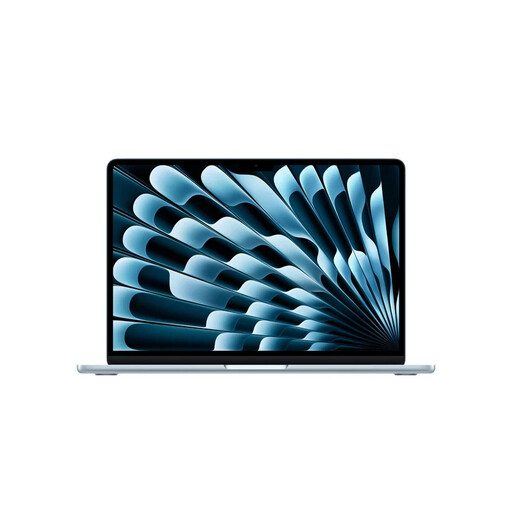 Image unavailable
Apple MacBook Air 13-inch M5, 16 GB, 512 GB
A compact macOS option if your software and equipment are compatible with this workflow.
16 GB memory; 512 GB SSD; two Thunderbolt 4 ports; the product description states that it has a fanless design.
Joybuy
Frequently asked questions
Does the whole recording need to fit on the internal SSD?
You don’t need to keep every archive file on the internal drive, but check where your programme stores the active project and temporary data. The Audacity Manual warns that not having enough space on the drive in use can interfere with recording, editing, saving or exporting. It also advises caution when working directly from some external or network drives.
How should I set up a long recording session in Audacity?
The Audacity manual recommends saving an empty project to your chosen location beforehand, so recording data can be written there straight away. Keep an eye on the remaining disk space during the session and save your project.
Do I always need a powerful laptop for editing speech?
No. A long recording on its own doesn’t automatically mean you need a powerful laptop. Audacity doesn’t specify a particular CPU or GPU requirement, though lots of tracks and effects running at the same time may be a reason to give more weight to performance and memory.
What warranty and cooling-off period apply to an online purchase in the Netherlands?
For a consumer purchase, ACM ConsuWijzer says the seller must put right, free of charge, a product that doesn’t do what you could reasonably expect under normal use. Online purchases usually come with a statutory cooling-off period, which ends 14 days after delivery. These are consumer rights, not product specifications.


