
Creator who lays out pages at a fixed workstation
You work with lots of text, grids and pages, and mainly want a comfortable, easy-to-read setup for layout work.


Start with the software you use and how you check your pages: a clear, readable screen and enough memory matter more than processor speed alone. For InDesign 21.3 and later on Windows, Adobe lists 8 GB RAM as the minimum and 16 GB as the recommended amount; this isn’t a general requirement for every puzzle book. Then choose the screen finish and ports to suit the lighting and equipment at your shared workspace.
You work with lots of text, grids and pages, and mainly want a comfortable, easy-to-read setup for layout work.
You regularly connect an external screen or other office equipment, and want to know whether your laptop will work with the setup.
You move between workspaces and weigh portability against screen space and potentially audible fan noise.
Your choice largely depends on how you work: an anti-glare screen for a fixed desk, enough ports for shared equipment, or a lightweight fanless laptop.
Best for: long sessions working with text, grids and page previews at a fixed, well-lit workstation.
Keep in mind: check the ports and keyboard on the exact configuration.
Best for: moving between workspaces often and looking for a 14-inch laptop with ports for the peripherals available there.
Keep in mind: a glossy screen can reflect light; also check whether the right power adapter is included.
Best for: when your software works with macOS and you want a fanless laptop.
Keep in mind: check the software, peripherals and adapters you need for the exact model.
| What to consider | What should you check? | Who is this important for? |
|---|---|---|
| Page readability | Compare the screen size, resolution and finish of the exact model. | If I’m checking text and puzzle grids under office lighting, I want a screen that’s comfortable to read. Around 29% of consumers say page layout is their top priority. |
| Office connections | Compare the laptop’s ports with those on the available screen and dock. | When I want to use an existing screen or peripherals at a shared desk, I check that the connections are compatible. Around 24% of consumers put workstation connections first. |
| Noise while working | For Windows models, look for noise measurements for the exact configuration and workload; don’t treat ‘quiet’ as a measurement. | When I work in a shared space, I don’t want audible cooling to distract me. Around 18% of consumers say low noise is their main buying concern. |
| Moving between desks | Compare the stated weight and screen size, and consider what equipment is available at each workstation. | When I carry my laptop around often, I weigh portability against the screen space I need. Around 17% of consumers put mobility first. |
| Everything you need | Check what’s in the box, the power supply, adapters and who the seller is. | If I want to understand the total cost, I only include extras that I actually need for my workstation. Around 12% of consumers put total cost first. |
A glossy OLED screen and an anti-glare IPS screen can behave differently under office lighting. The ASUS configuration reviewed has a glossy screen; the Lenovo configuration reviewed has an anti-glare IPS screen.
Compare the finish on the exact model and assess the screen under the lighting at your workspace.
A list of ports doesn’t prove that a laptop will work with your specific dock or monitor.
Before buying, compare the connections and charging requirements of the laptop, screen and dock.
The ASUS configuration reviewed and the Apple model mentioned don’t include a power adapter.
Check what’s in the box for each model and which power supply is suitable. Factor in any essential extras when making your choice.
The features listed below apply to the specific product lines and configurations shown; always check the exact model you’re considering.
The ThinkPad E14 Gen 7 configuration reviewed is aimed at layout work at a fixed Windows workstation.
The Zenbook 14 OLED UX3405 configuration reviewed is a compact Windows option for moving between workspaces.
The MacBook Air M5 is an option if the software you need works with macOS and you’re looking for a fanless design.
The Inspiron 14 2-in-1 7440 is a convertible Windows option for anyone who will make real use of that form factor.
This selection includes Windows laptops and a MacBook Air for laying out and checking pages. Compare screen readability and connections with your workspace, and check that your software works on the model you choose.
 No image available
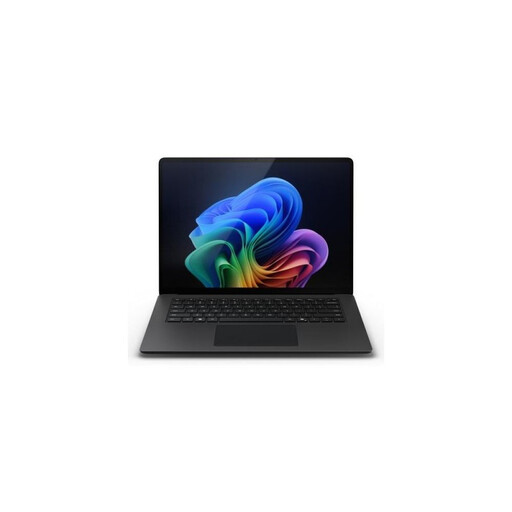
The 3:2 touchscreen could suit anyone who views pages directly on the screen; check that your layout software is compatible with this Snapdragon configuration.
16 GB memory and 512 GB SSD; Windows 11 Pro; 13.8-inch screen with 2304 × 1536 resolution and a 3:2 aspect ratio; USB4; stated weight 1.34 kg.
 No image available
The anti-glare screen is useful if you check pages under office lighting; compare the ports with the equipment at your workstation.
14-inch IPS screen; Windows 11 Home; 16 GB DDR4 and 512 GB SSD; HDMI, USB-C with DisplayPort and USB-A; stated weight 1.40 kg.
 No image available
An option if your software works with macOS and you want a fanless design; check in advance that your peripherals are compatible with this configuration.
15.3-inch screen; M5 chip; 16 GB memory and 512 GB SSD; two Thunderbolt 4 ports; stated weight 1.23 kg. The power adapter isn’t included; the description recommends a 35 W or higher USB-C adapter.
 No image available
The larger anti-glare screen could be useful if you check pages under office lighting; also check which power supply comes with this configuration.
15.3-inch WUXGA IPS screen; 16 GB memory and 512 GB SSD; USB-C with Power Delivery and DisplayPort; stated weight approximately 1.50 kg. The power adapter isn’t included; the description recommends a compatible 45–65 W USB-C Power Delivery adapter.
 No image available
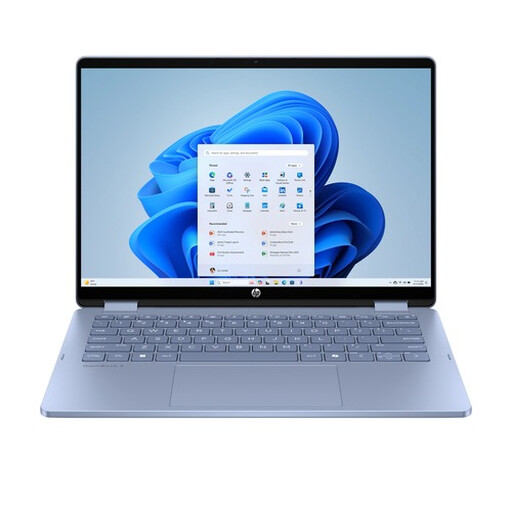
The touchscreen controls and 360-degree hinge are worth considering if you plan to use this form factor while working.
14-inch OLED touchscreen with 1920 × 1200 resolution; 8 GB RAM and 512 GB SSD; Windows 11 Home; approximately 1.60 kg. The screen is glossy. A USB-C charger and stylus aren’t included.
Start with the requirements of the layout software you use. For InDesign 21.3 and later on Windows, Adobe lists 8 GB RAM as the minimum and 16 GB as the recommended amount; this isn’t a general requirement for puzzle books or other software.
Ask the printer which PDF format and file specifications they need. Scribus documents PDF and PDF/X output, but you still need to check that your specific file meets your printer’s requirements.
For an employee who works at a screen for more than 2 hours a day, Arboportaal says the screen and keyboard must not be attached to each other. If they use a laptop, it must be possible to use a separate screen or keyboard; this requirement doesn’t automatically apply to everyone who occasionally works in a shared office.
According to the Dutch government, in many cases you have 14 days to change your mind when making a qualifying distance purchase as a consumer. Check who the seller is and what additional costs are listed when you place your order; don’t assume the same consumer rights apply to a business purchase.