
Viewing PDF drawings on a small desk
You want to view plans and annotations clearly while leaving enough room on your desk.


Viewing PDF drawings on a small desk calls for a laptop with a screen and form factor suited to both your drawings and your workspace. The basic requirements of a PDF reader alone are no reason to choose a mobile workstation. If you also work in CAD, check the requirements for the exact application, version and workflow before choosing a configuration. In addition, employees who spend more than two hours a day working at a screen must follow certain workstation setup requirements.
You want to view plans and annotations clearly while leaving enough room on your desk.
You need a practical screen setup, possibly with an external monitor or separate input devices. Employees who spend more than two hours a day working at a screen must follow requirements for using the screen and keyboard, as explained by Arboportaal.
First, you need to know which CAD application and version you use: software, operating system and configuration requirements may differ from those for viewing PDF files.
Best for: viewing drawings as PDFs and keeping the laptop on a small desk.
Trade-off: a compact screen takes up less space, but the stated resolution alone does not guarantee that small annotations will be comfortable for you to read.
Best for: regularly viewing details or several drawings side by side, with enough room in your workspace for additional equipment.
Trade-off: a separate monitor and input devices need space, suitable connections and possibly additional accessories.
Best for: working with a specific CAD application or large 3D files, as well as viewing drawings.
Trade-off: having ‘workstation’ in the product name or a dedicated graphics card does not, by itself, prove that the full configuration is suitable for your software.
| What to consider | What to look for when buying | Who is this important for? |
|---|---|---|
| Readability and desk space | Measure the available space and your viewing distance. Check one of your own drawings at the intended screen size, including the scaling setting and any reflections. | If you want to read annotations without your laptop taking over your small desk, make the screen size a priority within the space available. Around 40% of consumers prioritise readability on a small desk. |
| Workstation setup | Check the video output, any cable or adapter you may need, and the space available for an external monitor and separate input devices. Arboportaal states that for employees who spend more than two hours a day working at a screen, the screen and keyboard must not be attached to one another. | If you work at a fixed workstation for long periods, you’ll want to position the screen and input devices practically and make good use of the available space. Around 30% of consumers prioritise their workstation setup. |
| Compatibility with drawing software | Note the file format, application and version, and whether you only need to view or also edit files. For AutoCAD 2027 for Windows, Autodesk specifies 64-bit Windows 11, 16 GB RAM as the minimum and 32 GB as recommended. These requirements do not automatically apply to other software. | If you use CAD or edit files, you’ll want to check the full laptop configuration against the requirements of your specific programme. Around 20% of consumers put CAD compatibility first. |
| Portability | Compare the stated weight and dimensions of the exact model. Also consider whether the built-in screen is sufficient without an external monitor. | If you regularly carry your laptop between workstations, its weight and how well it works without an external monitor both matter. Around 10% of consumers prioritise being able to carry their laptop between workstations. |
The published requirements for Adobe Acrobat Reader and AutoCAD 2027 differ. The exact version and operating system also matter for CAD.
Find out which file format and application you need. Then compare the full configuration with the requirements of that specific software.
Screen size alone won’t tell you whether small annotations will be easy to read or reflections will be distracting in your workspace.
Consider the screen, coating, light and desk dimensions together. If possible, view one of your own drawings at the intended screen size.
For some laptop models, the product information states that a power adapter is not included. A laptop on its own may also not provide the setup you need for working for long periods.
Check what’s included with the exact model, and think in advance about how you want to position the screen and input devices at your workstation.
You may need to buy a compatible adapter, separate keyboard or external monitor, and these will take up extra space.
The Dell Pro 14 PC14250 is a 14-inch business configuration worth comparing for compact work.
The Zenbook 14 OLED UX3405 is a compact Windows range you can compare for screen type and portability.
The 13-inch MacBook Air with M5 is a compact macOS option if the drawing app you use runs on macOS.
The ThinkPad P14s Gen 6 range includes compact mobile workstation models for those with a specific CAD requirement.
The EliteBook 8 G1i 14 is a compact business range to compare with other 14-inch options.
This selection focuses on compact laptops for viewing project drawings. For CAD editing, you should also check the requirements of the exact software.
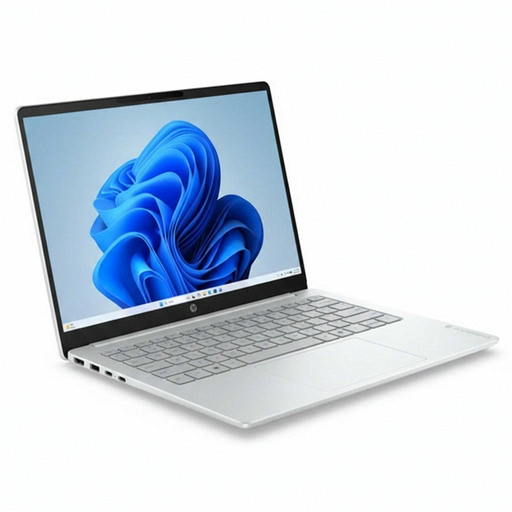 Image unavailable
The 14-inch model may suit a compact viewing setup. Check that the display works well for your drawings.
1920 × 1200 screen; HDMI and USB ports according to the product description.
Intel Core 3 304, 8 GB RAM, 512 GB SSD and Windows 11 Home. For AutoCAD 2027 for Windows, Autodesk specifies 16 GB RAM as the minimum; this model has 8 GB, so check the application requirements carefully.
 Image unavailable
The anti-glare model is worth comparing if reflections are a concern in your workspace.
14-inch IPS screen with 1920 × 1200 pixels; HDMI and USB-C. The stated dimensions are 31.45 × 22.60 cm and the weight is approximately 1.42 kg.
AMD Ryzen 5 7520U, 8 GB RAM, 512 GB SSD and Windows 11 Home. The product description states that a charger is not included. Check the requirements of your CAD application; for AutoCAD 2027 for Windows, Autodesk specifies 16 GB RAM as the minimum.
 Image unavailable
This 14-inch model combines an anti-glare screen with the listed connections for a possible external monitor setup.
1920 × 1080 screen; HDMI and USB-C with DisplayPort according to the product description. The stated weight is 1.40 kg.
Intel Core 7 150U, 16 GB DDR4, 512 GB SSD and Windows 11 Home. Check the requirements of the exact drawing or CAD application you use; a single memory specification does not, by itself, determine whether the full configuration is suitable.
 Image unavailable
The compact design and listed external monitor capabilities may be useful if you want to expand your workstation.
14.2-inch screen with 3024 × 1964 pixels; three Thunderbolt 4 ports, HDMI and support for up to two external monitors according to the product description.
24 GB memory and 1 TB storage according to the product name. Check that your drawing app and any CAD workflow run on macOS.
 Image unavailable
The stated weight of approximately 0.98 kg may be useful if you carry your laptop between workstations. Also check whether the built-in screen is sufficient.
14-inch WUXGA OLED screen with 1920 × 1200 pixels; two USB4 ports with DisplayPort and HDMI 2.1 according to the product description. The stated chassis dimensions are approximately 310.7 × 213.9 mm.
Snapdragon X, 16 GB RAM and 512 GB SSD. A power adapter is not included; the description lists a compatible 65 W USB-C Power Delivery charger and cable. According to the product description, compatibility with specialist applications may vary on Windows on Snapdragon.
Adobe’s published system requirements for the Windows version of Acrobat Reader do not list a dedicated graphics card as a requirement. This does not automatically tell you whether it will suit large files or other drawing programmes; check the requirements and workflow of the software you use.
Check the requirements of the exact CAD application and version, including the operating system, memory and graphics requirements. For AutoCAD 2027 for Windows, Autodesk specifies 64-bit Windows 11, 16 GB RAM as the minimum and 32 GB as recommended. Don’t treat these as general requirements for every drawing app.
If you are an employee who spends more than two hours a day working at a screen, Arboportaal states that the screen and keyboard must not be attached to one another. So consider whether you can use a separate screen or keyboard, and make sure your workstation setup follows the applicable regulations.
Check that the exact laptop model supports the video connection you need, which cable or adapter is required, and whether the monitor and separate input devices will fit on your desk. For example, Apple lists DisplayPort support via Thunderbolt 4 for the MacBook Air mentioned here; this specification does not apply to other laptops.
No. The Dutch government states that the Netherlands has no fixed legal guarantee period: what matters is what you can reasonably expect from the product. A manufacturer’s guarantee is separate. When you buy online as a consumer from a business, you generally have a 14-day cooling-off period.