Start by deciding whether you want to use the laptop screen plus one monitor, or two external monitors. Then check how many displays the exact laptop configuration supports simultaneously, and whether its connections, colour workflow and software suit your work. Extra memory, a workstation or business support aren’t automatically necessary for every photo editor.
Who is this buying guide for?
Editor with a permanent two-screen setup
You want to spread photos and tools across your laptop screen and a monitor, or use two external monitors. Microsoft Support explains how to arrange multiple displays in Windows; also check how many displays the laptop supports simultaneously.
Colour-critical product photographer
You assess product colours for clients or publication and want to know which screen to use. Adobe explains that monitor profiles help describe how a screen displays colour, so also consider your external monitor and colour-management workflow.
Editor working with large batches of photos
You work with lots of files or large files and want to match memory and storage to your projects and editing software. Adobe lists 8 GB RAM as the minimum for Photoshop 27.x and recommends 16 GB or more; check the requirements for the software version you use.
What should you look for in a laptop for product photography across two screens?
Portable Mac laptop with an external display
A good fit if: you work on your laptop when you’re out and want to connect an external display at your desk.
The trade-off: Apple specifies support for up to two external displays alongside the built-in screen on the MacBook Air M5. Also consider which connection or adapter you’ll need.
Windows creator laptop
A good fit if: you regularly work on the built-in screen and do other creative work as well as editing photos.
The trade-off: ASUS ProArt and Lenovo Yoga specifications vary by model. Check the display specifications and support for your external monitors separately.
Windows workstation
A good fit if: you run demanding projects as well as editing photos, or need specific business support.
The trade-off: the HP configuration listed comes with 32 GB RAM, a 1 TB SSD and three years of on-site support. These features aren’t essential for every photo-editing setup.
| Buying concern |
What should you check? |
Who is this important for? |
| Two displays at once |
Decide whether you mean one or two external monitors. For the exact configuration, check how many displays it supports simultaneously and the connections available on the laptop, monitor and dock. |
If I need two external monitors, I want to know before buying whether they’ll work at the same time. For around 29% of consumers, the display setup is their main buying concern. |
| Assessing colour |
Decide which screen you’ll use to make colour decisions. Check the display specifications and include the monitor profile and settings in your workflow. |
If I assess product colours for clients, I want to know how my chosen screen displays them. Around 29% of consumers give colour assessment their highest priority. |
| Memory and storage |
Compare the requirements of your software version with the RAM and SSD configuration. Adobe lists at least 8 GB RAM for Photoshop 27.x and recommends 16 GB or more; this doesn’t automatically apply to other software. |
If I work with lots of photos or large files, I look for enough memory and storage for my software and projects. Around 24% of consumers put this capacity first. |
| Portability and workspace |
Balance size and portability against the screen space available at your desk. Check which monitor, cable and, if needed, dock you already have and what you’ll need. |
If I take my laptop with me and use a monitor setup at home, I want to know what I’ll need in addition to the laptop. For around 18% of consumers, portability and the complete workspace matter most. |
Common buying pitfalls when choosing a laptop for multiple displays
-
Assuming one video connection proves you can use two external monitors
A port or dock on its own doesn’t confirm how many displays the laptop you’ve chosen can drive at once. You could end up without the connection you need for your planned setup.
Make a note of how many monitors you need, their connections and your preferred display settings. Check that combination against the exact laptop model before you buy.
-
Assuming a good-looking laptop screen means accurate colours on an external monitor
The same file can look different on different screens. Your monitor profile and settings also matter to your colour-management workflow, as Adobe explains.
Choose which screen you’ll use to make colour decisions, and include that screen’s profile and settings in your workflow.
-
Comparing only the laptop and forgetting the rest of your setup
Your complete setup may also require a suitable monitor, cable or dock. What you need depends on the displays you already own and the laptop you choose.
First, make a list of your existing equipment. Then check which connections and displays you still need.
Brands and product ranges to compare
Apple
The MacBook Air M5 is a portable macOS option to compare if you plan to use the built-in screen alongside external displays.
- Apple specifies support for up to two external displays alongside the built-in screen, as well as two Thunderbolt 4 ports.
- Check the monitor connection you’ll need, along with the memory and storage options, separately.
ASUS
The ProArt P16 H7606 range includes a variety of creator configurations to compare with other Windows laptops.
- ASUS lists models with 3K or 4K OLED screens, different graphics cards and a range of storage configurations.
- Check the full model number; features of one configuration don’t necessarily apply to another.
Lenovo
The Yoga Pro 9i Gen 11 Aura Edition is a creator option to compare if the built-in screen is important to you.
- Lenovo lists a configuration with 32 GB of soldered RAM and a 16-inch OLED screen specified as 100% DCI-P3.
- Other configurations may differ. Also check support for external displays and whether soldered memory suits your plans.
HP
The ZBook X G1i is a workstation range to consider if you have demanding tasks or need business support.
- The HP configuration C4DC1EA#ABH lists 32 GB RAM, a 1 TB SSD and three years of on-site support.
- This configuration doesn’t mean every photo-editing setup needs a workstation; check the monitor outputs too.
Dell
The Pro 14 Premium PA14250 is a compact business Windows range to compare with creator laptops.
- Dell offers configuration options for this model.
- Changing your selection may result in different specifications, so check the screen and external display options of the final configuration.
Joybuy laptops for photo editing and external displays
This Joybuy selection features ASUS laptops with listed display and connection features for a Windows photo-editing setup. Check how many external displays each model can run at once with your monitors.
 No image available
ASUS ROG Zephyrus G16 GU605CM-QR026W
A 16-inch OLED screen and listed external video connections make this model worth comparing for a workspace with multiple windows.
The product information lists 2560 × 1600, 100% DCI-P3, HDMI 2.1 FRL and Thunderbolt 4 with DisplayPort. The product name lists Ultra9-285H, RTX 5060, 16 GB RAM and a 1 TB SSD. According to the product information, the charger must be purchased separately.
View at Joybuy
 No image available
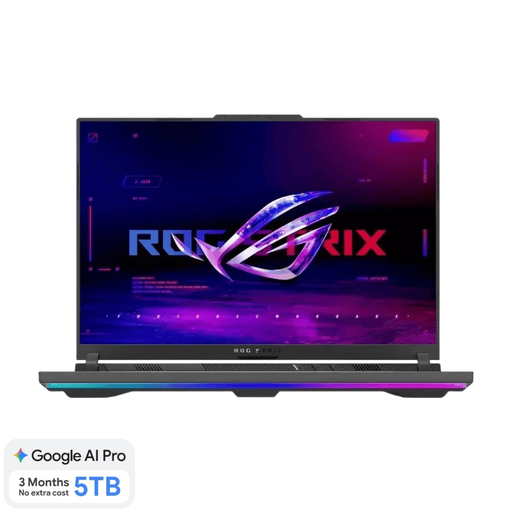
ASUS ROG Strix G16 G614FR-S5252W
Compare this model if you’re looking for a 16-inch built-in screen and listed connections for an external monitor.
The product information lists an IPS screen with 2560 × 1600, 100% DCI-P3, HDMI 2.1 and USB-C with DisplayPort. The product name lists Ryzen 9 9955HX, RTX 5070 Ti, 16 GB RAM and a 1 TB SSD. According to the product information, the charger must be purchased separately.
View at Joybuy
 No image available
ASUS ProArt P16 H7607BA-SE030X
The listed OLED and memory specifications make this configuration worth comparing for photo editing with larger files.
The product information lists a 16-inch 4K OLED screen, 100% DCI-P3, factory calibration, USB4 and HDMI 2.1. The product name lists 64 GB RAM and a 1 TB SSD.
View at Joybuy
 No image available
ASUS ProArt P14 H7407BA-SM078X
Compare this 14-inch model if portability and an OLED screen are important for your photo-editing setup.
The product information lists a 3K OLED touchscreen, 100% DCI-P3, USB4 and HDMI. The product name lists 128 GB RAM and a 1 TB SSD. The product information gives a weight of 1.48 kg and states that the charger isn’t included.
View at Joybuy
No image available
ASUS ProArt P16 H7607BA-SE181X
Compare this configuration if you’re looking for plenty of memory and a large built-in OLED screen; check support for external displays to suit your setup.
The product information lists a 16-inch 4K OLED touchscreen, USB4, HDMI 2.1 and an SD card reader. It also lists 100% DCI-P3 and PANTONE validation. The product name lists 128 GB RAM and a 1 TB SSD.
View at Joybuy
Frequently asked questions
Do two screens always mean two external monitors?
No. Using the laptop screen plus one external monitor is different from using two external monitors. Decide which setup you mean and check how many displays the exact laptop configuration supports simultaneously. Apple specifies this for the MacBook Air M5, among other models.
How do I arrange multiple displays in Windows?
Connect the displays, then use Windows display settings to identify them and arrange them in the correct physical order. If a connected display doesn’t appear, you can also use the detection option there, according to Microsoft Support.
Is a stated wide colour gamut enough to ensure accurate product colours?
No. A colour gamut alone doesn’t tell you how your complete setup will display colours. Adobe also explains the importance of monitor profiles, calibration status and ambient light, so consider the screen you use to make colour decisions as part of your workflow.
What are my rights on cooling-off periods and guarantees for online consumer purchases in the Netherlands?
According to ACM ConsuWijzer, online consumer purchases generally come with a statutory cooling-off period of up to 14 days after delivery, subject to legal exceptions. The Dutch government says there is no fixed statutory guarantee period; however, if a product is faulty, it must meet the terms of the agreement and the retailer is your point of contact. These rules apply to consumer purchases, not automatically to purchases made as a business.


