Choose a laptop that can store the documents you need locally and is proven to work with the printer you want to write about. Windows is a practical choice for checking printer setup steps, while a MacBook is suitable if the printer and required software support macOS. A Chromebook may work if you’ve checked printer compatibility and arranged offline access to your documents in advance.
Who is this laptop choice for?
Writer without a reliable internet connection
Writes and consults manuals in places without internet access. Google Help explains how to make Google documents available offline in advance; before you set off, check that you can open the files you need locally.
Printer setup tester
Wants to check the steps for a particular printer and connection. The operating system, printer software and connection can all make a difference, so check compatibility with the exact printer model.
Frequent-travelling editor
Writes on the go and balances portability with enough screen space, while keeping printer compatibility in mind.
What should you look for?
First, check that you can access your source files offline and that your chosen laptop works with the printer you plan to use. Then consider the screen, keyboard and portability for your workspace.
| What to consider |
What should you check? |
Who is this important for? |
| Offline access |
Make the files you need available offline in advance and test that you can open them without an internet connection. |
If I’m writing somewhere without internet, I want to be able to open my reference materials and drafts. Around 29% of consumers say having files available offline is their top priority. |
| Printer compatibility |
Check the exact printer model, operating system, connection and any manufacturer software required. |
If you need to check the setup and connection for a specific printer, you’ll want to know whether that combination works. Around 29% of consumers put printer compatibility first. |
| Comfort for reading and writing |
Compare screen space and keyboard, and check that the RAM is suitable for the programmes you use at the same time. |
A comfortable keyboard and an easy-to-read screen matter when you’re working on long texts and switching frequently between a manual and a draft. Around 24% of consumers say writing comfort is their top priority. |
| Portability |
Balance the size against the screen space you want, and check which connections and power supply you’ll need. |
If I travel between writing or testing locations, I want a laptop that’s easy to carry and still lets me connect my equipment. Around 18% of consumers choose portability as their main consideration. |
Pitfalls when choosing a laptop and printer
-
Assuming cloud files are available offline
You won’t be able to open a file that’s only available online without an internet connection. Google Help explains that offline access needs to be set up in advance; for synced files, check that they’re available locally.
Mark the files you need for offline use and test them without an internet connection before you start writing on location.
-
Assuming a USB port proves the printer will work
Support also depends on the printer model and operating system, and sometimes on the setup software required. Google Chromebook Help lists compatible USB and network printers, while Microsoft Support highlights an issue with setup programmes from some printer manufacturers on Windows ARM PCs.
Check compatibility with the exact printer and laptop configuration. Don’t base your choice on the available connection alone.
-
Assuming every configuration has the same specifications
Configurations can vary. Dell warns that changing a configuration may also change other specifications; HP notes that the charger for the OmniBook 5 14-hm0611ndx is sold separately.
Check the exact model code, configuration, ports and box contents before ordering.
Brands to compare
HP
The OmniBook 5 14-hm0611ndx is a Windows option for anyone looking for local storage for writing files and a choice of connections.
- For this configuration, HP lists 16 GB RAM, a 512 GB SSD, and USB-A, USB-C and HDMI connections.
- HP says the charger for this configuration is sold separately. The listed ports don’t prove that a specific printer will work.
Dell
The Dell 14 DC14250 can be configured to order, which is useful if you want to confirm the exact specification in advance.
- Dell offers configurations including Windows 11 and 16 GB of memory.
- Dell warns that changing a configuration may also change other specifications. Check the final configuration and printer support.
Apple
The 13-inch MacBook Air M5 is a macOS option for anyone looking for a compact laptop for writing and using a compatible printer.
- For the base model, Apple lists 16 GB of memory, a 512 GB SSD and two USB-C/Thunderbolt ports.
- A printer without AirPrint may need suitable printer software. Also check that the connection is compatible with your printer cable.
Acer
The Chromebook Plus 514 CB514-4HT is a ChromeOS option for anyone who works with Google Docs and has a compatible printer.
- For configuration NX.KV1EH.002, Acer lists 8 GB of memory, a 512 GB SSD and USB-A and USB-C connections.
- Connections alone don’t confirm printer support. Check that your exact printer model works with ChromeOS.
ASUS
The Vivobook 14 M1407 range is a Windows alternative worth comparing for writing on a 14-inch screen.
- ASUS lists a 1920 × 1200 IPS display and the option to expand the memory for this range.
- These are specifications for the range, not necessarily every configuration. Check the exact specification and whether any printer software works with it.
Joybuy laptops for writing and printer manuals
This selection includes Windows laptops for writing and storing printer manuals locally, as well as a MacBook option. Before buying, check that your printer, connection and any required software work with the configuration you’ve chosen.
 No image available
MSI Modern 14 F1MG-867NL, Intel Core 7 150U
A Windows option for writing a printer manual and storing files locally. Check that your printer and any required software work with this configuration.
14-inch Full HD screen, Intel Core 7 150U 10-core, 16 GB DDR4, 512 GB SSD, Intel Graphics, IPS-Level, backlit keyboard, Wi-Fi 6E and Windows 11 Home.
View at Joybuy
 No image available
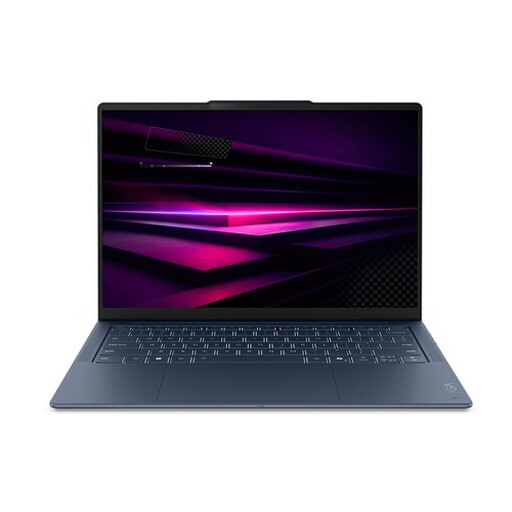
Lenovo Yoga Slim 7 14Q8Y11 Copilot+ PC, Snapdragon X2P-42-100
A Windows option for writing on the go. This configuration runs Windows on Snapdragon; Microsoft Support notes issues with setup programmes from some printer manufacturers on some Windows ARM PCs, so check that your printer is supported.
14-inch laptop with Snapdragon X2P-42-100 and QWERTY keyboard.
View at Joybuy
 No image available
Samsung Galaxy Book4 NP750XGK-KG3NL, Intel Core 7 150U
A Windows option for working with documents. Check your printer’s connection and compatibility before making a decision based on the laptop model.
15.6-inch Full HD screen, Intel Core 7 150U, 16 GB RAM, 512 GB SSD and Windows 11 Home.
View at Joybuy
 No image available
Apple MacBook Pro 14-inch M5 Pro, 24 GB, 1 TB
A macOS option for writing. A printer without AirPrint needs suitable printer software for macOS. Also check which connection your printer requires.
14-inch MacBook Pro with M5 Pro, 24 GB of memory, 1 TB SSD and QWERTY keyboard.
According to the product specifications, the power adapter is not included.
View at Joybuy
 No image available
ASUS Zenbook A14 UX3407QA-QD479W, Snapdragon X
A Windows option for writing on the go. The product information warns that compatibility with older software, drivers and peripherals may vary, so check that your printer works with this laptop.
14-inch WUXGA OLED screen, Snapdragon X, 16 GB RAM, 512 GB SSD and Dutch QWERTY keyboard.
A suitable 65 W USB-C Power Delivery charger is required but not included.
View at Joybuy
Frequently asked questions
How can you check before buying whether your printer will work with the laptop?
Check support for the exact printer model, operating system and the USB or network connection you want to use. Also find out whether you need manufacturer software. General setup instructions for Windows, macOS or ChromeOS don’t confirm that every printer model is compatible.
Can you use a printer if you don’t have internet while writing?
You can, with a printer that supports USB printing, but make sure you have any required software and test the setup in advance. Google Chromebook Help lists compatible USB printers; check that this connection works with your laptop and printer.
How do you prepare reference materials for working offline?
Make the files you need available locally in advance and test that you can open them without an internet connection. For Google Docs, you need to set up offline access first and can make specific files available offline. For OneDrive files, check that they’re available locally and not just online.


