Choose a laptop that lets you test the setup for your printer model and operating system. Microsoft notes that some printer manufacturers’ installers can cause problems on Windows computers with ARM processors. Version history depends largely on your document workflow: Microsoft recommends OneDrive or SharePoint for version control in Word, while in Google Docs you can view earlier versions if you have editing access. Then compare the screen, keyboard, ports and portability with the way you want to record the steps.
Who should consider this choice?
Writer testing printer setup steps
You carry out the setup yourself and need a laptop that lets you show the screens, drivers and connection for the printer scenario you’ve chosen. Brother Netherlands provides drivers and other downloads for each printer model.
Editor of guides that need regular updates
You revise instructions regularly and want to be able to revisit earlier versions of the text. Your choice of document storage and editing permissions also matters: Microsoft recommends OneDrive or SharePoint for version control in Word, while Google Docs requires editing access to view earlier versions.
Writer working in different locations
You take your laptop to the printer and weigh up its size and ports against the space you need for text and screenshots.
What should you look for?
Start with the exact printer model and the setup you want to document. Then assess your version control, writing space and the ports you’ll need on site.
| What to consider |
What should you check? |
Who is this for? |
| Printer compatibility |
Check the driver and setup instructions for the exact printer model and operating system. Microsoft reports problems with some printer manufacturers’ installers on Windows computers with ARM processors. |
If I’m setting up the printer myself, I want to record the exact steps for my model; around 33% of consumers put printer compatibility first. |
| Document versions |
For Word, Microsoft recommends saving files to OneDrive or SharePoint for version control. In Google Docs, you need editing access to view earlier versions. |
If I want to compare or restore edits, my document workflow needs to make earlier versions available; around 27% of consumers give version control top priority. |
| Space for reading and writing |
Check the screen size and resolution of the exact configuration, and consider whether you’ll be able to view instructional text, printer menus and screenshots comfortably. |
If I write for long periods and switch between text and printer menus, I need a workspace that suits the way I read; around 27% of consumers prioritise this. |
| Taking it to the printer |
Compare the size and weight of the configuration with the ports and cables you need. Apple lists two Thunderbolt 4 ports with USB-C connectors for the MacBook Air M5. |
If I work in different places, I want to be able to carry my laptop and connect it to the printer; around 13% of consumers give portability top priority. |
Buying pitfalls
-
Assuming every Windows installer works on Windows ARM
Microsoft reports that some printer manufacturers’ installers can cause problems on ARM computers. This means the setup you want to document may differ from the options offered by the installer.
Before you buy, check the instructions for your printer model and processor architecture. Also check whether Windows’ built-in setup route offers the features you want to document.
-
Confusing a larger SSD with version history
Extra local storage doesn’t automatically make earlier document versions available. Microsoft links version control in Word to saving files to OneDrive or SharePoint.
Set up your document storage and access to earlier versions before working on successive versions of a guide.
-
Assuming one model name always refers to the same configuration
Laptops in the same product range can have different screens and processors. Specifications for one configuration therefore won’t necessarily apply to a model with a different full model code.
Compare the full model code and the screen and processor specifications for the configuration you’re considering.
Brands to consider
Lenovo
The ThinkPad L and E ranges are business Windows options; the IdeaPad Slim 5 is a separate range, with configurations for those who want a larger built-in screen.
- For the IdeaPad Slim 5 83J3004VMH, Lenovo lists a 15.3-inch WUXGA IPS screen and 16 GB of soldered memory.
- This configuration has an English (EU) keyboard. Check the full model code and keyboard layout.
ASUS
The ExpertBook P3 and Vivobook S16 are separate product ranges. Check the specifications of each configuration to find one that suits your printer tests and writing.
- ASUS lists Windows 11 Pro and a 14-inch anti-glare WUXGA screen for the ExpertBook P3 PM3406CKA.
- Screen and processor specifications can vary within the Vivobook S16 range. Check the full model code before assuming the same features apply to another configuration.
HP
The ProBook 4 G1i is a business Windows range worth comparing if you want to check the ports on a specific configuration.
- For one 14-inch configuration, HP lists HDMI, Type-A and two Type-C ports.
- The listed ports don’t prove that the laptop will work with your specific printer model; check the printer instructions too.
Apple
The MacBook Air is an option if you want to write and record a guide to macOS steps.
- Apple lists two Thunderbolt 4 ports with USB-C connectors for the MacBook Air M5.
- Check that the printer supports the features you need on macOS and that the cable fits the laptop’s port.
Dell
The Dell Pro 14 is a business Windows range available in different configurations.
- The Dutch product information lists several configurations of model PC14250.
- Compare the specifications of the configuration you choose and check separately that it suits your printer and document workflow.
Laptop options at Joybuy
These laptops are options to compare for writing and recording printer guides. For each configuration, check the operating system, model code and ports you need.
 Image unavailable
HP OmniBook 3 14-hy0058ndx
A Windows configuration to consider if you want to record Windows printer setup steps.
AMD Ryzen 5 7520U; 8 GB RAM; 512 GB SSD; Windows 11 Home. This configuration is supplied without a charger.
View at Joybuy
 Image unavailable
ASUS ProArt P14 H7407BA-SM078X
A 14-inch Windows 11 Pro configuration to compare if you want to work on text and screenshots on your laptop.
128 GB RAM; 1 TB SSD; QWERTY keyboard. This configuration is supplied without a charger.
View at Joybuy
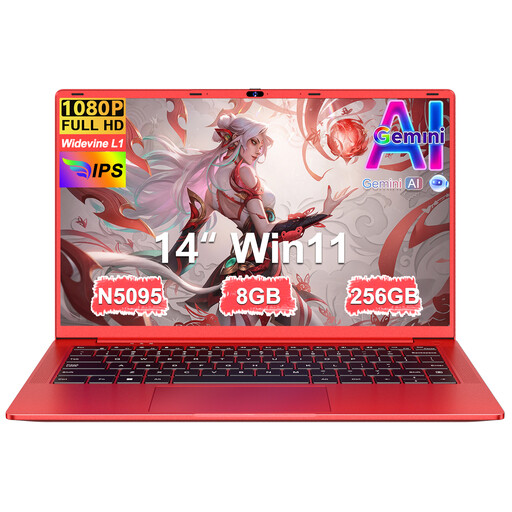 Image unavailable
Ruzava 14-inch laptop, 8 GB RAM, 256 GB SSD
A laptop with a 14-inch FHD screen to compare if you want to view guide text and menus on screen. Check that the operating system suits the printer setup you want to document.
N5095 processor; according to the product name, the SSD can be expanded to 1 TB.
View at Joybuy
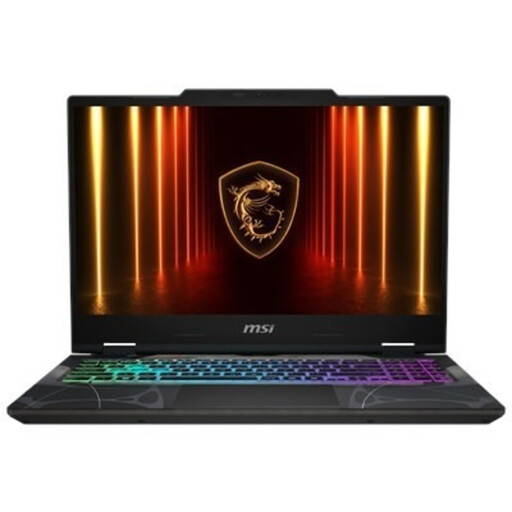 Image unavailable
MSI Cyborg A15 AI B2HWGKG-248NL
A Windows 11 Home configuration to compare if you want to record Windows printer setup steps.
15.6-inch Full HD 144Hz screen; AMD Ryzen 9 270; 16 GB DDR5; 512 GB SSD.
View at Joybuy
 Image unavailable
MSI Venture 16 AI A2HMG-068NL
A 16-inch Windows 11 Pro configuration to compare if you want more screen space while you write.
Intel Core Ultra 7 255H; 32 GB DDR5; 512 GB SSD; 1920 × 1200 144Hz screen. This configuration is supplied without a power adapter.
View at Joybuy
Frequently asked questions
Will a printer installer automatically work on a Windows laptop with an ARM chip?
Not necessarily: Microsoft reports problems with some printer manufacturers’ installers on ARM computers. Check the instructions for your printer model and whether the Windows setup route offers the features you want to document.
Does a new laptop automatically include version history?
No, you’ll also need to set up your document workflow. Microsoft recommends OneDrive or SharePoint for version control in Word; in Google Docs, you can view earlier versions if you have editing access to the file.
Do I need a subscription for Word version history?
Version control in Word is linked to saving files to OneDrive or SharePoint. For AutoSave in Microsoft 365 apps, Microsoft also recommends checking that you have an active Microsoft 365 subscription; check the terms for the document app you want to use.
How can I record the setup steps?
Use the screen capture feature in the operating system you’re writing the guide for. Microsoft explains how to capture windows and areas using Snipping Tool; Apple describes the screenshot and screen recording features on Mac.
Can I use a Chromebook to create a printer guide?
You can, if Google lists the printer as supported. Google says you can print over an internet connection or USB, and notes that printing over Bluetooth isn’t supported on Chromebooks. So check support for your printer model and the steps you want to describe.


