Choose a laptop based on the software you use, how much space your source files and versions take up, and whether the screen suits your print work. A larger screen gives you more room for pages and tools, while a more compact model is easier to carry. Extra memory or graphics power is mainly worthwhile if your software and tasks need it. Adobe recommends 16 GB of RAM for InDesign 2025 v20.4 on Windows, but that isn’t a universal requirement for every project.
Who is this buying guide for?
Book designer working with large archive files
You work with scans, photos and different versions of the booklet, and want to check in advance whether your storage and chosen software are up to the job. Adobe recommends gathering project files, linked images and fonts together for output.
Creator of colour-critical print work
You assess photos and illustrations for print and want to know which colour space the exact screen configuration covers. Lenovo lists 99% Adobe RGB for the Yoga Pro 9i 83SF003UMH; this applies to that configuration and not automatically to other models.
Researcher who works across different locations
You take your laptop to archives, meetings and your workplace, and weigh up the built-in screen against portability. Apple lists a 14.2-inch screen for the 14-inch MacBook Pro; screen size alone doesn’t tell you how the laptop will perform for your work.
What should you consider when choosing?
First, compare the requirements of your own software and files with the full configuration. Then check whether the screen size, colour information and connections suit your workspace and print work.
| What to consider |
What should you check? |
Who is this important for? |
| Software and memory |
Check the current requirements for your software versions, operating system and configuration. For InDesign 2025 v20.4 on Windows, Adobe lists 8 GB of RAM as the minimum and 16 GB as the recommended amount. |
If you want your layout and image-editing software to work with your files on the laptop you choose, make compatibility your priority. Around 33% of consumers put software compatibility at the top of their list. |
| File storage |
Allow for source files, expected project versions and free working space. Also include storage for a separate backup in your plan. |
If you work with large scans, linked images and multiple versions, you’ll want to avoid running short of project storage. Around 27% of consumers put storage for files and versions first. |
| Screen and print work |
Compare screen size, resolution and reflectivity, as well as coverage of the colour space required for your print work. DCI-P3 coverage alone doesn’t prove full Adobe RGB coverage. |
If you assess photos, maps and colours for a printed publication, you’ll want to know what the screen on that exact configuration can display. Around 27% of consumers make suitability for print visuals their main consideration. |
| Portability |
Check the weight and connections of the exact configuration, and decide whether you’ll use an external screen at your regular workspace. |
If you regularly travel between archives and your workplace, a smaller device may be more practical, even if it gives you less screen space. Around 13% of consumers put portability ahead of the other considerations. |
Buying pitfalls
-
Assuming a large SSD is a complete archiving plan
Scans, linked images, versions and output files all contribute to the amount of space you need. An SSD isn’t a substitute for a backup.
Check the size of your current project and set aside space for versions and a separate backup in your plan.
A separate backup also needs storage outside the laptop.
-
Assuming an OLED or DCI-P3 label means it’s suitable for all print work
According to RTINGS’ test team, full DCI-P3 coverage doesn’t automatically mean full Adobe RGB coverage. A claim about colour space alone also doesn’t confirm factory calibration.
Find out which colour space your production requires and compare the specifications for the exact screen. For colour-critical work, ask for calibration data for that configuration if needed.
-
Treating a series name as a single, fixed configuration
Memory, storage and screen specifications can vary between configurations, so the series name alone doesn’t tell you which setup you’re buying.
Compare the full model number and configuration with the manufacturer’s specifications.
-
Confusing an extended warranty with your statutory rights
In the Netherlands, there is no fixed general statutory warranty period. If a product is faulty, the retailer is your point of contact; additional warranties are separate from this.
Check what extra rights a warranty product offers, and contact the retailer if your product is faulty.
Brands worth comparing
Apple
The 14-inch MacBook Pro M5 Pro is a compact macOS option. Apple lists a 14.2-inch screen and configurations with different amounts of memory and storage.
- The specifications offer different memory and storage configurations to compare against the needs of your project.
- The built-in screen is smaller than on a 16-inch model. Also check that your software works with the version of macOS you’re planning to use.
Lenovo
Lenovo lists a 16-inch screen, 32 GB of soldered memory and a 1 TB SSD for the Yoga Pro 9i Gen 11 configuration 83SF003UMH.
- Lenovo specifies 99% Adobe RGB for this configuration, which is worth comparing if colour coverage is important for your print work.
- The screen is glossy and the memory is soldered. Consider screen reflections in your workspace and buy based on the exact configuration.
ASUS
The ProArt P16 H7607 is a creator series with several memory configurations. ASUS lists connections including USB-A, USB-C and HDMI, as well as a card reader.
- ASUS specifies a 3840 × 2400 OLED screen with 100% DCI-P3 coverage for the series.
- Those series specifications don’t prove that every retailer’s configuration has the same setup or offers the same Adobe RGB coverage. Check the full model number.
HP
The 14-inch HP OmniBook Ultra is a smaller Windows laptop option. HP lists configurations with a screen of up to 3K OLED.
- A 14-inch size may suit you if you want to carry a laptop with a smaller built-in screen.
- The stated screen resolution is the maximum for the series. Before choosing one for this project, check the memory, storage and screen specifications of the specific configuration.
Joybuy products for this design project
Here you’ll find laptops with 16- or 17-inch screens and a range of configurations for anyone looking for a generous built-in workspace and room for large files when laying out a heritage booklet.
 No image available
Thunderobot 16, i7-14700HX, RTX 5070, 32 GB, 1 TB
A 16-inch option to compare if you’re looking for a larger built-in workspace and work with large project files.
The product name lists 32 GB of memory, a 1 TB SSD and a 2560 × 1600 IPS screen. The stated DCI-P3 coverage doesn’t, on its own, confirm Adobe RGB coverage.
View at Joybuy
 No image available
ASUS ProArt P16 H7607BA-SE030X, 64 GB, 1 TB
Compare this configuration if you’re looking for a 16-inch screen and plenty of memory for a project with large files.
The product name lists 64 GB of RAM and a 1 TB SSD. The product description mentions a 16-inch 4K OLED touchscreen and an SD Express card reader; DCI-P3 coverage doesn’t, on its own, prove Adobe RGB coverage.
View at Joybuy
 No image available
MSI Prestige 16 AI+ C3MG-236NL Copilot+ PC
A 16-inch configuration to include in your comparison if you’re looking for a generous screen and storage for large project files.
The product name lists an Intel Core Ultra X7 358H, 32 GB of memory and a 1 TB SSD. The screen is listed as 2.8K OLED with 120 Hz; the description states 100% DCI-P3, which doesn’t establish Adobe RGB coverage.
View at Joybuy
 No image available
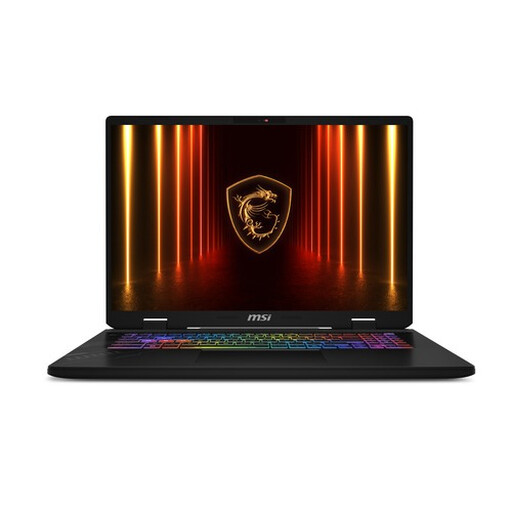
MSI Crosshair 17 HX AI D2XWFKG-071NL, 32 GB, 1 TB
The 17-inch configuration may suit you if screen space at your workspace matters more than a compact size.
The product name lists 32 GB of memory, a 1 TB SSD and a QHD+ screen with 240 Hz. The description states 100% DCI-P3; this alone doesn’t demonstrate Adobe RGB coverage.
View at Joybuy
 No image available
ASUS ProArt P16 H7607BA-SE181X, 128 GB, 1 TB
This 16-inch configuration is most worth comparing if you also have tasks beyond book layout that need its generous memory capacity.
The product name lists 128 GB of RAM and a 1 TB SSD. The description mentions a 4K OLED screen and an SD card reader; check that the colour coverage meets the needs of your print work.
View at Joybuy
Frequently asked questions
Is 16 GB of memory enough for my booklet?
It depends on the software and files you use. For InDesign 2025 v20.4 on Windows, Adobe lists 8 GB as the minimum and 16 GB as the recommendation. Also check the requirements of your photo-editing software and the exact versions you want to install.
How do I transfer a layout project with large linked images?
If you use InDesign, its package feature can gather the document, linked artwork and required fonts for transfer. Check the package before deleting your source files; it isn’t a substitute for a backup. Adobe describes this process for InDesign projects.
What are my rights when buying a laptop online?
For many distance purchases from a business in the Netherlands, consumers have a 14-day cooling-off period; check the terms and any exceptions that apply to your purchase. You also have statutory warranty rights, although the Netherlands has no fixed general time limit. The Dutch Government says that the retailer is your point of contact if a product is faulty.
Can I publish archive photos and recognisable people in the booklet without permission?
Don’t assume that owning a scan also gives you permission to publish it. According to Auteursrecht.nl, using someone else’s protected work generally requires permission in advance, unless an applicable exception or licence covers the use. If you publish other people’s personal data online, privacy rules also apply; the Dutch Data Protection Authority describes an exception for strictly personal or household use. Whether your specific material and form of publication are permitted depends on the circumstances.


