
Presenter who moves between meeting rooms
Creates slides at a shared desk and wants to show them on an external display, possibly with speaker notes on their own screen. Microsoft Support explains Presenter View for a multi-display setup.


Start with your team’s software and the connections available at the shared workspace. Choose a configuration that explicitly lists the display connections you need. Built-in HDMI can be useful in meeting rooms with HDMI; with a compact MacBook Air, check in advance whether you’ll need a suitable adapter or dock. For long periods of screen work, the workspace setup matters too.
Creates slides at a shared desk and wants to show them on an external display, possibly with speaker notes on their own screen. Microsoft Support explains Presenter View for a multi-display setup.
Works with colleagues on presentations and wants to check first that the team’s software and shared files will work on the laptop. Microsoft Support explains how to collaborate on PowerPoint files stored in OneDrive or SharePoint in Microsoft 365 at the same time.
Works on slides for extended periods and wants to use the laptop as part of a suitable workstation setup. Arboportaal and TNO/CBS’s 2025 Screen Work factsheet provide context on prolonged screen work.
A good fit if: you often present in meeting rooms with HDMI or need business Windows software. ASUS lists HDMI and Thunderbolt 4 with display support for the ExpertBook B5 B5405CVA; Lenovo notes that capabilities vary by processor configuration for the ThinkPad T14 Gen 6 Intel.
Bear in mind: an HDMI port is only useful if it’s compatible with the equipment at your location. Also check the exact configuration and the shared dock.
A good fit if: your team’s software runs on macOS and you regularly carry your laptop between workspaces. Apple specifies two Thunderbolt 4 ports with DisplayPort support for the 13-inch MacBook Air with M5.
Bear in mind: Apple doesn’t list a built-in HDMI port for this configuration, so check in advance whether you can connect to the meeting room display using a suitable adapter or dock.
| What to consider | What should you check? | Who is this most relevant to? |
|---|---|---|
| Connecting to a meeting room display | Compare the display’s input with the ports on the exact laptop configuration, and check whether you’ll need a dock or adapter. Microsoft Support explains Presenter View for a multi-display setup. | When I present in different meeting rooms, I want to know in advance whether I can connect my laptop to the display available there. Around 36% of consumers prioritise connecting to the meeting room display. |
| Collaborating on slides | Check that the operating system meets the relevant software requirements and that your team shares files using OneDrive or SharePoint. Microsoft Support explains how to edit PowerPoint files at the same time when they’re stored on those services. | When I work on a presentation with colleagues at the same time, I want the team’s software and shared files to work on my laptop. Around 29% of consumers prioritise collaboration and compatible software. |
| Workspace for prolonged use | Ask whether the shared desk has a separate display or keyboard. Arboportaal sets out requirements for employees who work at a screen for more than 2 hours a day, including the ability to use a separate display or keyboard. | When I spend a long time working on slides every day, I want to be able to use my laptop as part of a suitable workstation setup. Around 21% of consumers prioritise their workspace setup. |
| Moving between desks | Balance the size of the built-in display against how portable you need your laptop to be, and check which connection you’ll need at meeting locations. According to Apple, the 13-inch MacBook Air M5 has a 13.6-inch display and two Thunderbolt 4 ports with DisplayPort support. | When I carry my laptop around often, I want a size that suits my work without being caught out by different connections in each meeting room. Around 14% of consumers prioritise easy portability. |
A USB-C connection alone doesn’t tell you whether the laptop can send a picture to the meeting room display. Apple says the MacBook Air M5 supports DisplayPort via Thunderbolt 4, but it doesn’t have a built-in HDMI port.
Make a note of the meeting room display’s input and check the display capabilities of the laptop port, cable and any adapter you might need.
Depending on the equipment available, you may need a suitable video adapter or dock.
A laptop that’s easy to carry isn’t automatically the right setup for prolonged screen work. Arboportaal sets out requirements for employees who work at a screen for more than 2 hours a day, including the ability to use a separate display or keyboard.
Before choosing a screen size and connections, ask what facilities are available at the shared desks.
Microsoft 365 system requirements tell you what the client software needs; they don’t show how a specific combination of slides, browser tabs and meeting apps will perform.
Check the requirements for your team’s software version, then compare them with the configuration you need for your everyday tasks.
The ExpertBook B5 B5405CVA is a business Windows option to compare if connections to external displays are important.
The ThinkPad T14 Gen 6 Intel is a business 14-inch Windows laptop where the exact configuration matters.
The 13-inch MacBook Air with M5 is a macOS option to compare if your team’s software can be used on macOS.
The EliteBook 8 G1i 14 is a business range to compare if service terms are important.
This selection includes Windows and macOS laptops for presentations on external displays. For each configuration, check that the connections are suitable for the meeting rooms and shared workspaces where you plan to use it.
 Image unavailable
A 14-inch 2-in-1 for creating slides and presenting on an external display.
14-inch 2K OLED touchscreen and 16 GB RAM.
The product description lists HDMI and USB-C with DisplayPort for an external display.
Charger not included.
 Image unavailable
A 16-inch Windows laptop for those who want a larger built-in display and Windows 11 Pro.
64 GB RAM and 2 TB SSD storage.
3K OLED touchscreen with 120 Hz and QWERTY keyboard.
Windows 11 Pro.
 Image unavailable
A macOS option with a larger built-in display for creating slides and connecting to external displays.
15.3-inch display, 16 GB memory and 512 GB SSD storage.
The product description lists two Thunderbolt 4 ports and support for up to two external displays.
 Image unavailable
A 14-inch macOS laptop with HDMI for presenting on a display with a compatible HDMI input.
24 GB memory and 1 TB SSD storage.
The product description lists HDMI, three Thunderbolt 4 ports and support for up to two external displays.
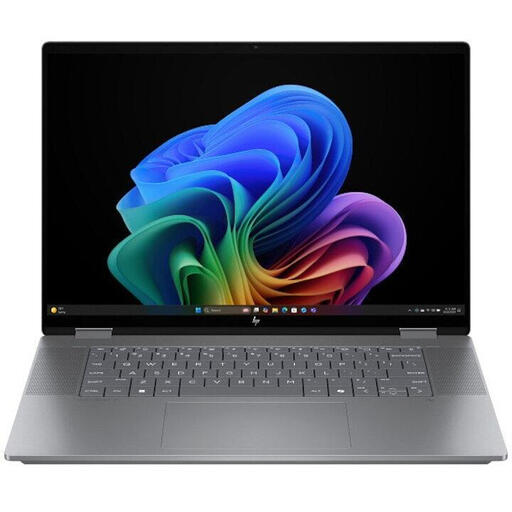 Image unavailable
A 16-inch Windows laptop with a touchscreen for those who want to create slides on the built-in display.
16-inch OLED touchscreen, 24 GB RAM and 1 TB SSD storage.
Windows 11 Home.
Charger sold separately.
Not necessarily: first check your team’s software and work account. Microsoft Support explains how to edit PowerPoint files at the same time when they’re stored in OneDrive or SharePoint in Microsoft 365. The laptop must also meet the relevant software requirements.
Use Presenter View with a suitable two-display setup. Microsoft Support explains how to see your notes on your own screen while the audience sees the slides on another display. Before the meeting, check which display is showing each view.
Not necessarily. According to the Dutch Arboportaal, an employee who works at a screen for more than 2 hours a day must be able to use a separate display or keyboard when working on a laptop. This is conditional information about the workspace, not a general ban on buying laptops.
In the Netherlands, a consumer purchase is covered by the statutory guarantee as well as any commercial warranty. The ACM says the seller must put right, free of charge, a product that breaks sooner than reasonably expected under normal use. So compare paid-for extra cover with the rights and service terms you already have. Consumer rights for a business purchase need to be assessed separately.
According to the ACM, consumers who buy a product online generally have a statutory cooling-off period of up to 14 days after delivery; check the terms and exceptions too. If you’re buying for a business, don’t assume the same consumer rules apply without checking.